Content Studio screens
Find the screen you need, or follow the guided walkthrough. The screenshots use a demo workspace.
Overview and navigation · Author and publish · Documents and access
Overview and navigation
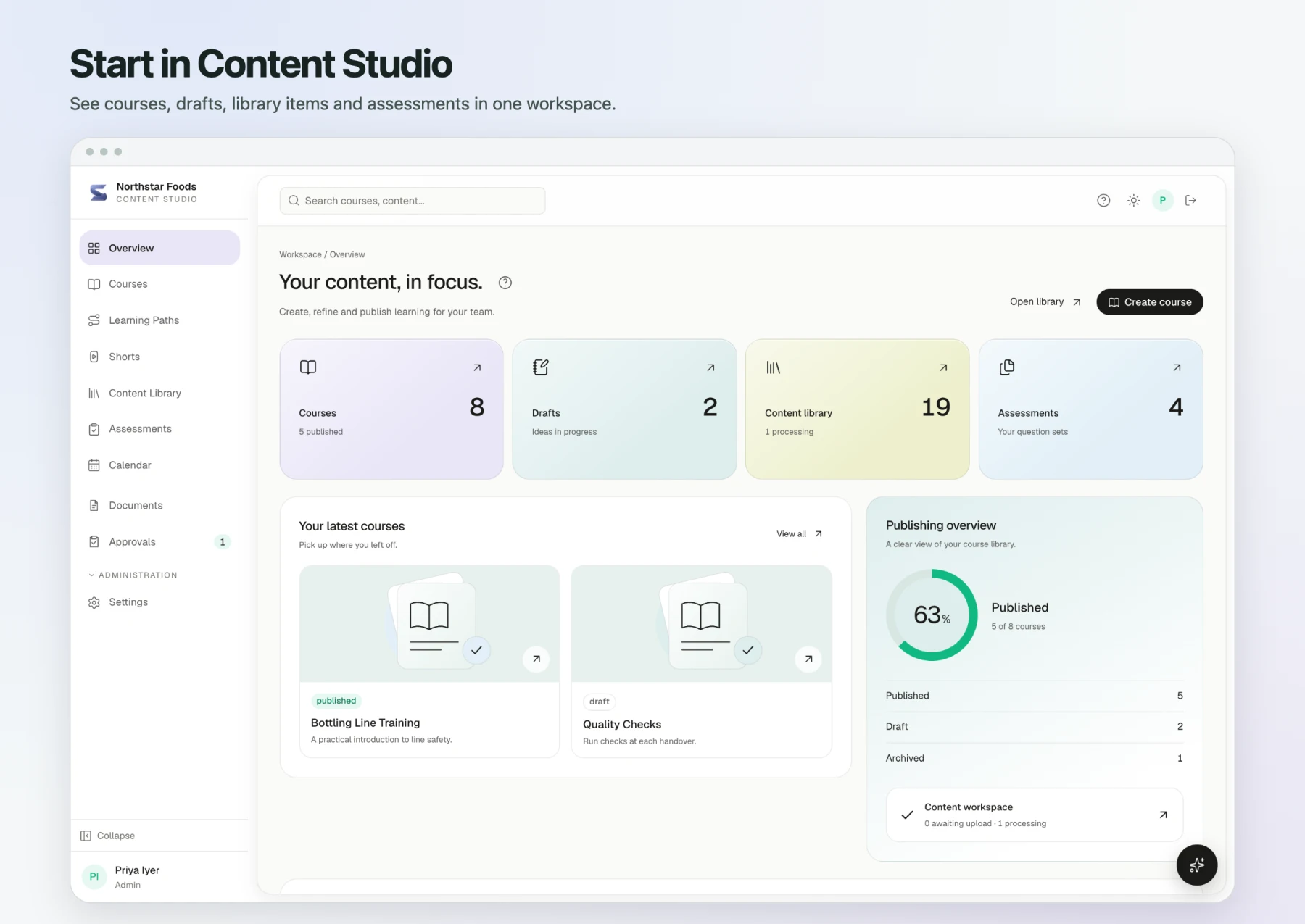
Studio overview
Check drafts, publishing progress, and recent courses.
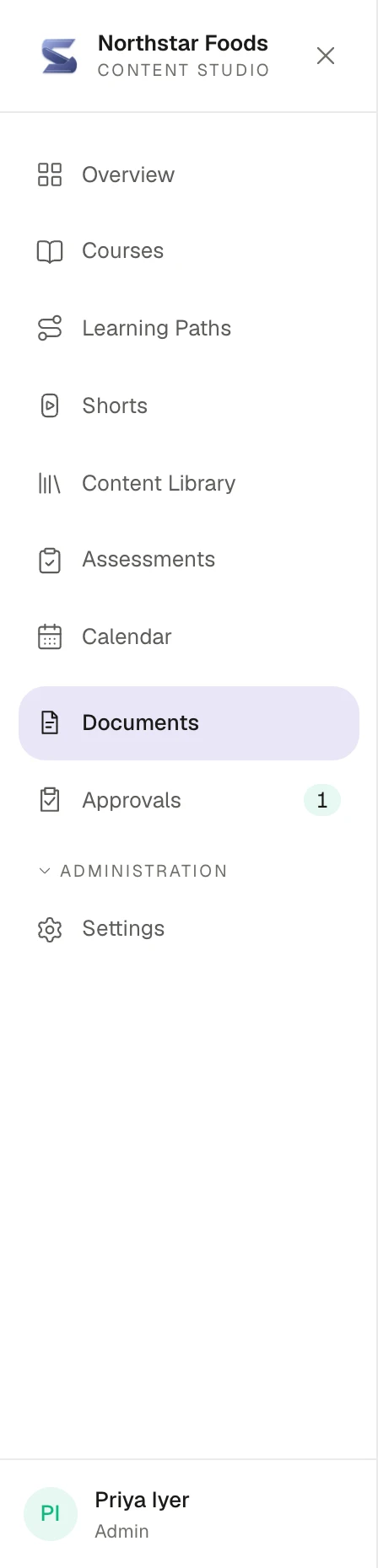
Expanded sidebar
Open authoring tools and the document approval queue.

Collapsed sidebar
Use the icons to move between authoring pages.

Mobile Studio navigation
Open the drawer to reach authoring destinations.
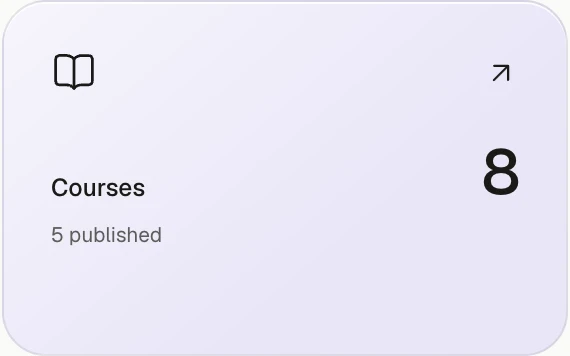
Courses tile
Open the catalogue to find courses in any status.
Drafts tile
Return to courses still in progress.
Content Library tile
Open files and check processing status.
Assessments tile
Open the list of assessment question sets.
Author and publish
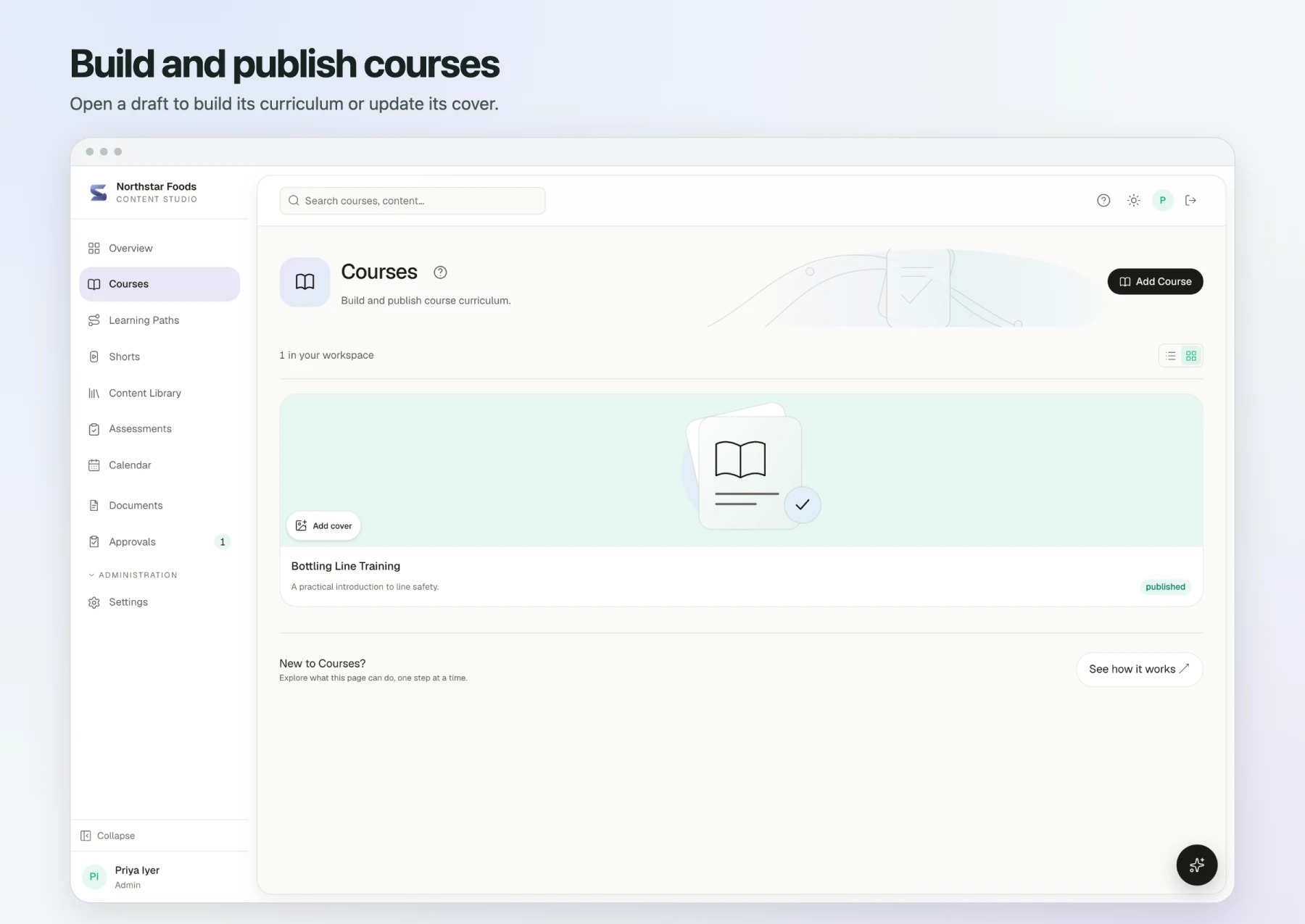
Courses
Find an existing course or start a draft.
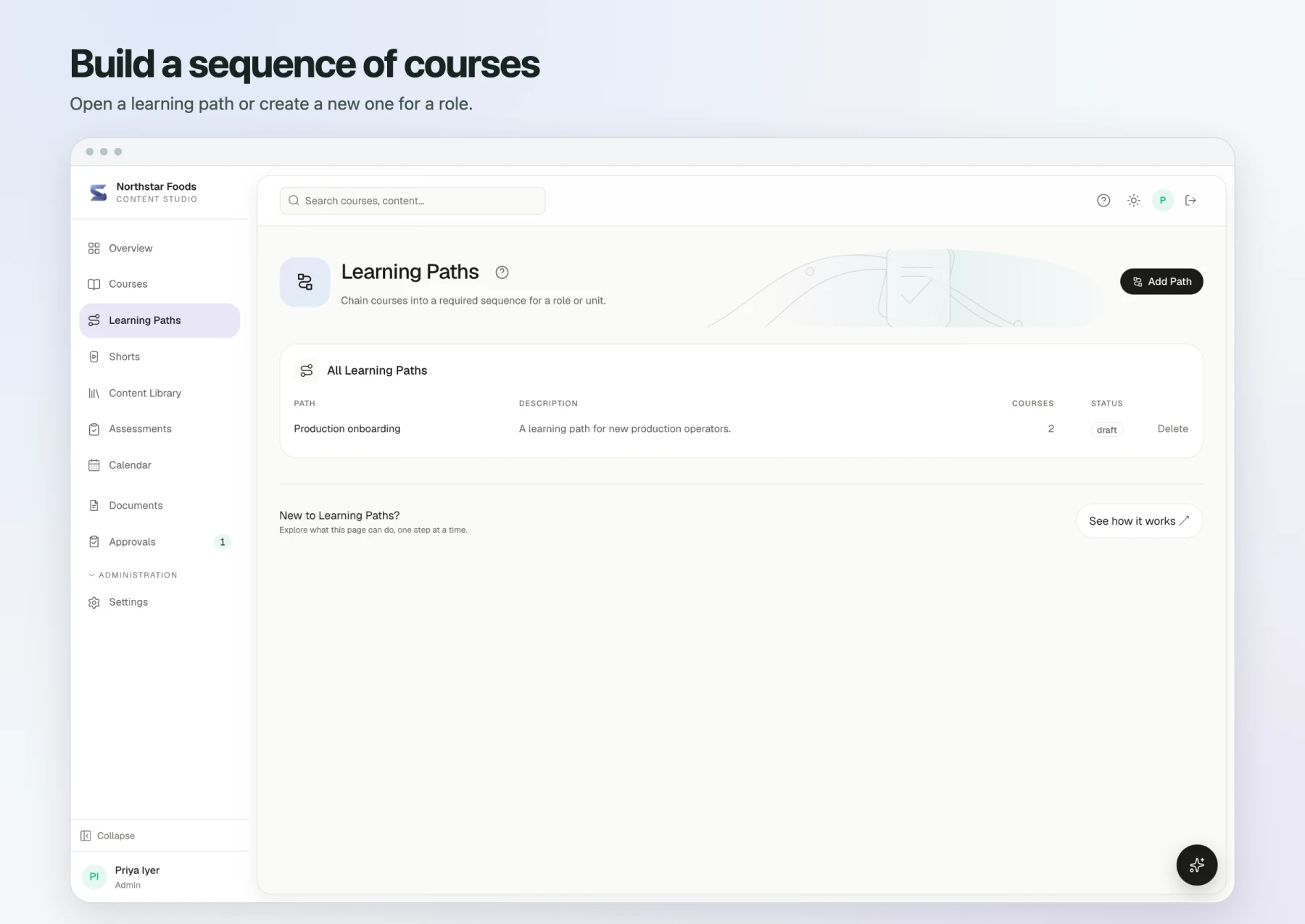
Learning Paths
Create or open a path to organise courses in order.
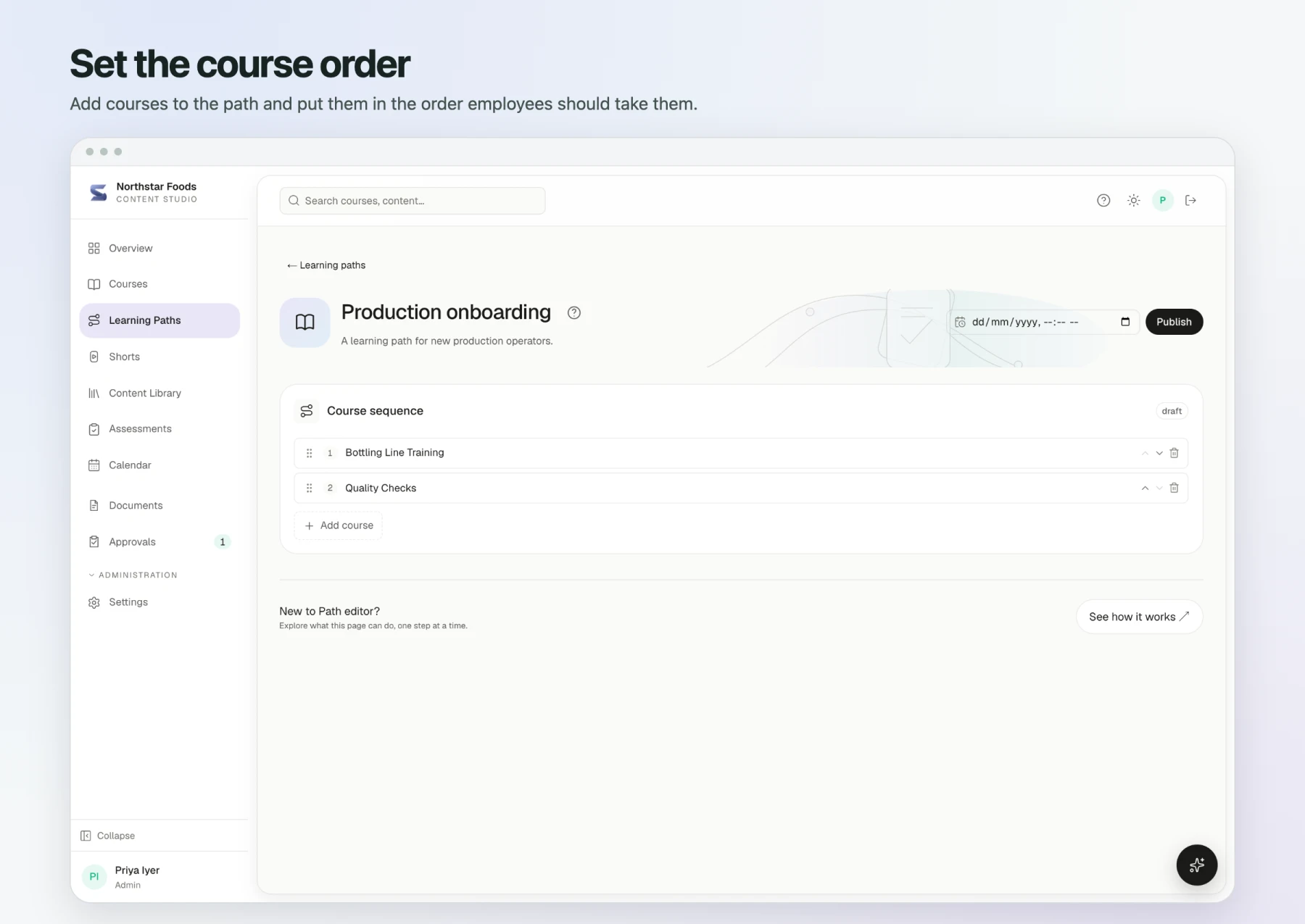
Learning path course order
Review the course sequence before making a path available.
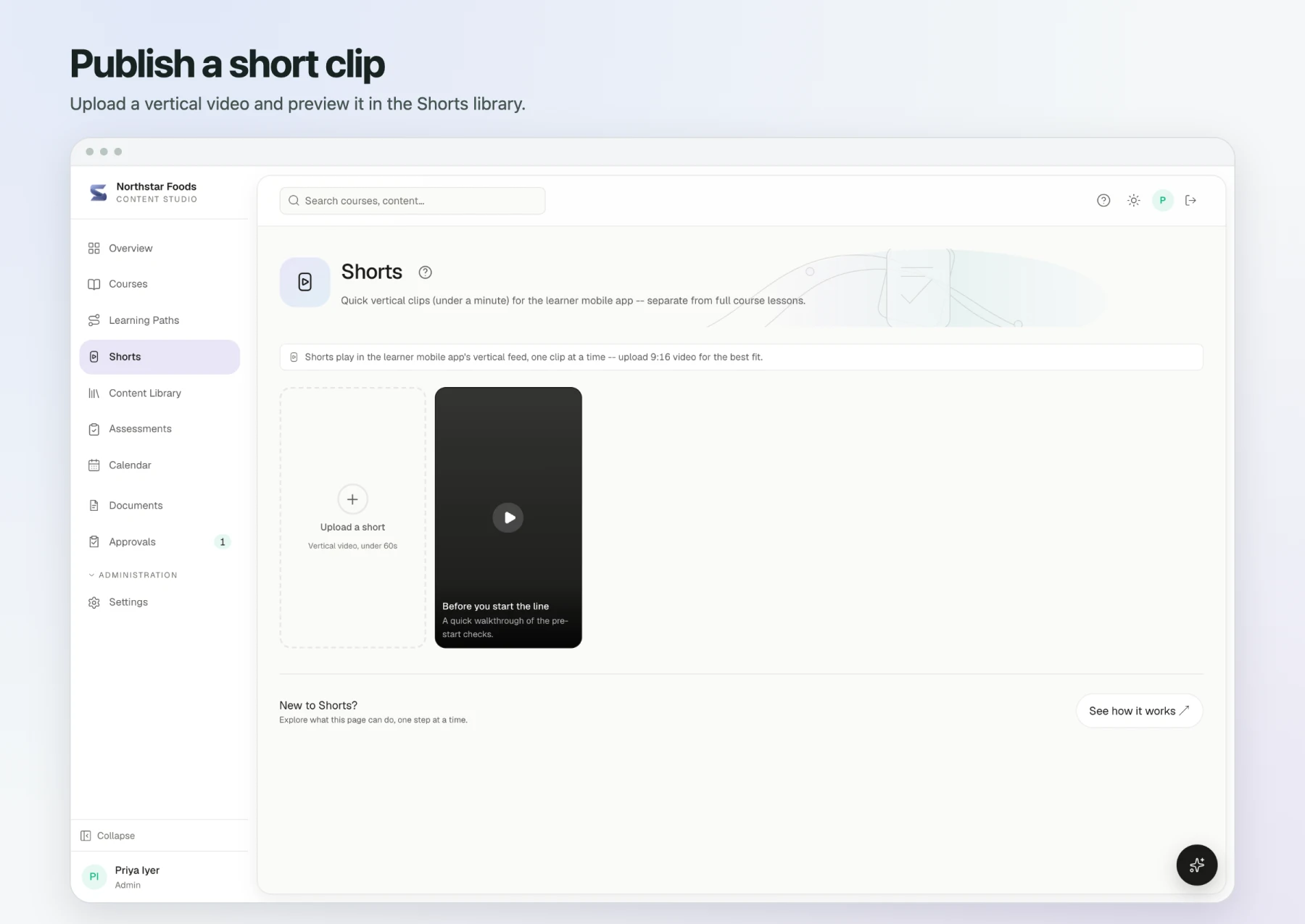
Shorts
Open Shorts to upload a vertical clip and preview it.
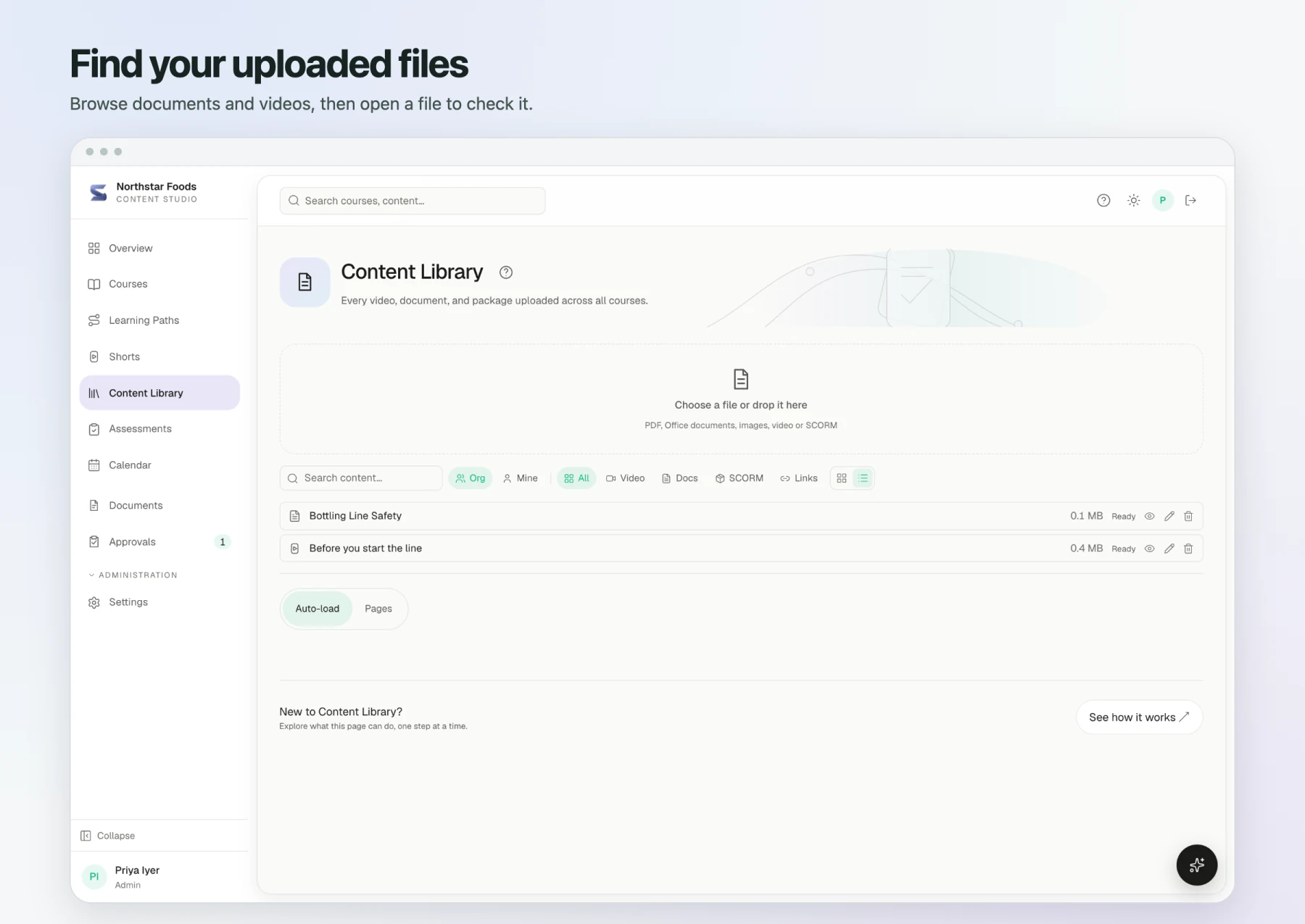
Content Library
Upload assets and check which files are ready to use.
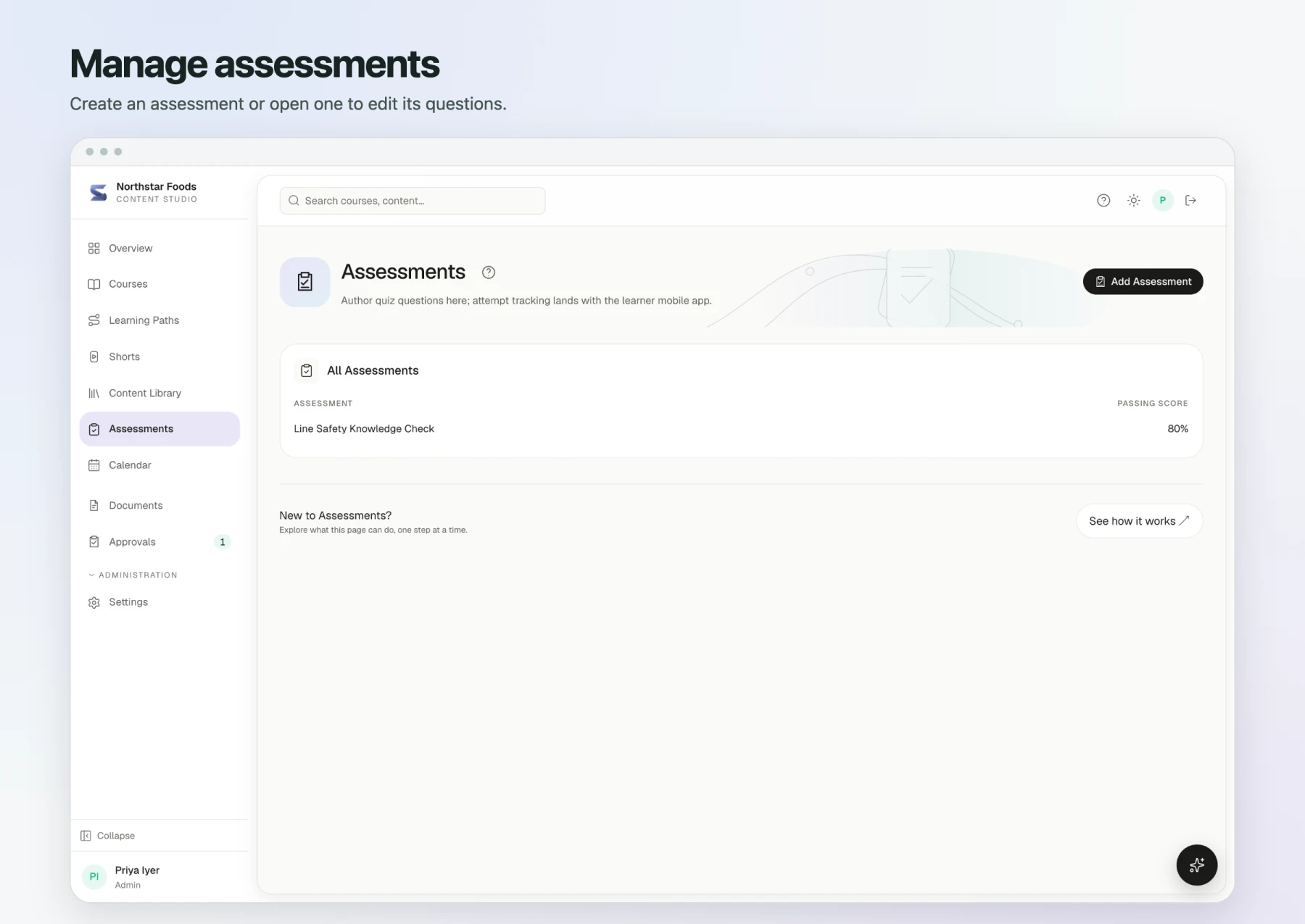
Assessments
Create or open an assessment.
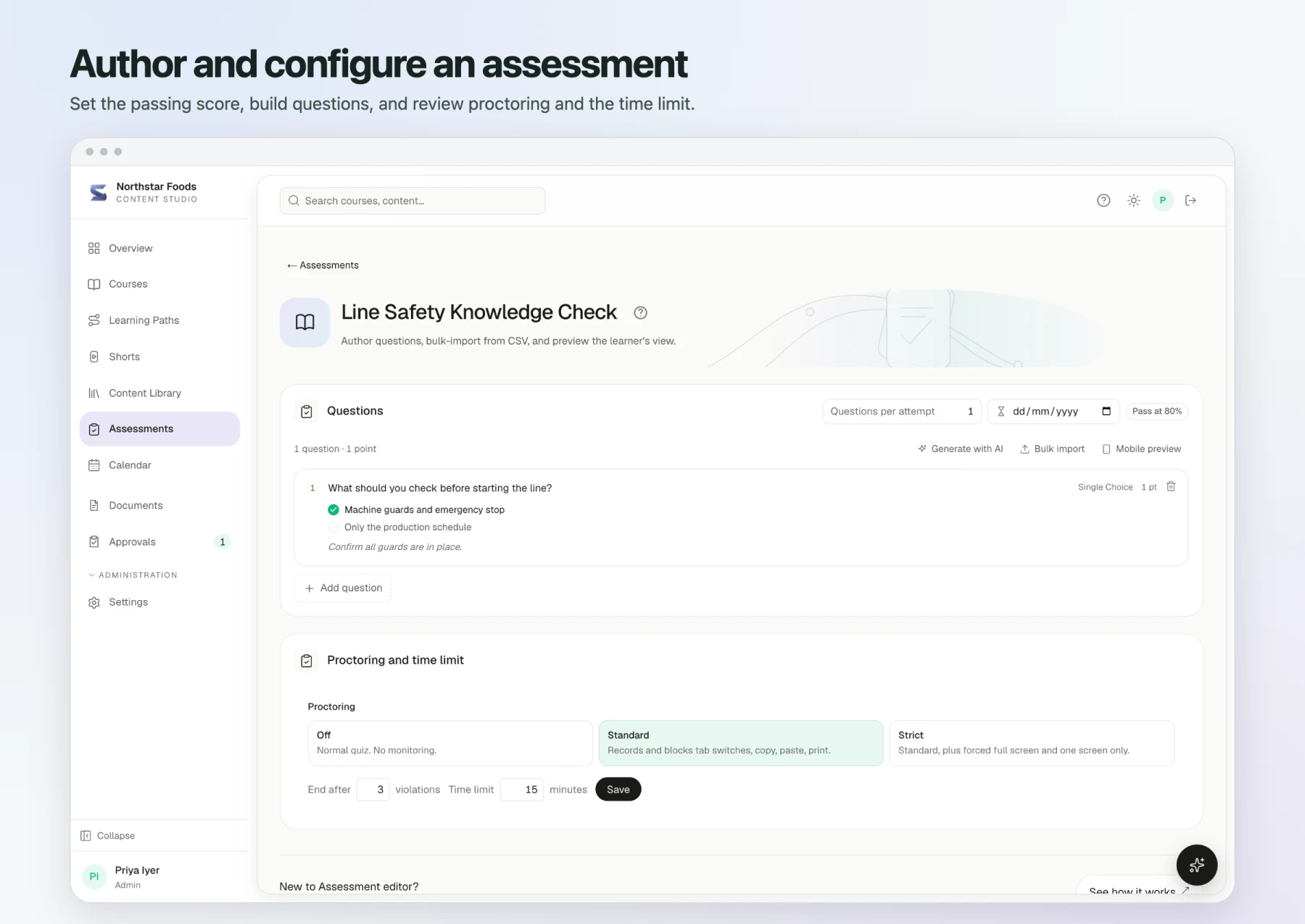
Assessment builder
Write questions and check assessment settings.
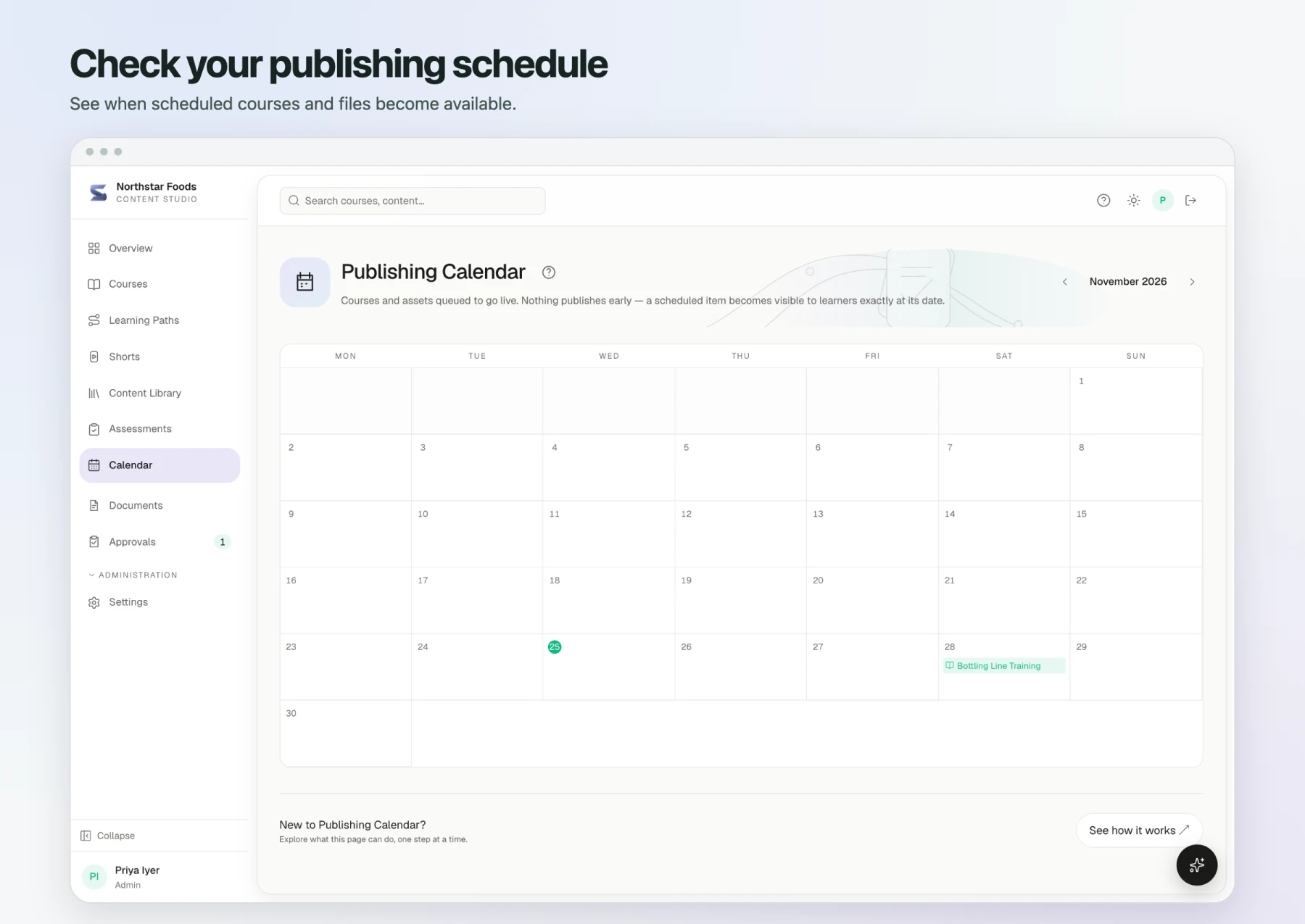
Publishing calendar
Review scheduled releases and expiries.
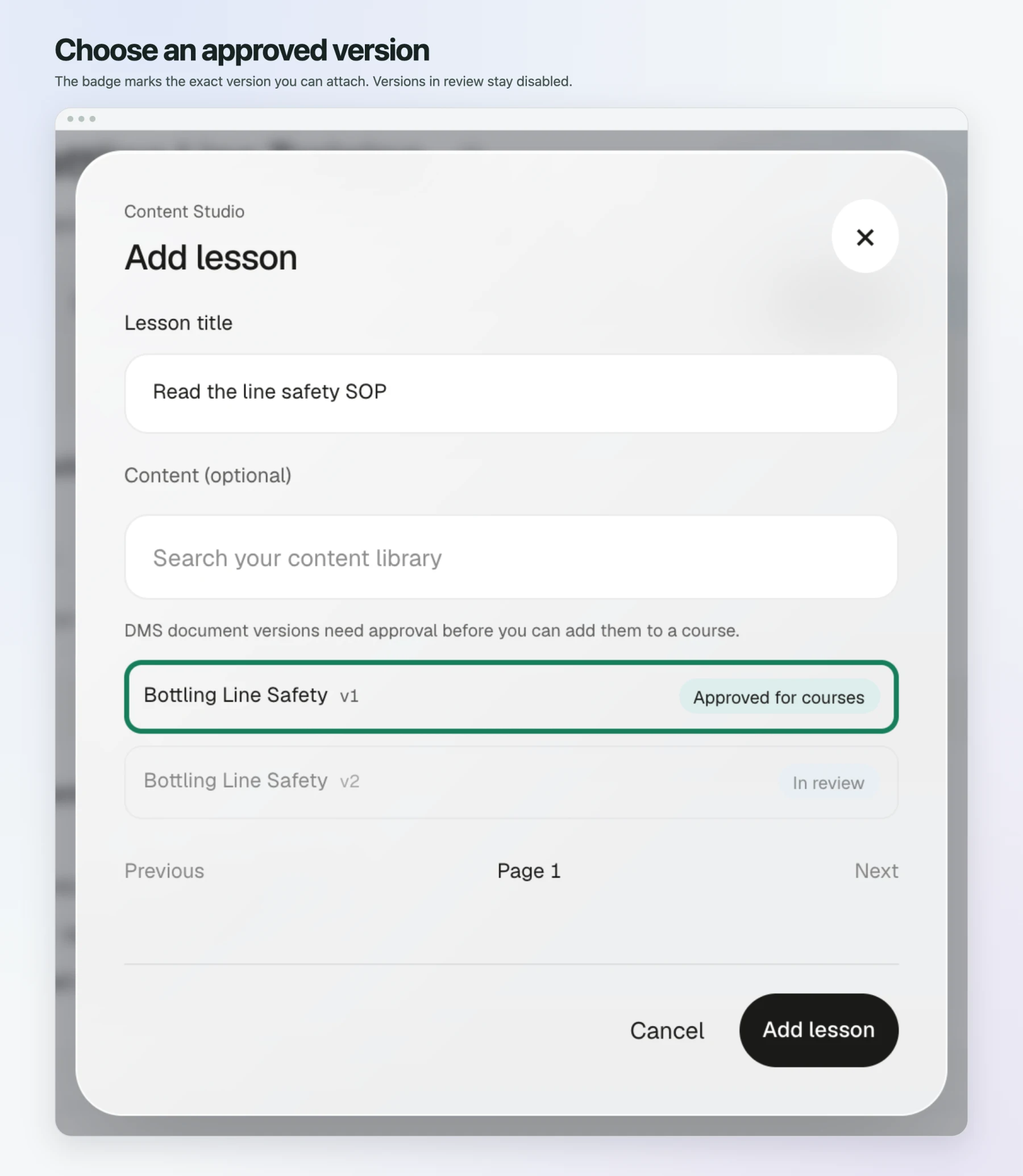
Attach an approved document version
Add the approved version to a lesson from the content picker.
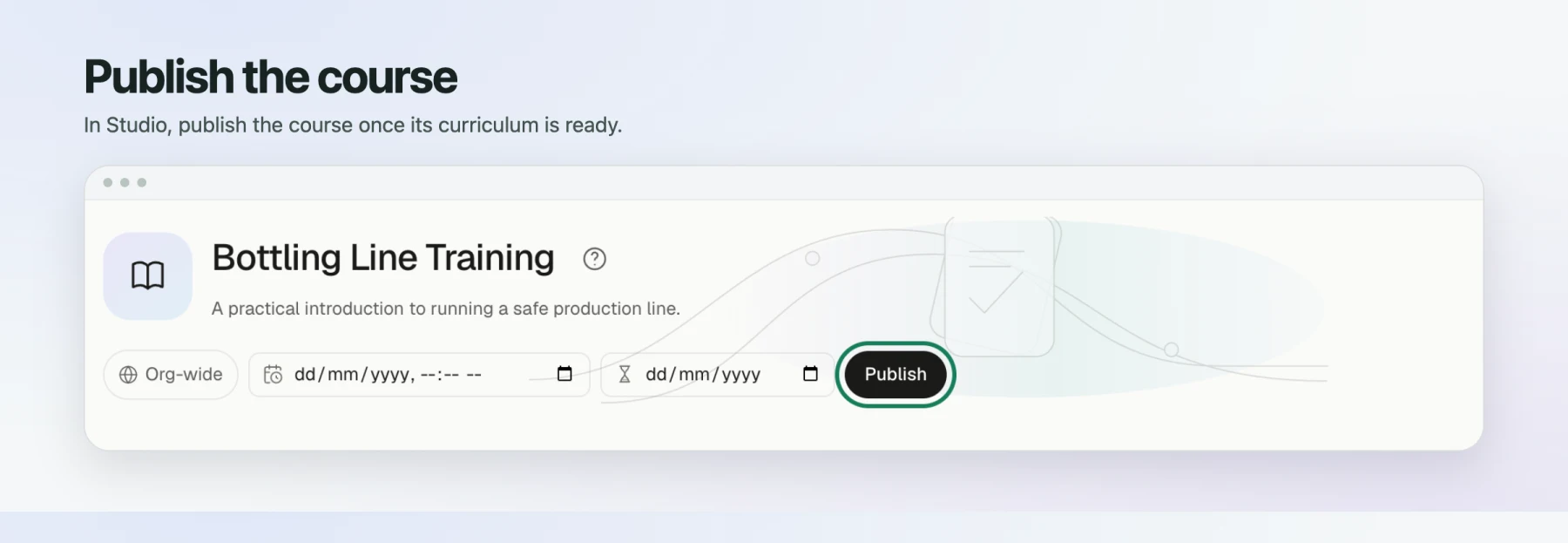
Publish a course
Use Publish when the course is ready for learners.
Documents and access
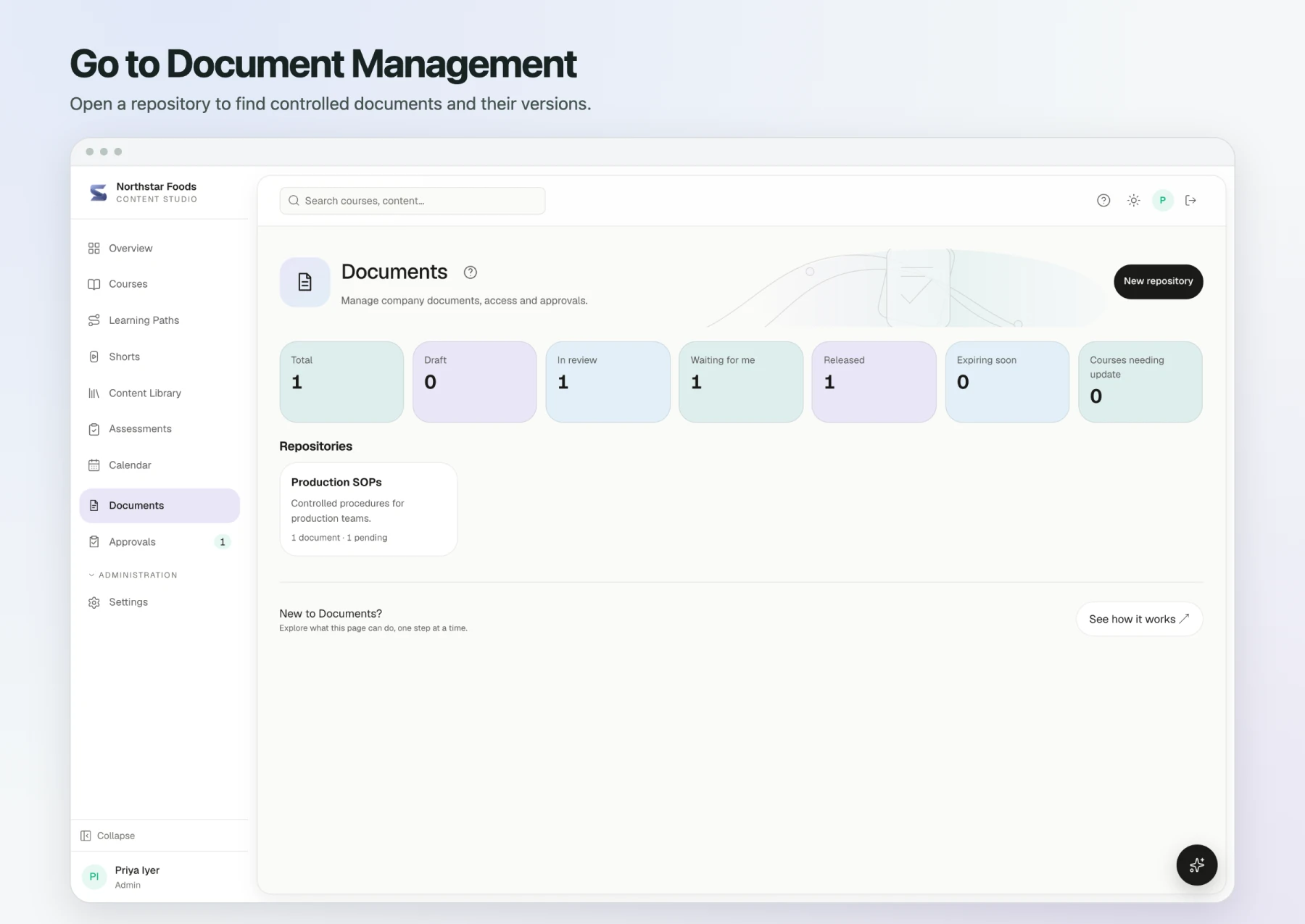
Documents
Check summary counts and choose a repository.
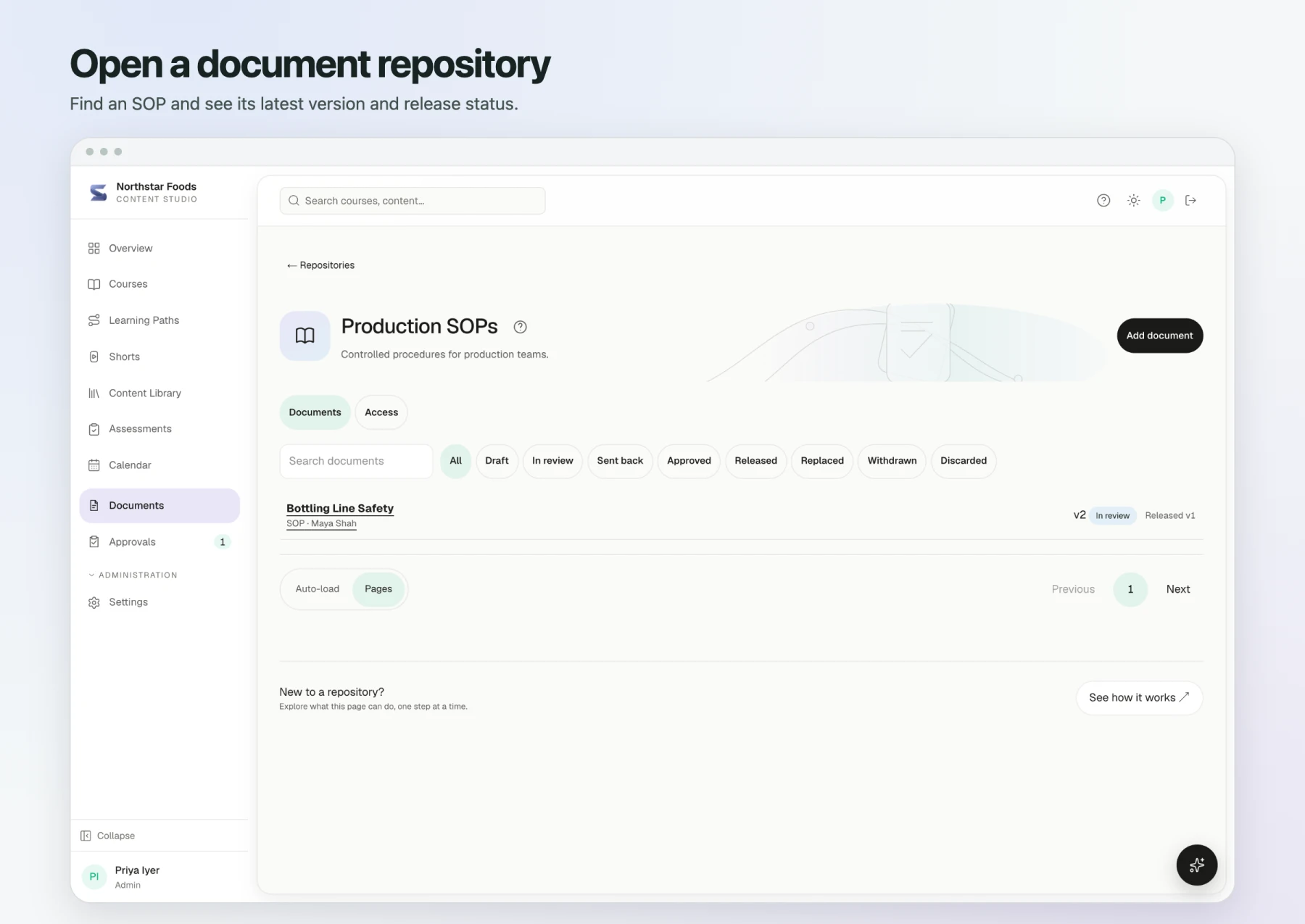
Repository
Open a repository to see its documents and their status.
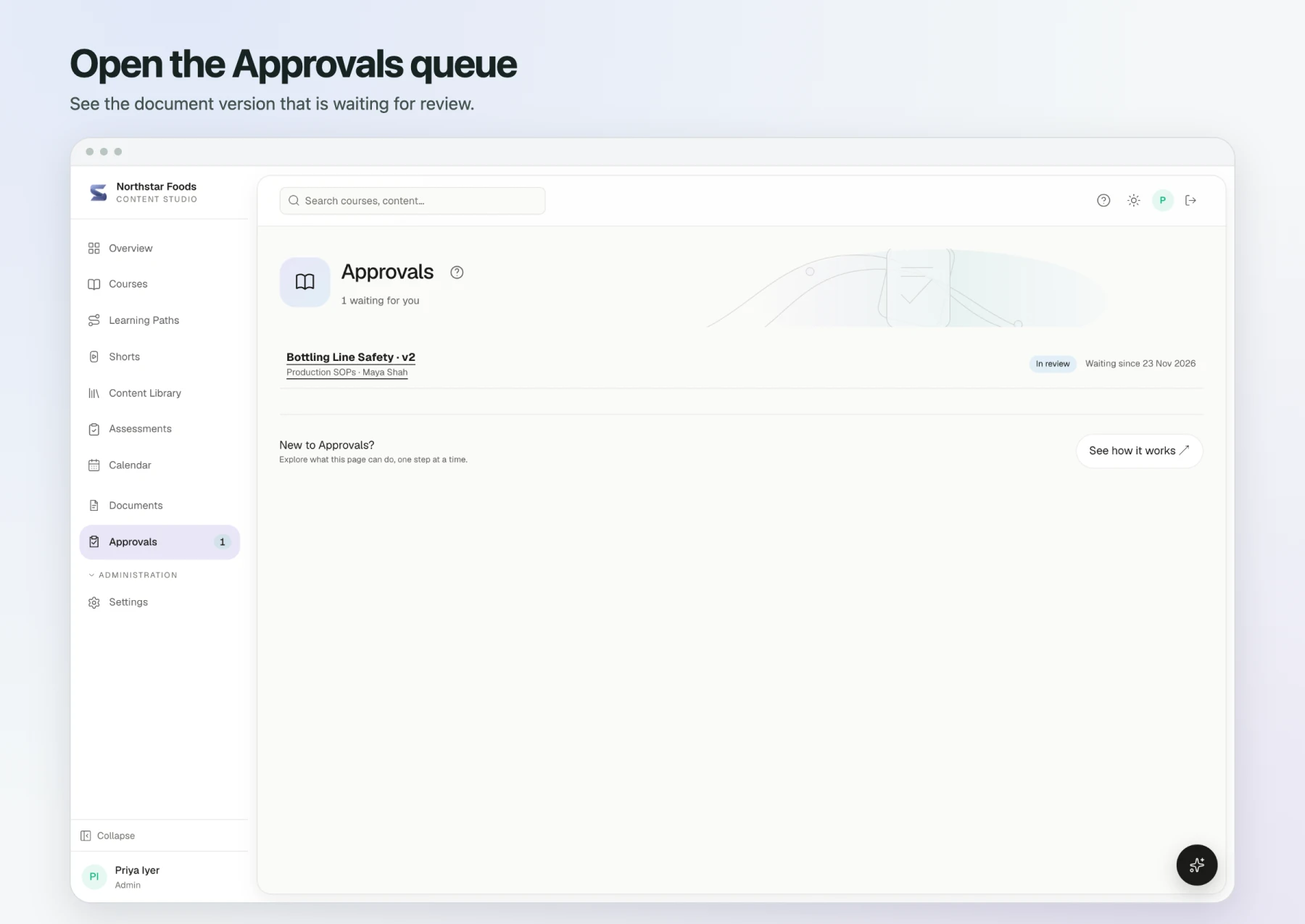
Approvals
Open a version that needs review.
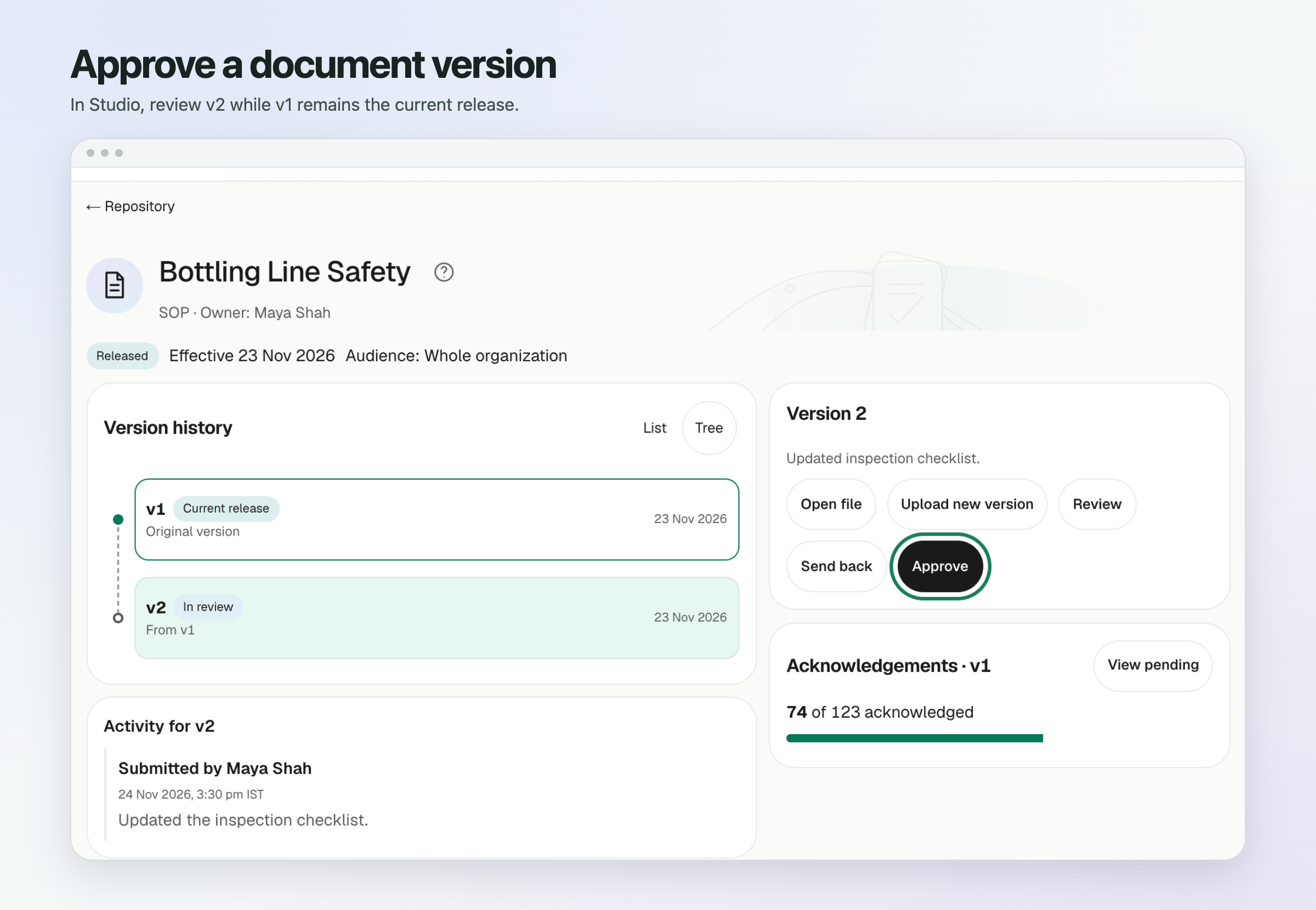
Document detail and version history
Read the selected version and review its activity before approving.
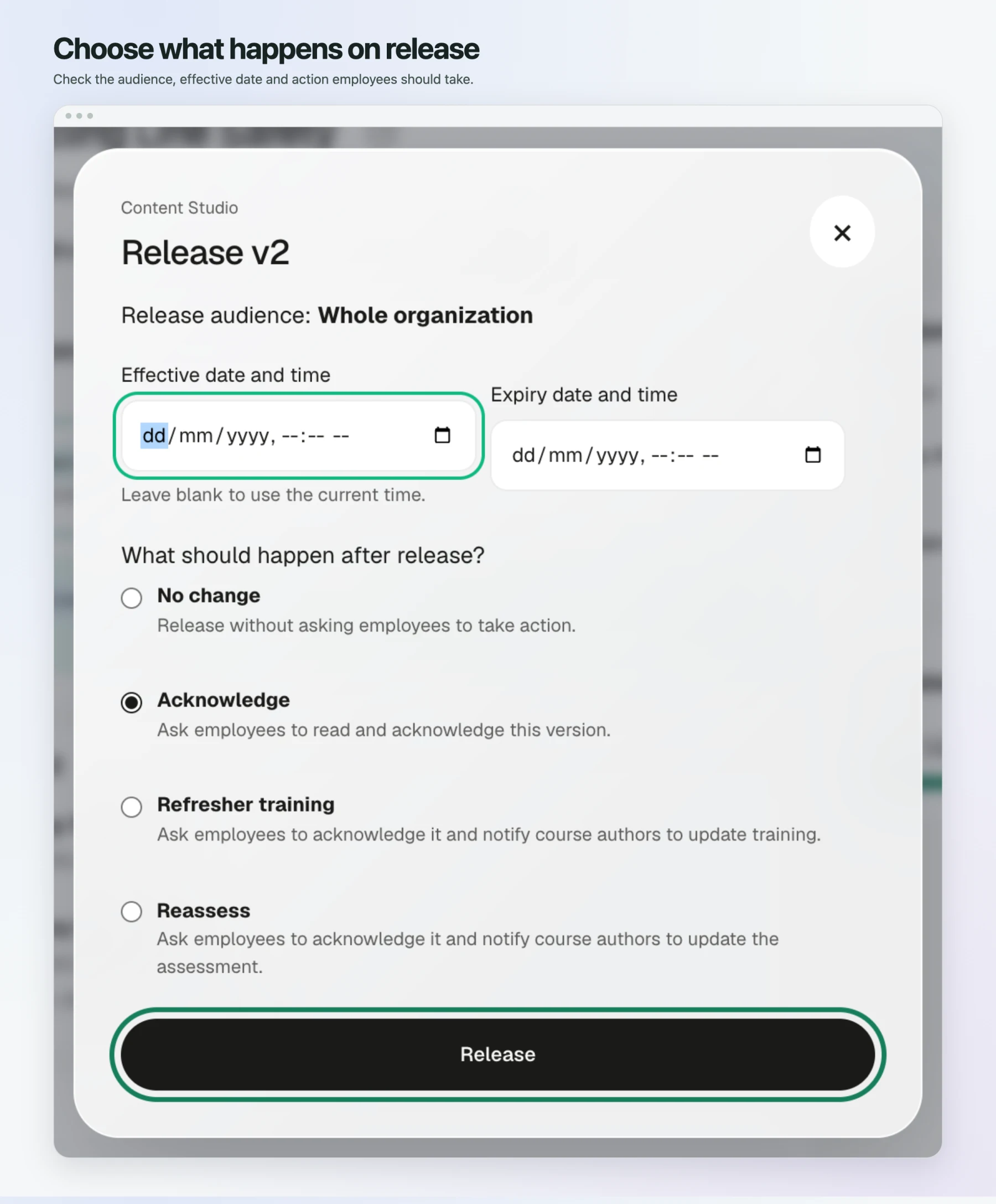
Release options
Choose what learners should do after release.
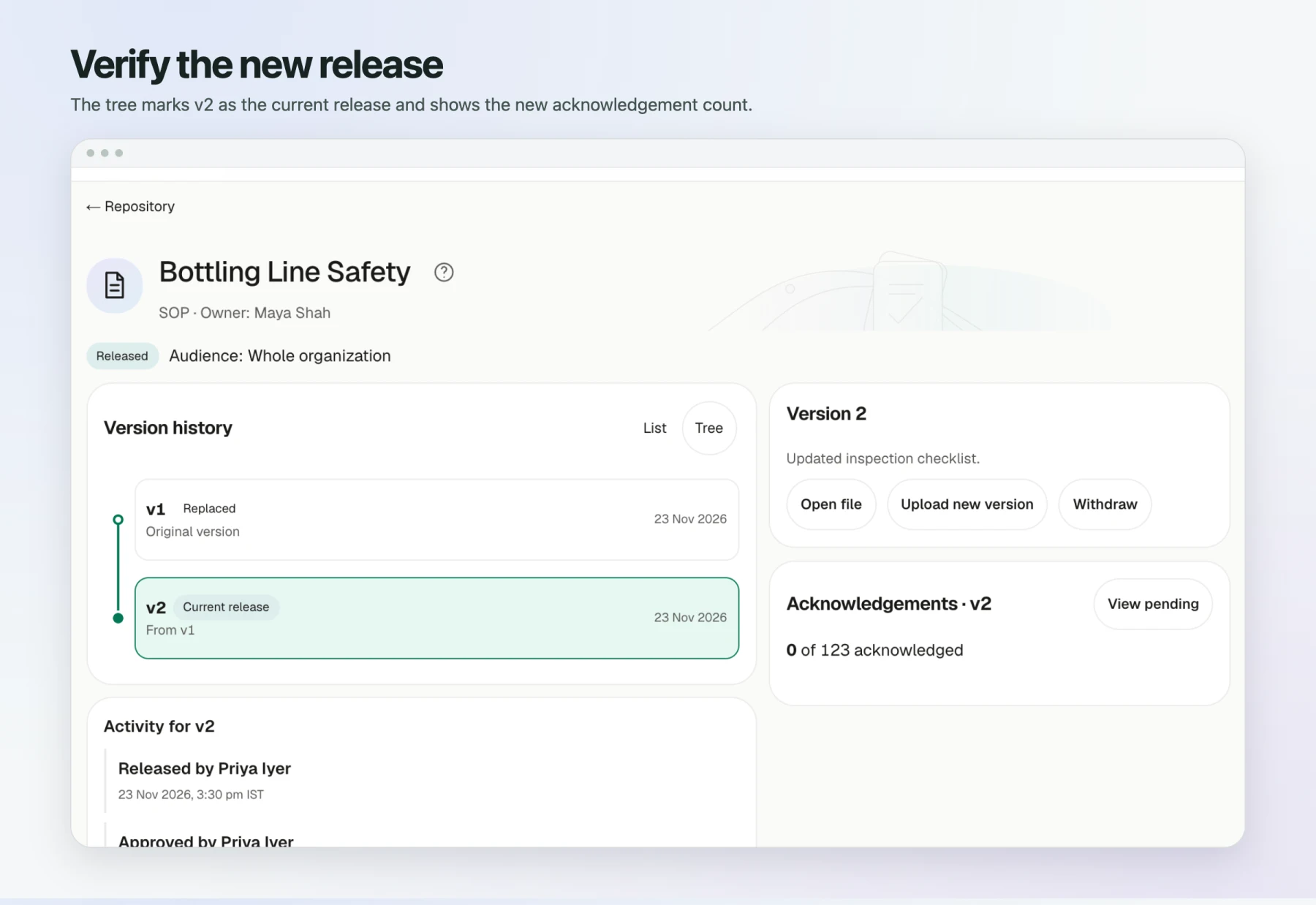
Released version
Check which version is current and its acknowledgement progress.
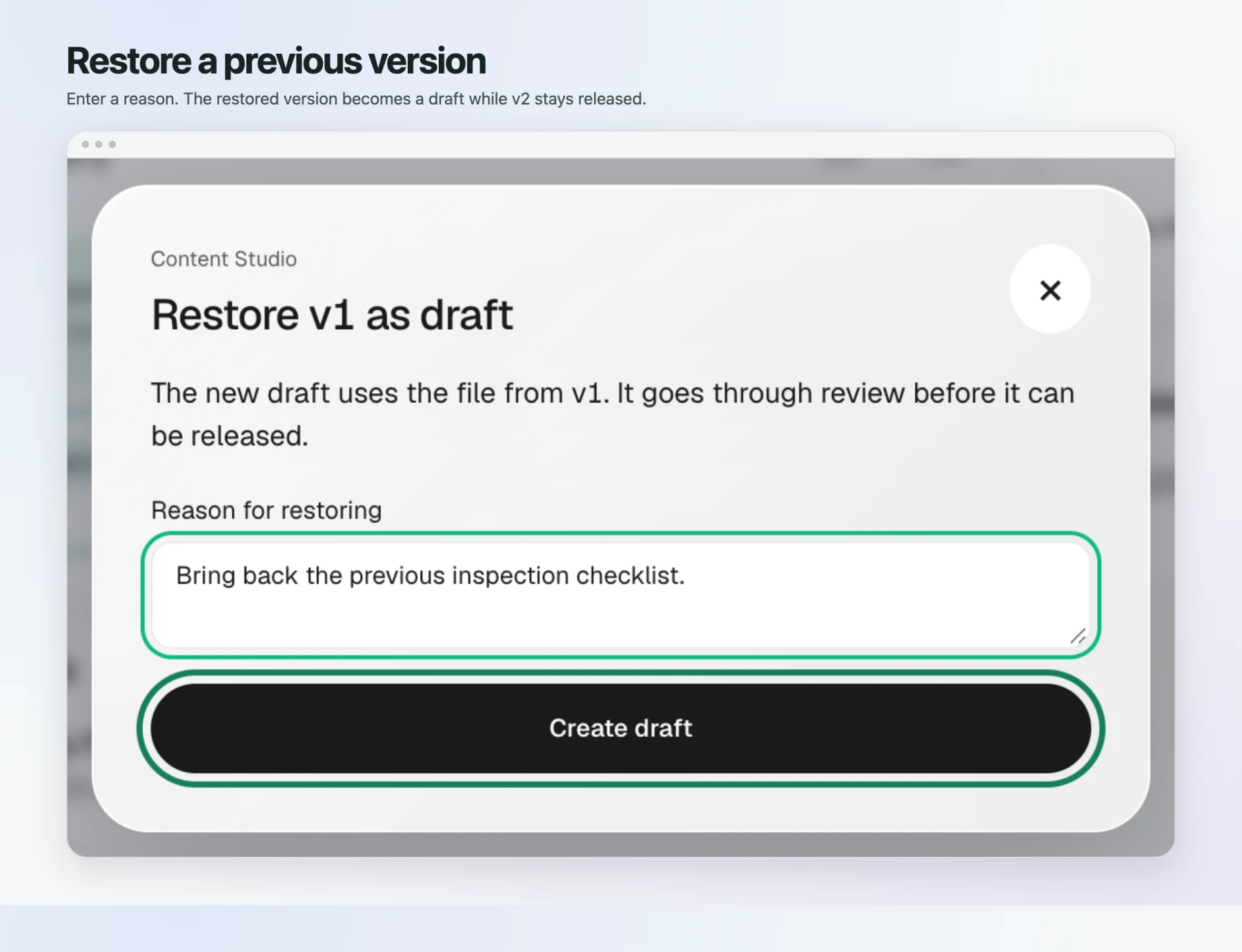
Restore a previous version
Create a draft from an older version in the version history.
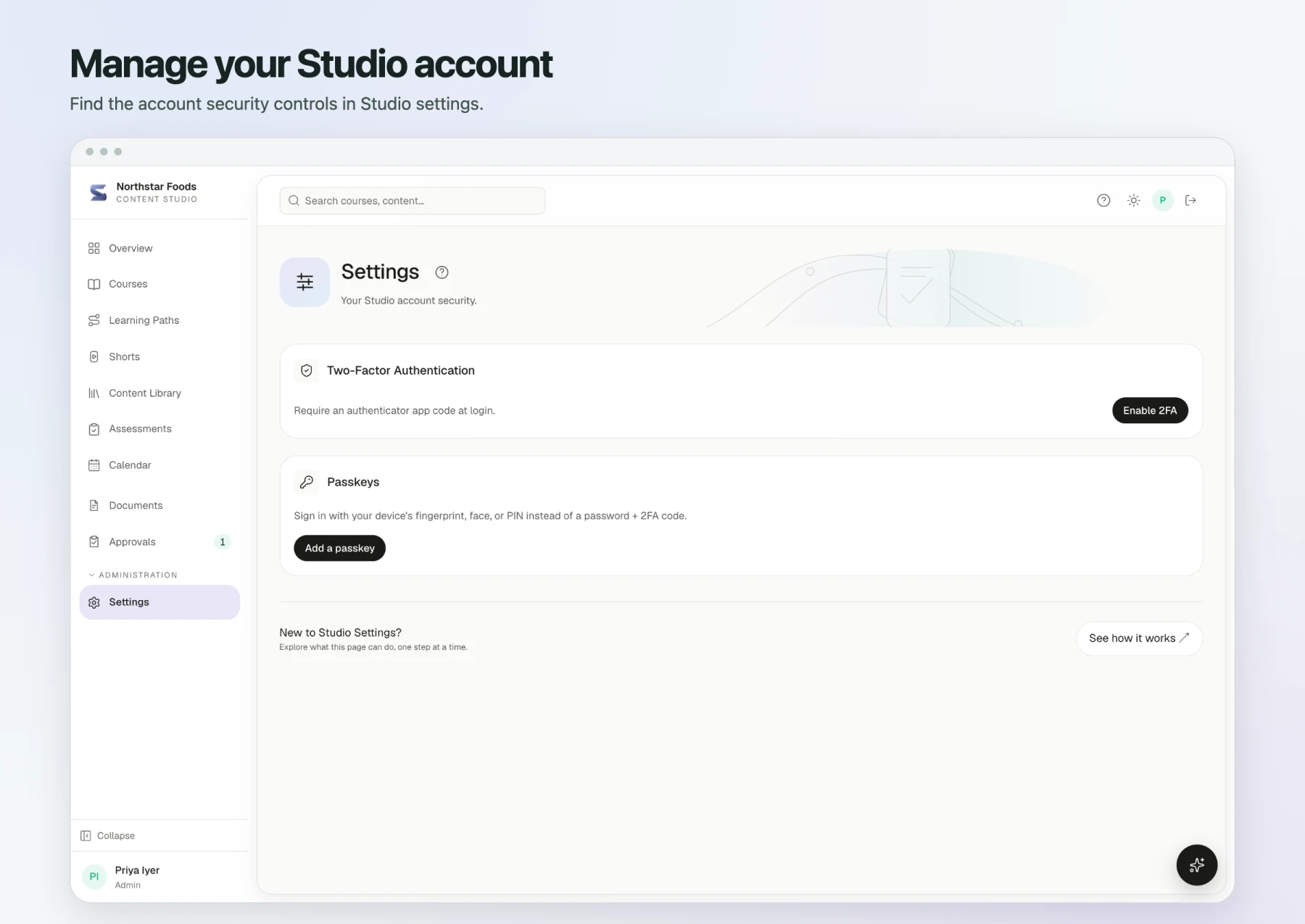
Studio settings
Manage personal security options.
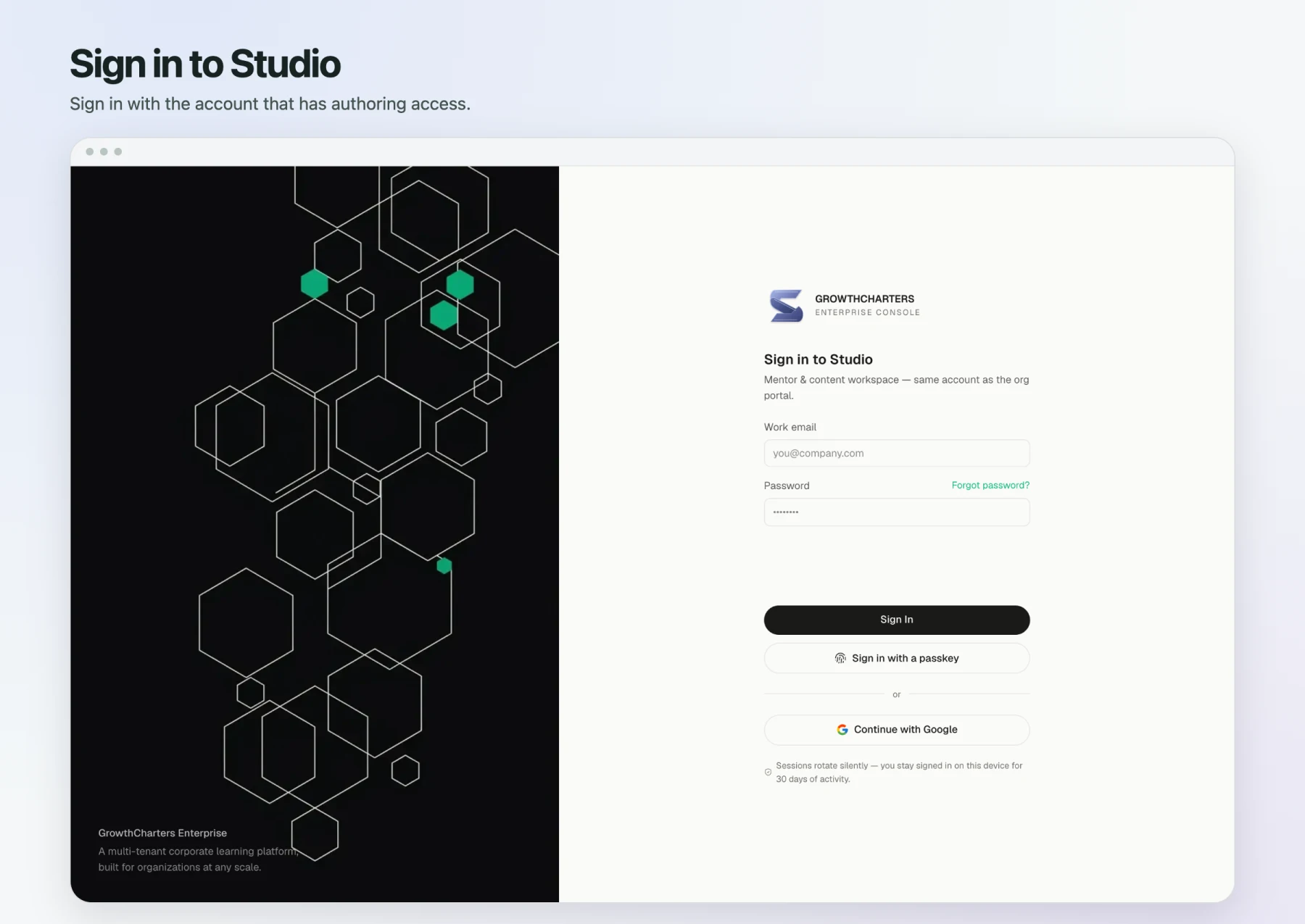
Studio sign-in
Open Studio with your workspace account.