Guided Journey
Set up a workspace, add people, publish training, and follow a document all the way to acknowledgement.
Journey steps
- Talk to the GC team
- Get your workspace and sign in
- Add your logo and organisation name
- Build your organisation units
- Invite one user
- Bulk upload learners
- Check Import History
- Secure sign-in
- Connect company sign-in
- Upload your content
- Create a repository and add a document
- Review and approve a version
- Release it to your people
- Build a course from approved files
- Add a quiz, with proctoring if you need it
- Assign the training
- See what your people see
- Open a course and finish its lessons
- Read and acknowledge a document
- Take a quiz
- Check progress and keep the evidence
- Export learning progress
GC team · Your company
Talk to the GC team
Tell the GC team what you need: which people, which documents and which training. They agree the setup with you and prepare your workspace.
How access works →Corp · Admin
Get your workspace and sign in
Your admin is invited by email, not asked to sign up. Your organisation has a short name that appears in every address, and you sign in once for Corp, Studio and Learn.
Read how sign-in works →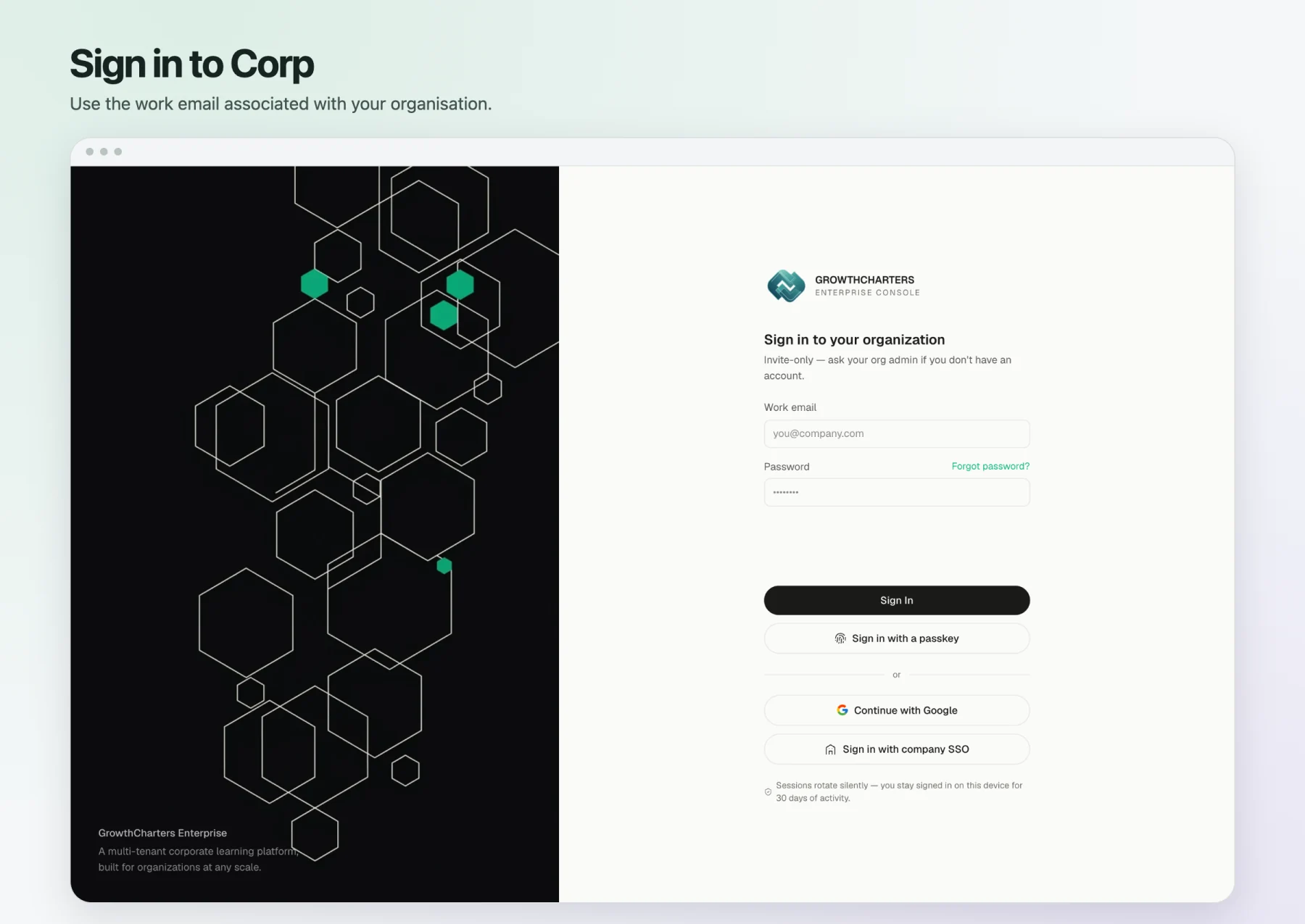
Corp · Admin
Add your logo and organisation name
Open Settings, then Organization Profile. Upload your logo and check the organisation name. Share a short description with the GC team during setup.
Organisation settings →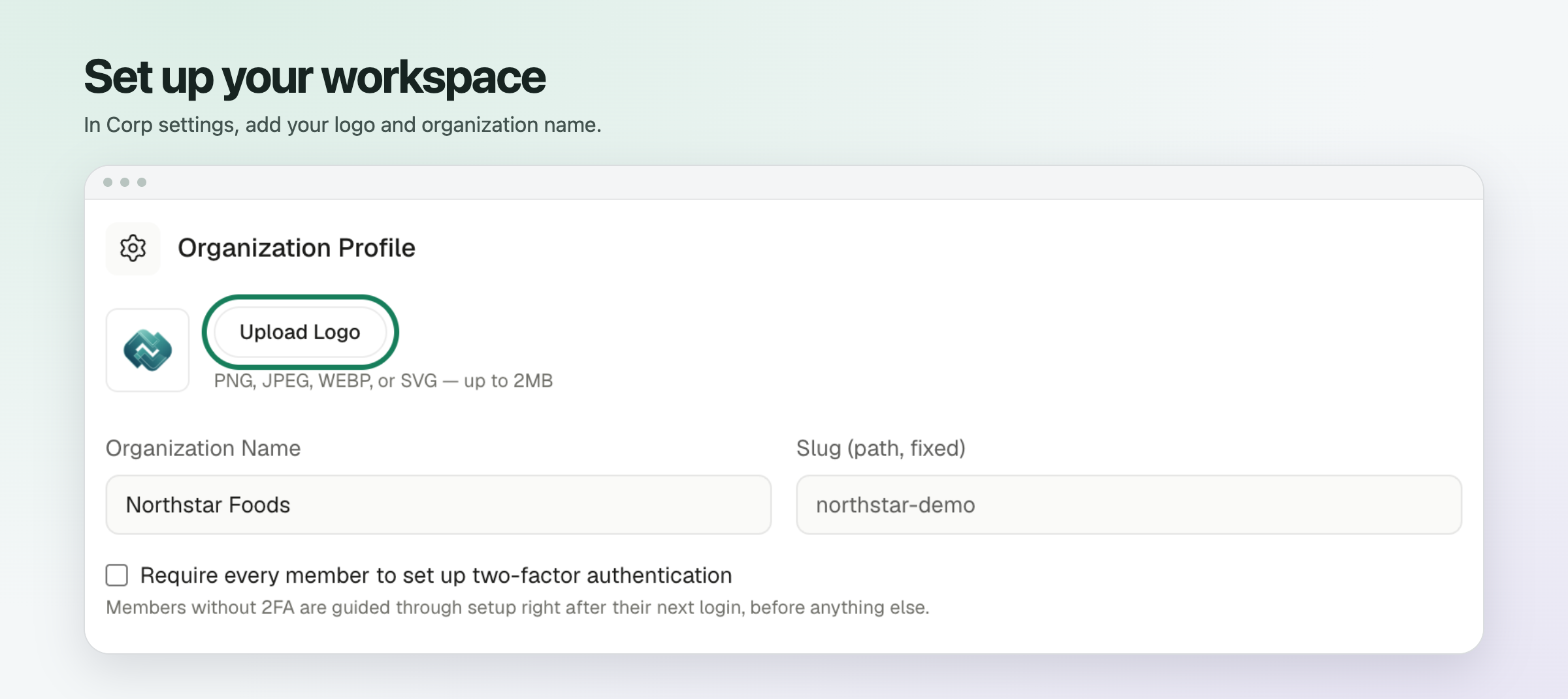
Corp · Admin
Build your organisation units
In Users & Hierarchy, use Add Unit to build the tree. Create units such as regions and plants before placing people in them.
Set up organisation units →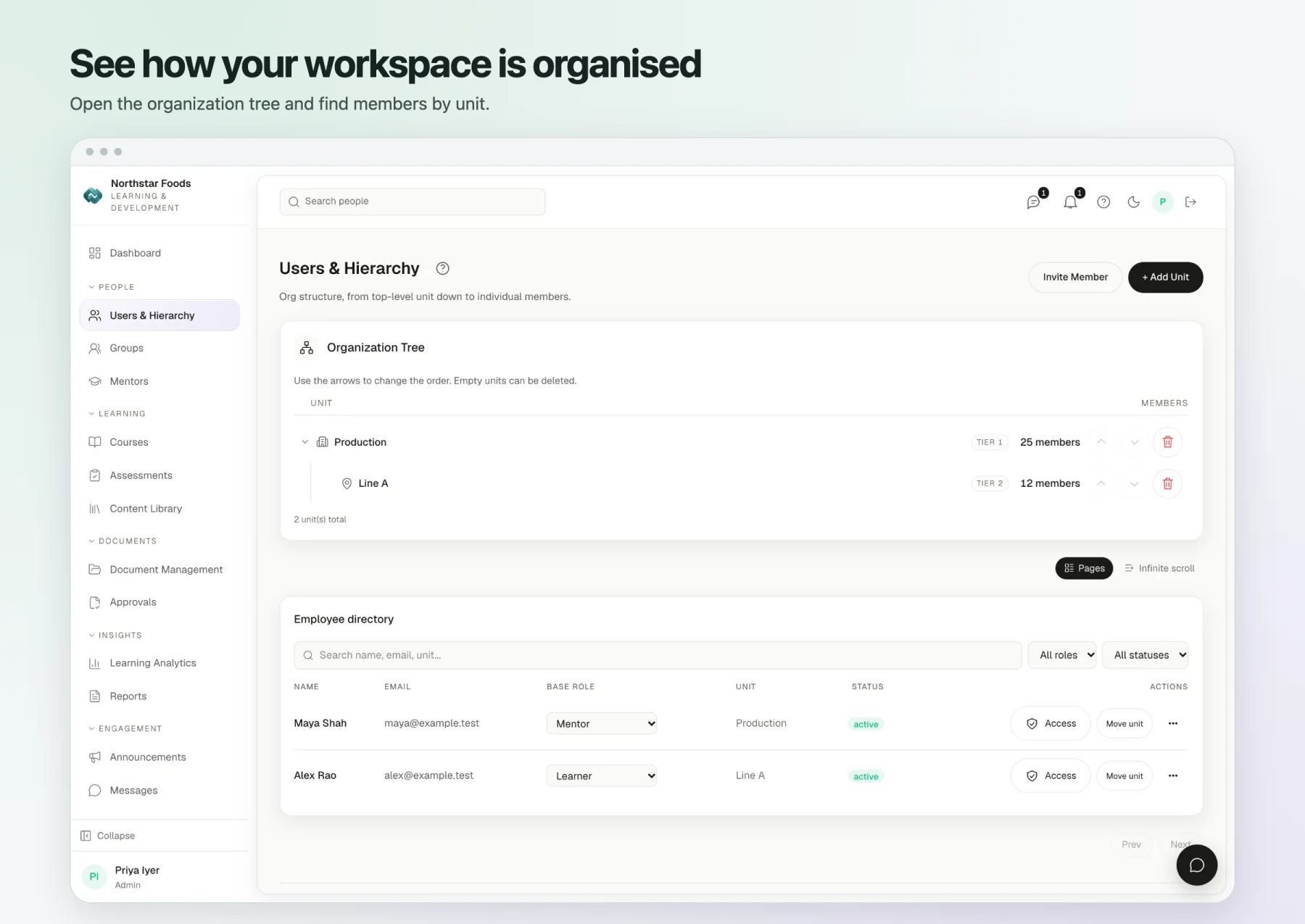
Corp · Admin
Invite one user
Open Users & Hierarchy and select Invite Member. Enter the name and email, choose a role and an optional unit, then select Send invitation.
Invitation instructions →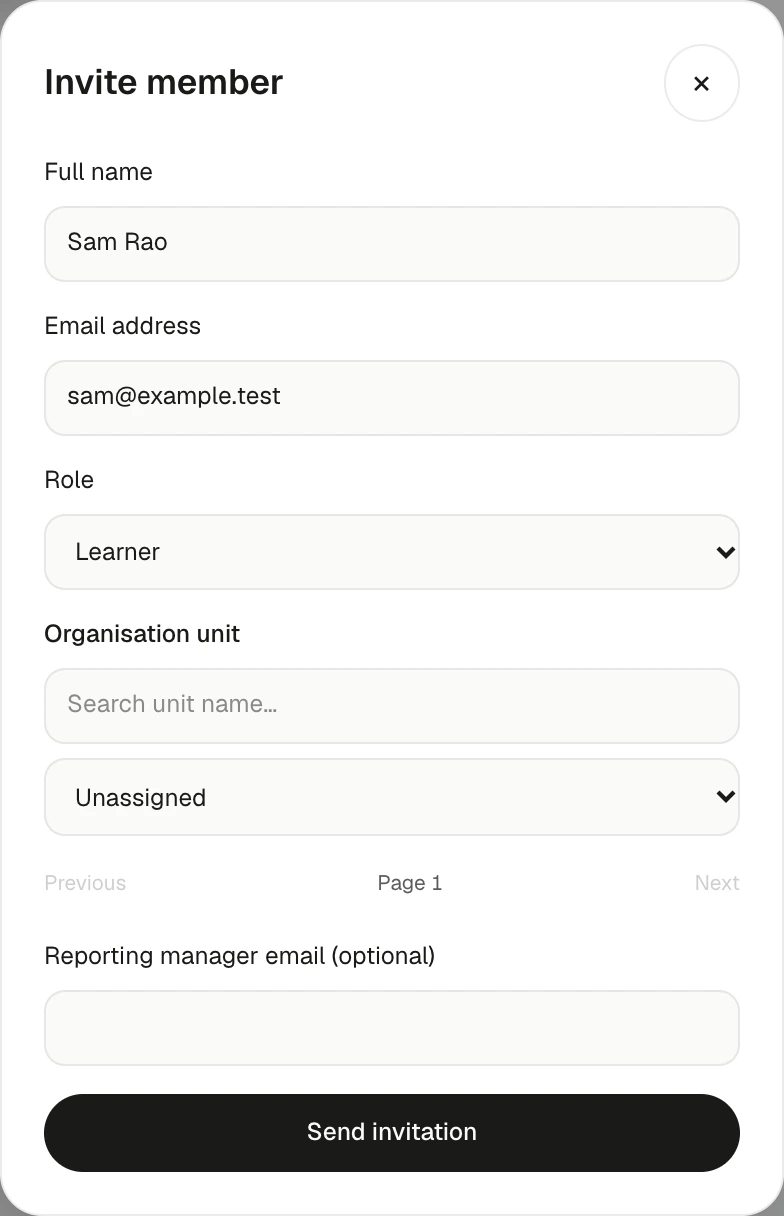
Corp · Admin
Bulk upload learners
Open Administration → Bulk Upload (AI). Upload an Excel or CSV file with Full Name and Email, check the column matches and valid row count, then select Confirm & Import.
Bulk upload instructions →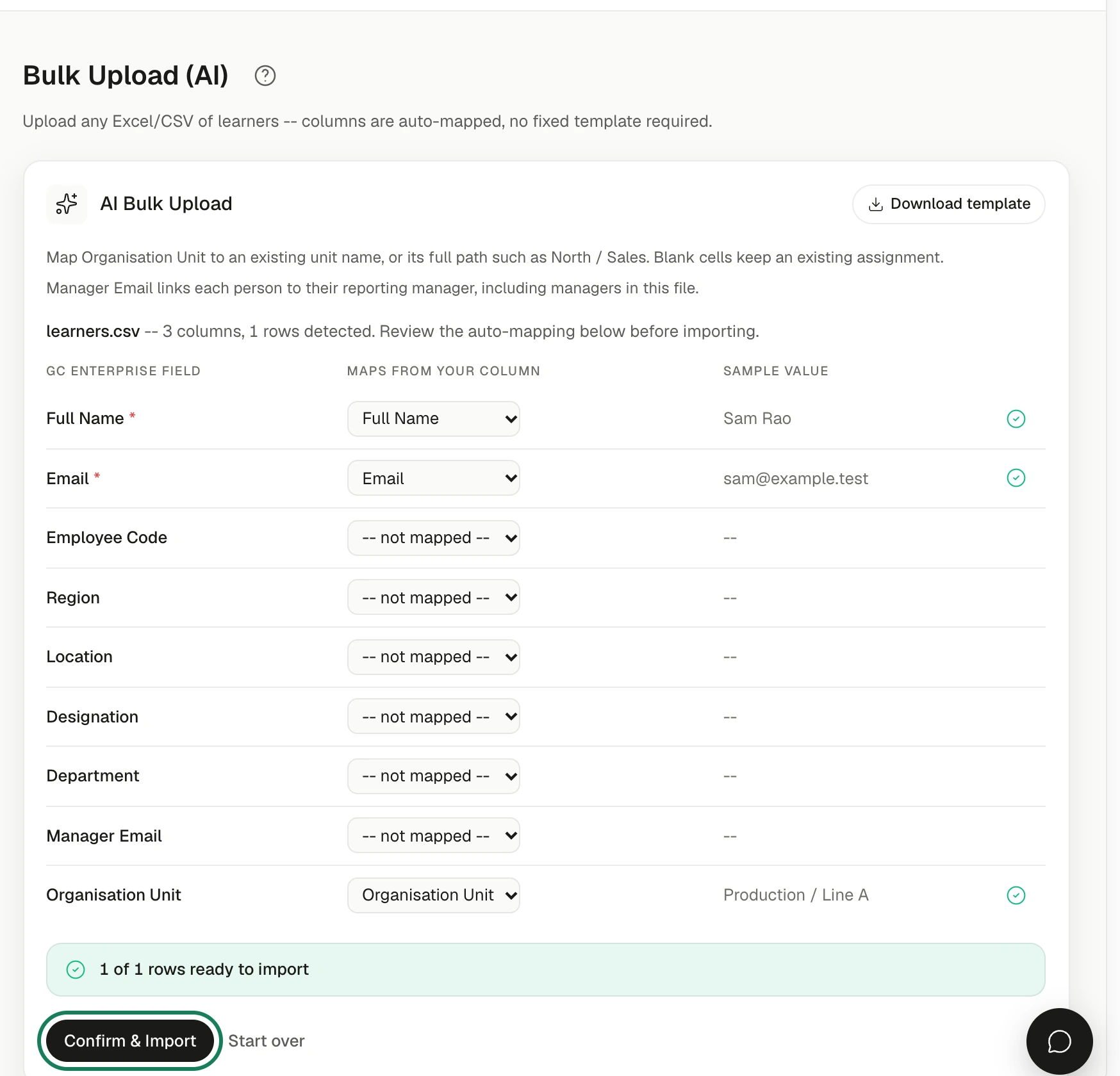
Corp · Admin
Check Import History
Open Administration → Import History and find your file. Check the status, then use Users & Hierarchy to confirm the learners and their units.
Check import results →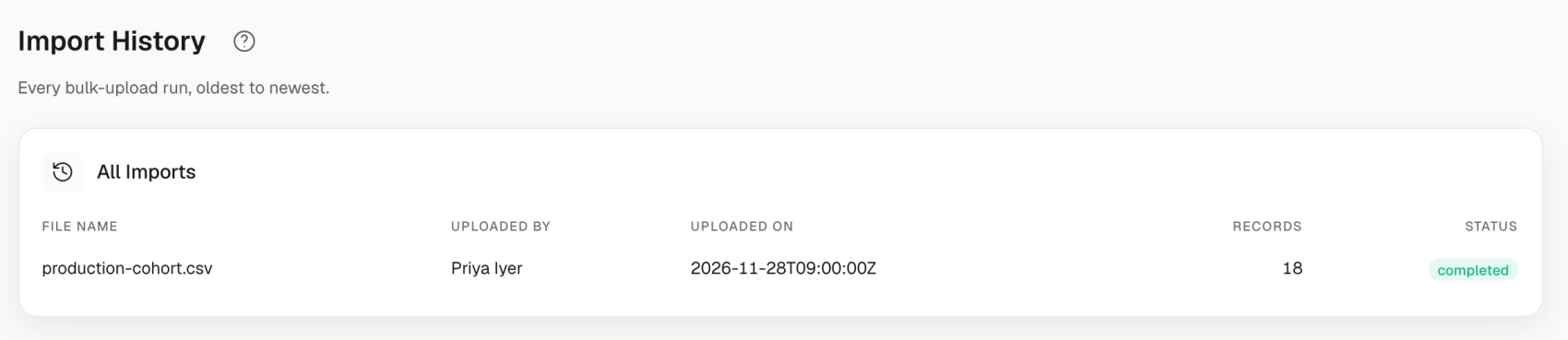
Corp · Everyone, and Admin for organisation rules
Secure sign-in
In Settings, turn on two-factor authentication and add a passkey. Admins can require 2FA for every member and set the document watermark.
Settings and security →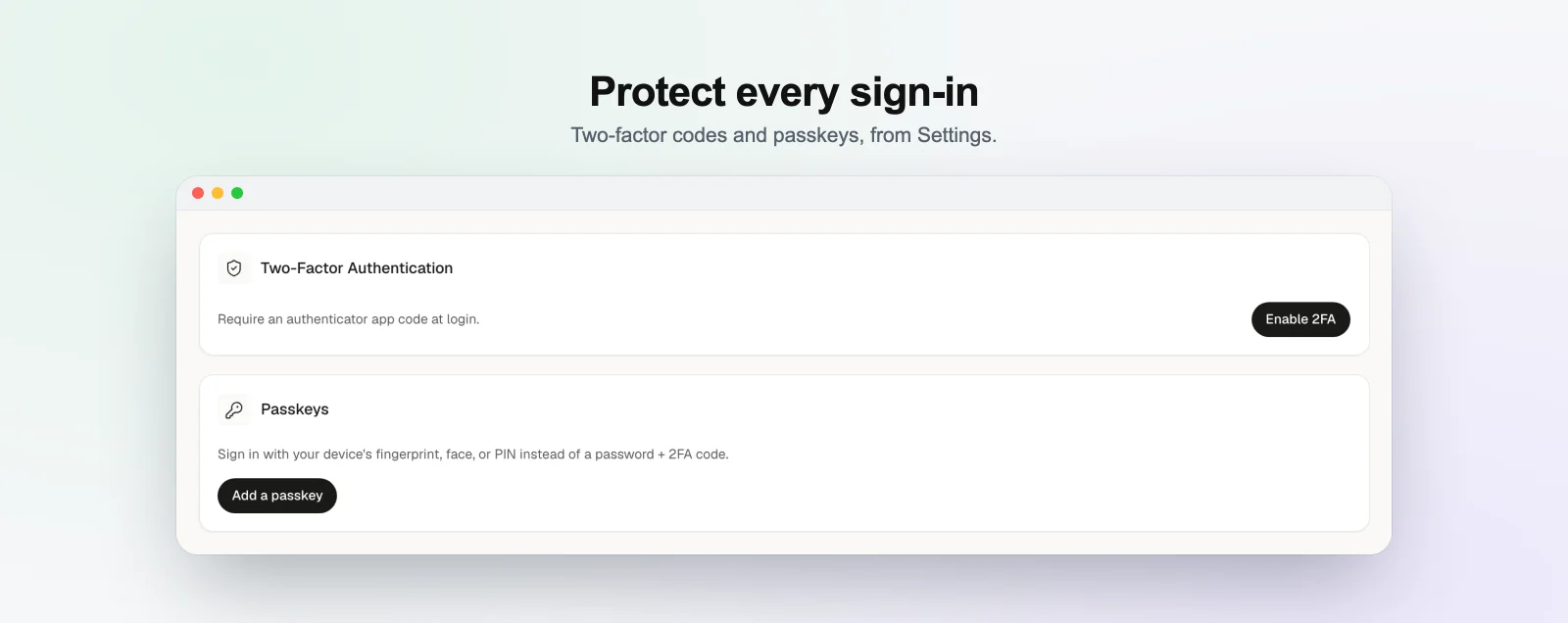
Corp · Admin
Connect company sign-in
Register the redirect address with your identity provider, enter its details, choose the work email domains and switch company sign-in on.
Company sign-in (SSO) →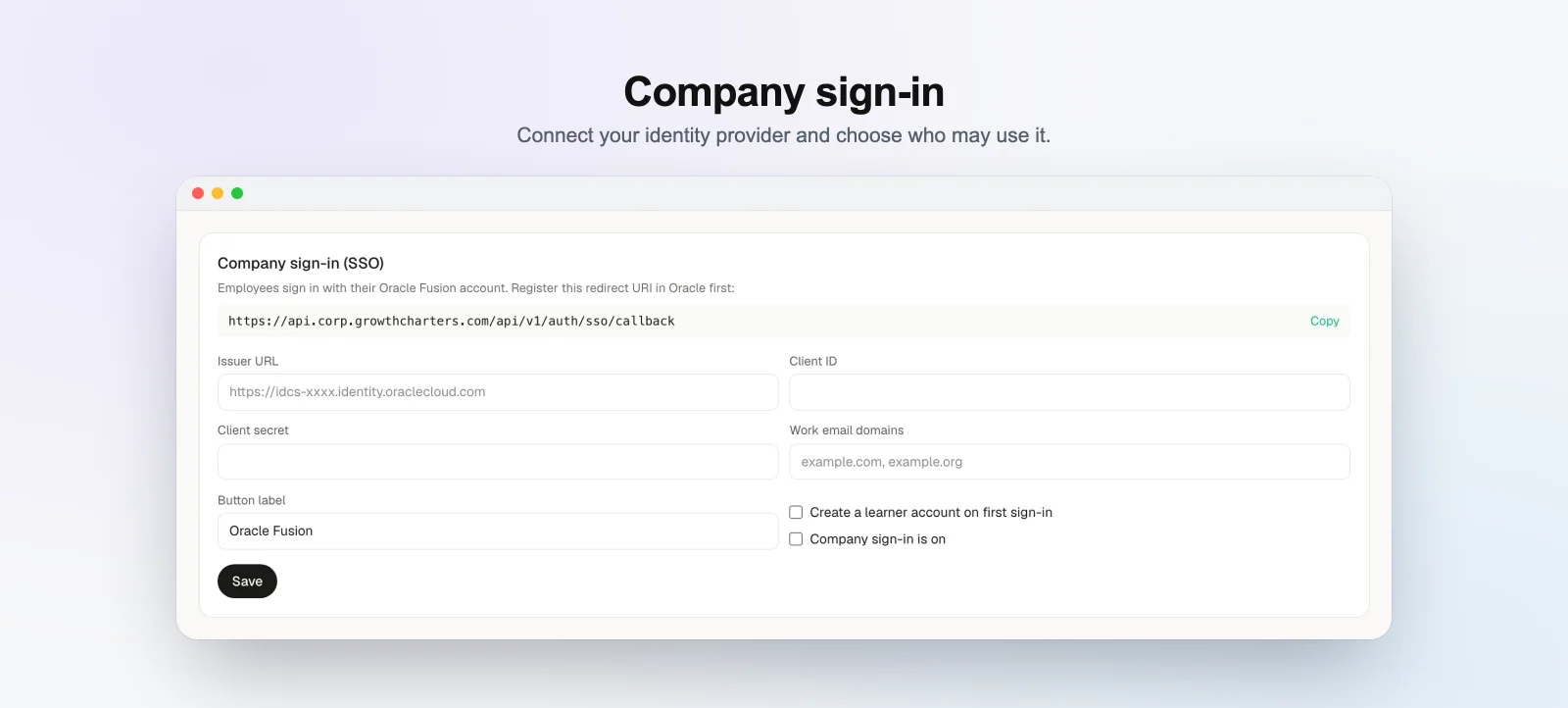
Studio · Author
Upload your content
Add videos, PDFs, presentations and documents to the Content Library. Each file is processed so it opens in the browser, and can carry an end date and reminders.
Upload steps →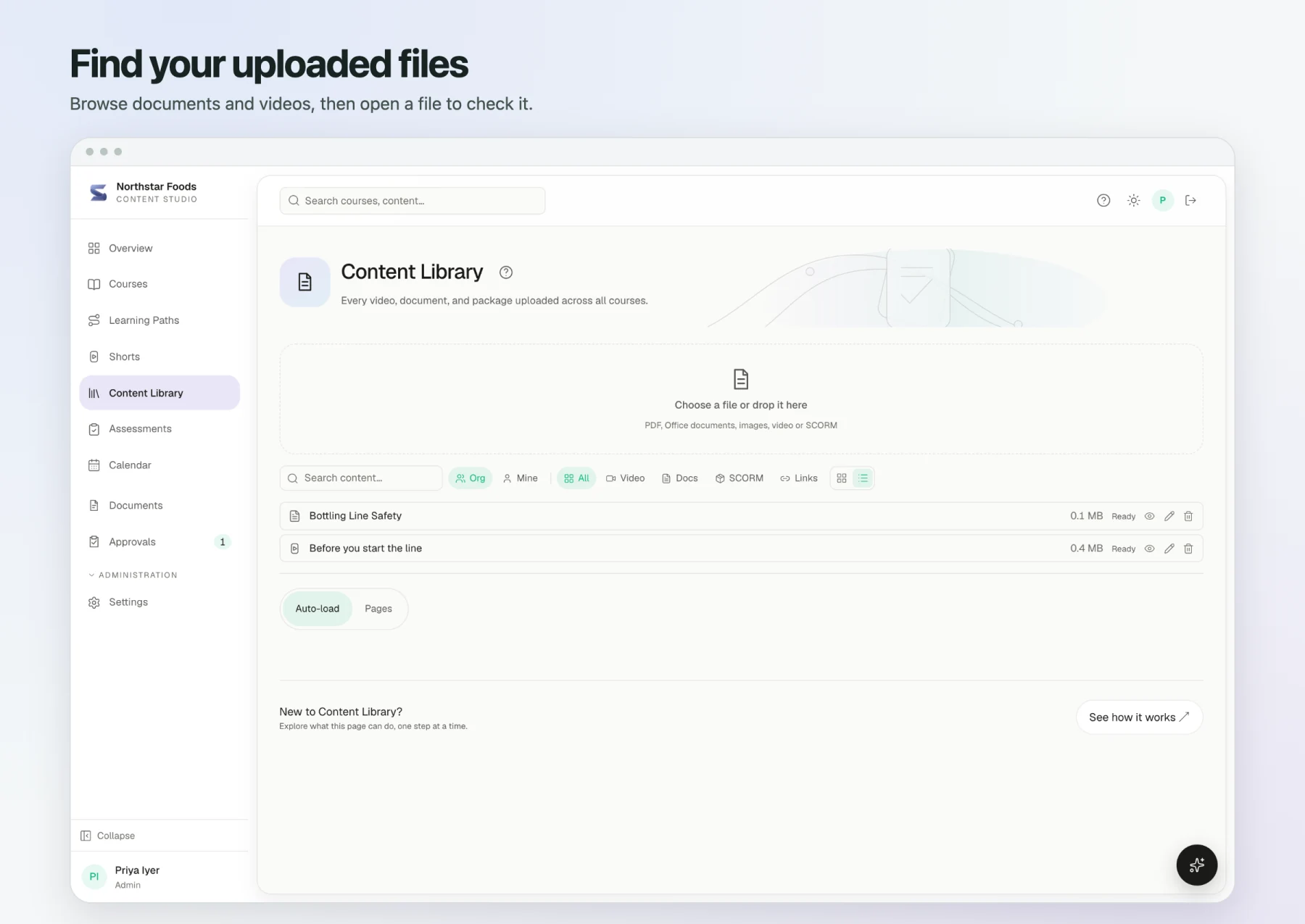
Studio · Admin or repository owner
Create a repository and add a document
A repository is a folder of related documents with its own team. A contributor adds a document, chooses its audience and submits it for review.
Create a repository →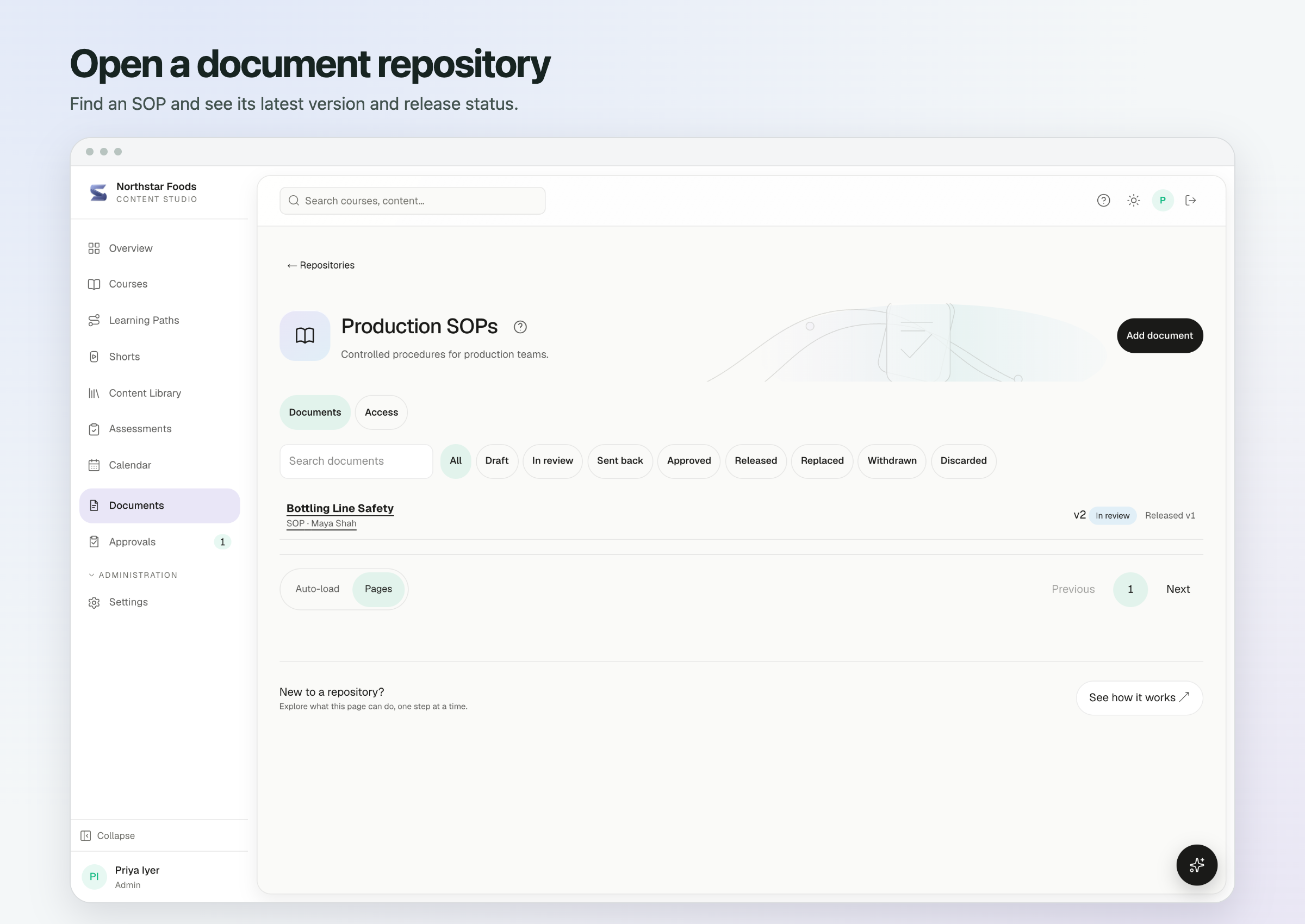
Studio · Reviewer and approver
Review and approve a version
A reviewer sends the version back or reviews it, and an approver approves it. The author can never approve their own version. After approval the version is not live yet.
How a version moves →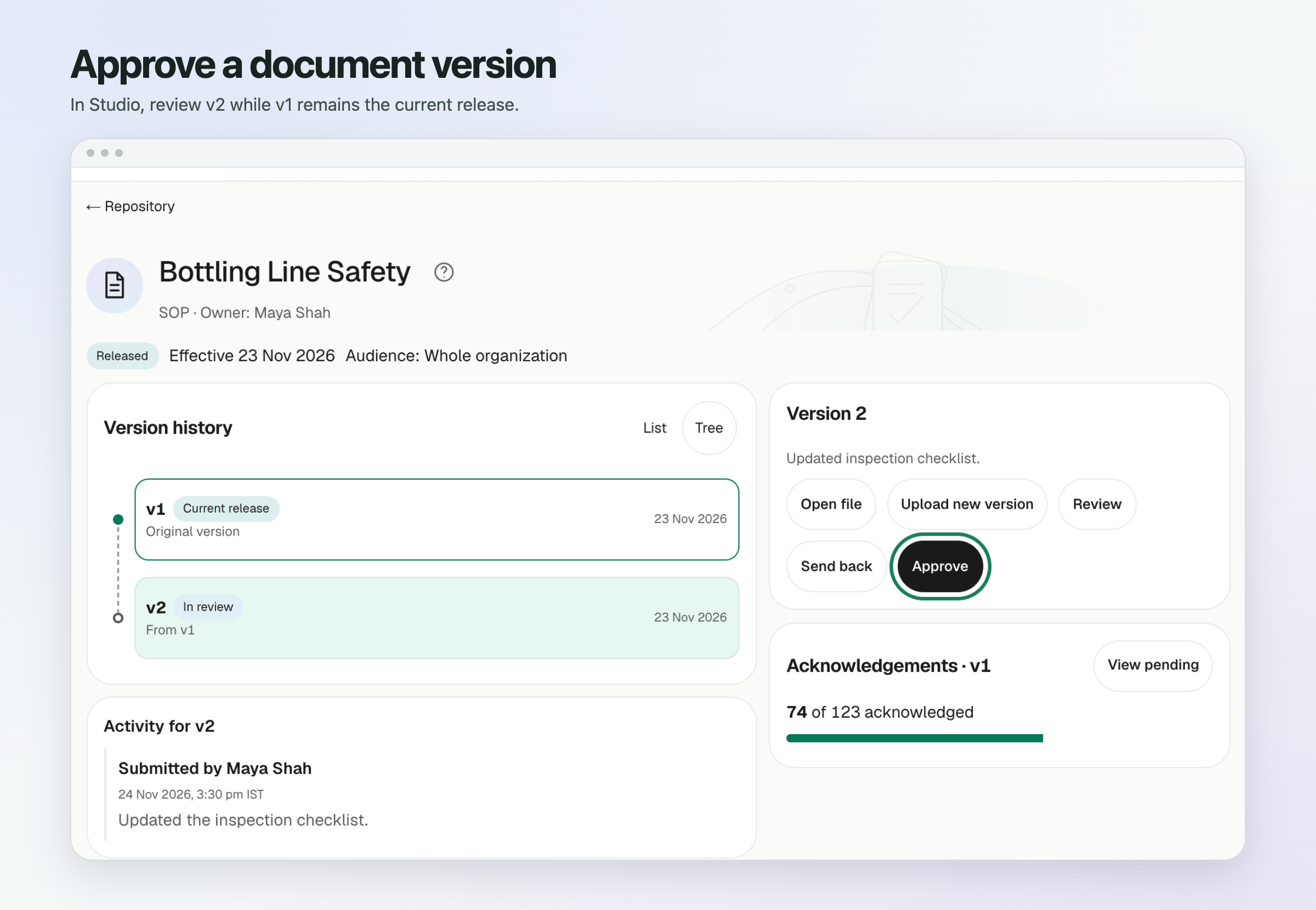
Studio · Approver
Release it to your people
Releasing makes the version live for its audience and replaces the previous one. You choose what should happen next: nothing, read and acknowledge, refresher training or reassessment.
Releasing a version →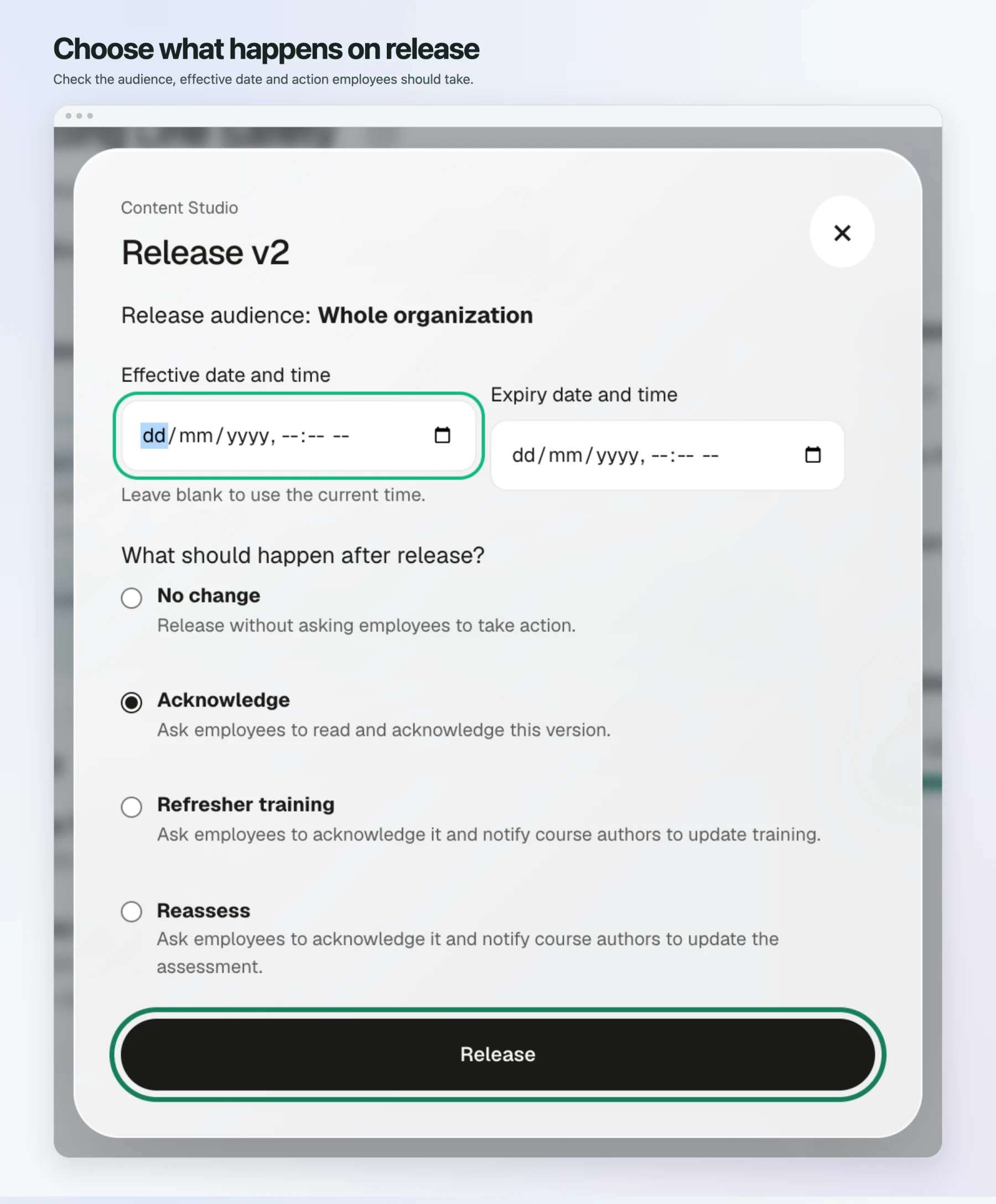
Studio · Mentor
Build a course from approved files
Create a course, add lessons from the library and publish. A lesson uses one exact file version, so a course keeps teaching the version it was built with until you add the new one.
Add lessons →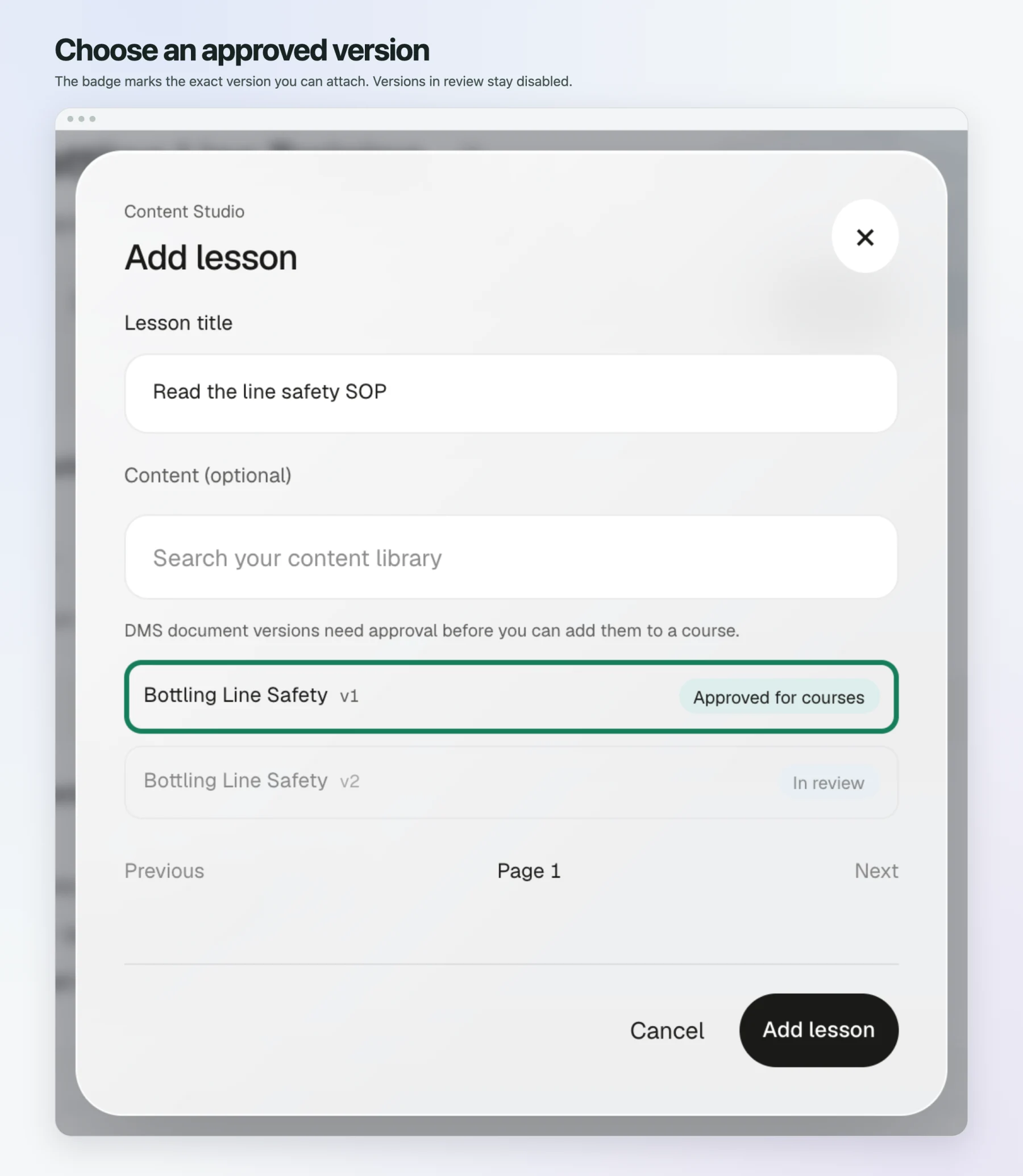
Studio · Mentor
Add a quiz, with proctoring if you need it
Write questions, import them, or draft them with AI and read each one before saving. Set a passing score and a time limit, and choose proctoring: off, standard or strict.
Assessments and proctoring →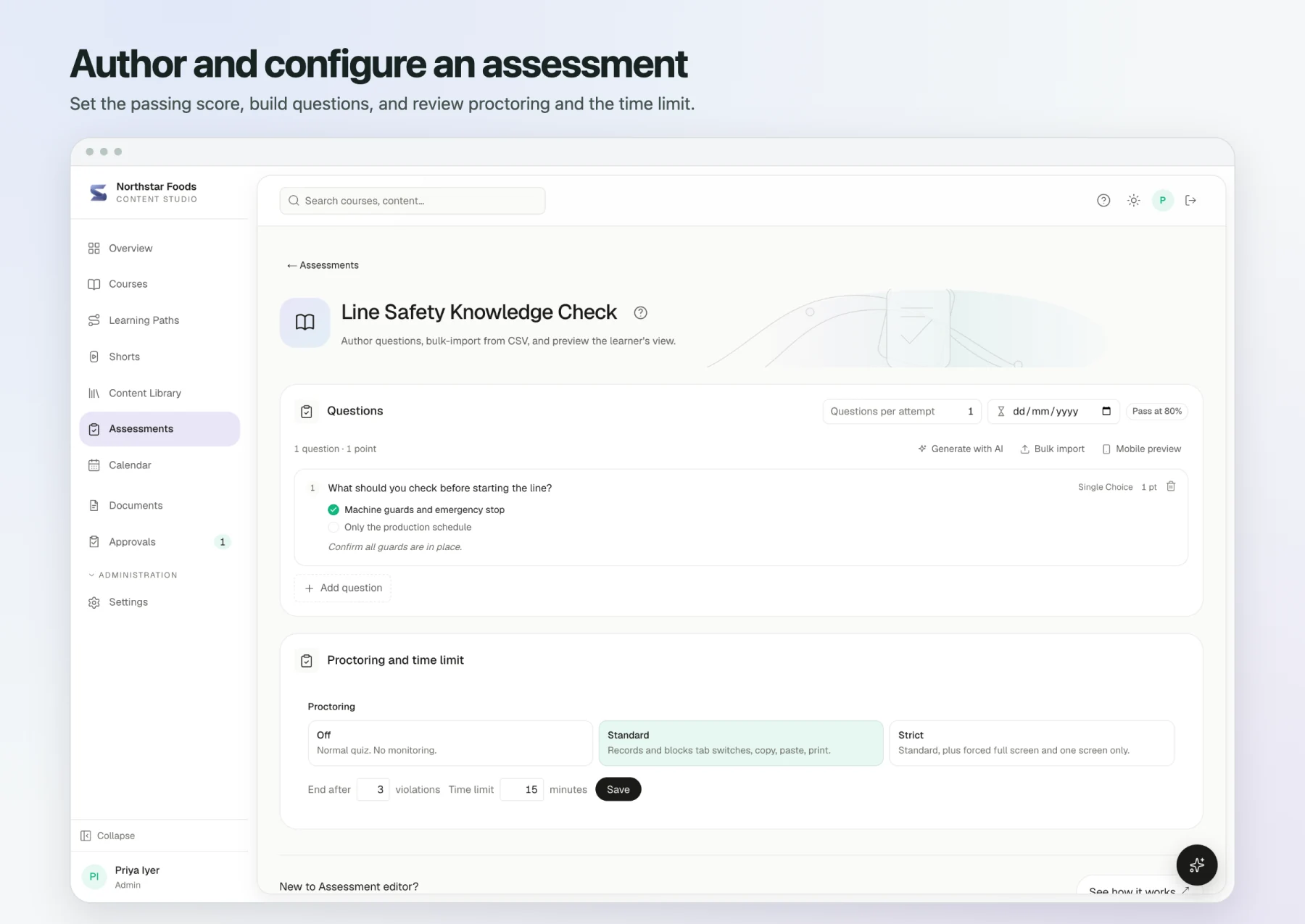
Corp · Admin or manager
Assign the training
Open a published course in Corp and select Assign training. Find the member, choose an optional deadline and decide whether training is mandatory. Learn shows the assigned course.
Assign training →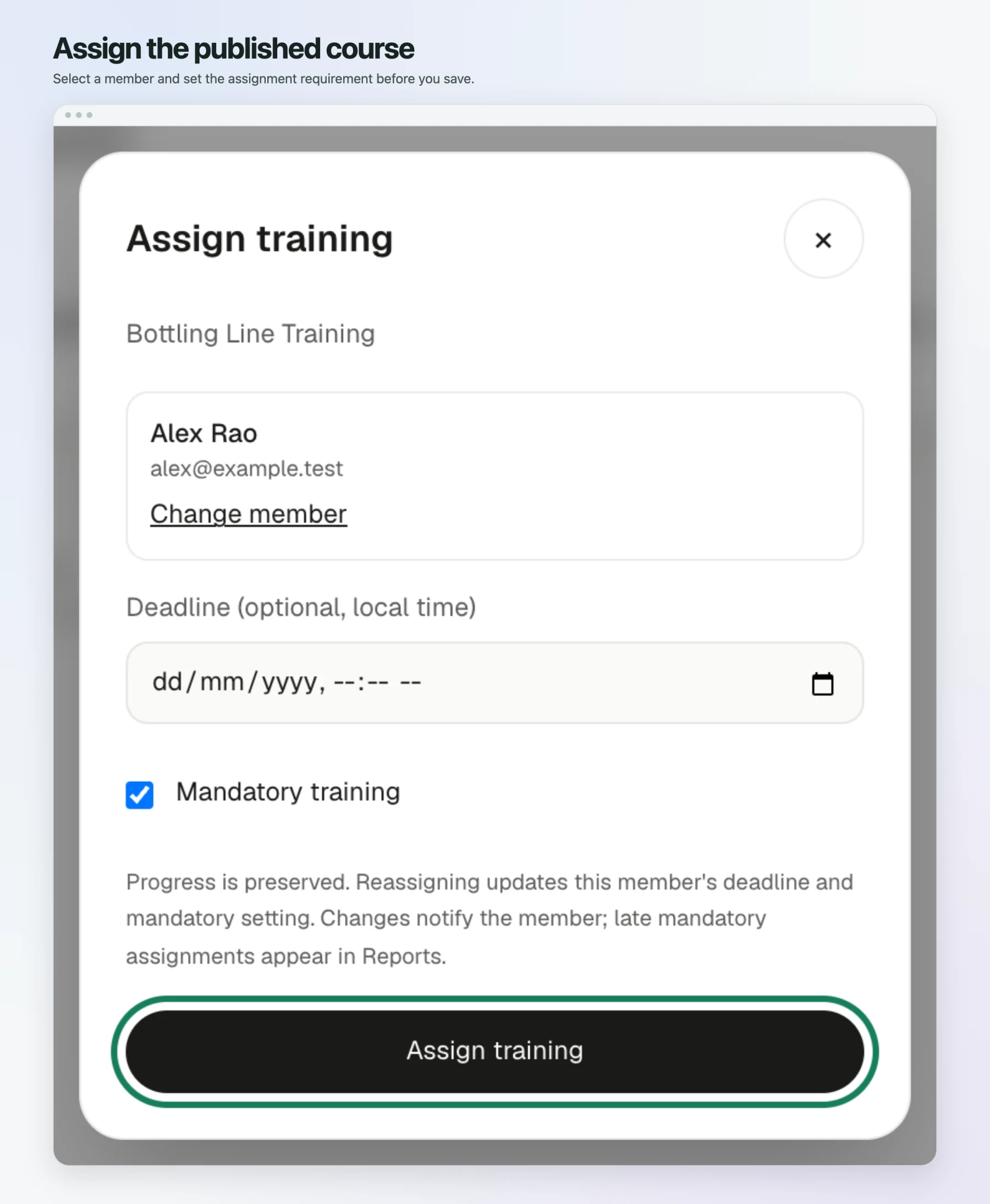
Learn · Learner
See what your people see
Learn opens on their training: what to resume, what is in progress, their certificates and streak, and the quizzes waiting for them.
The learner home →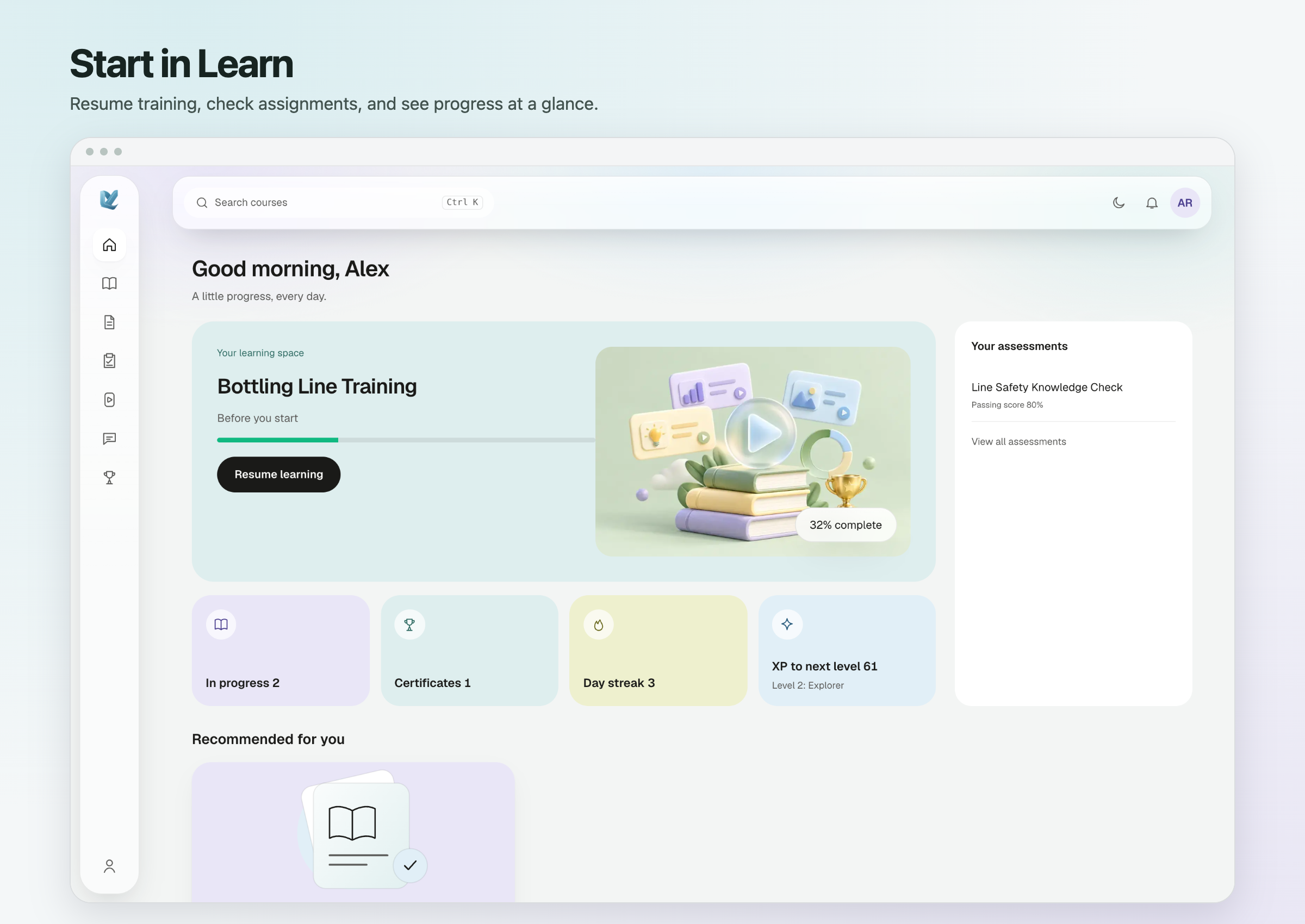
Learn · Learner
Open a course and finish its lessons
Courses list progress. A learner opens a lesson, watches or reads it, completes it and moves to the next.
Courses and lessons →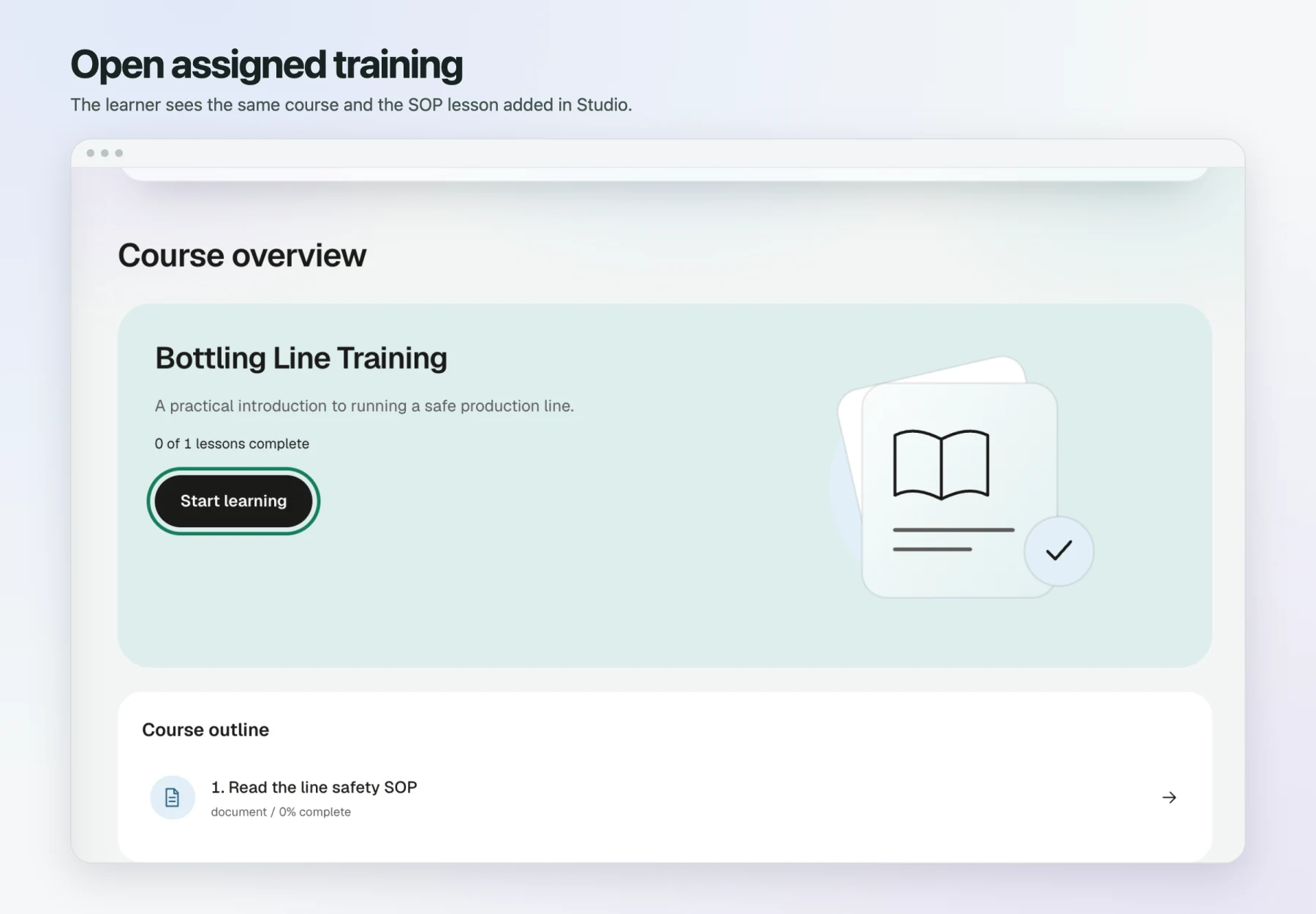
Learn · Learner
Read and acknowledge a document
A released document that needs reading shows Please acknowledge. After reading, the learner confirms, and the date is recorded for the audit trail.
Documents you must read →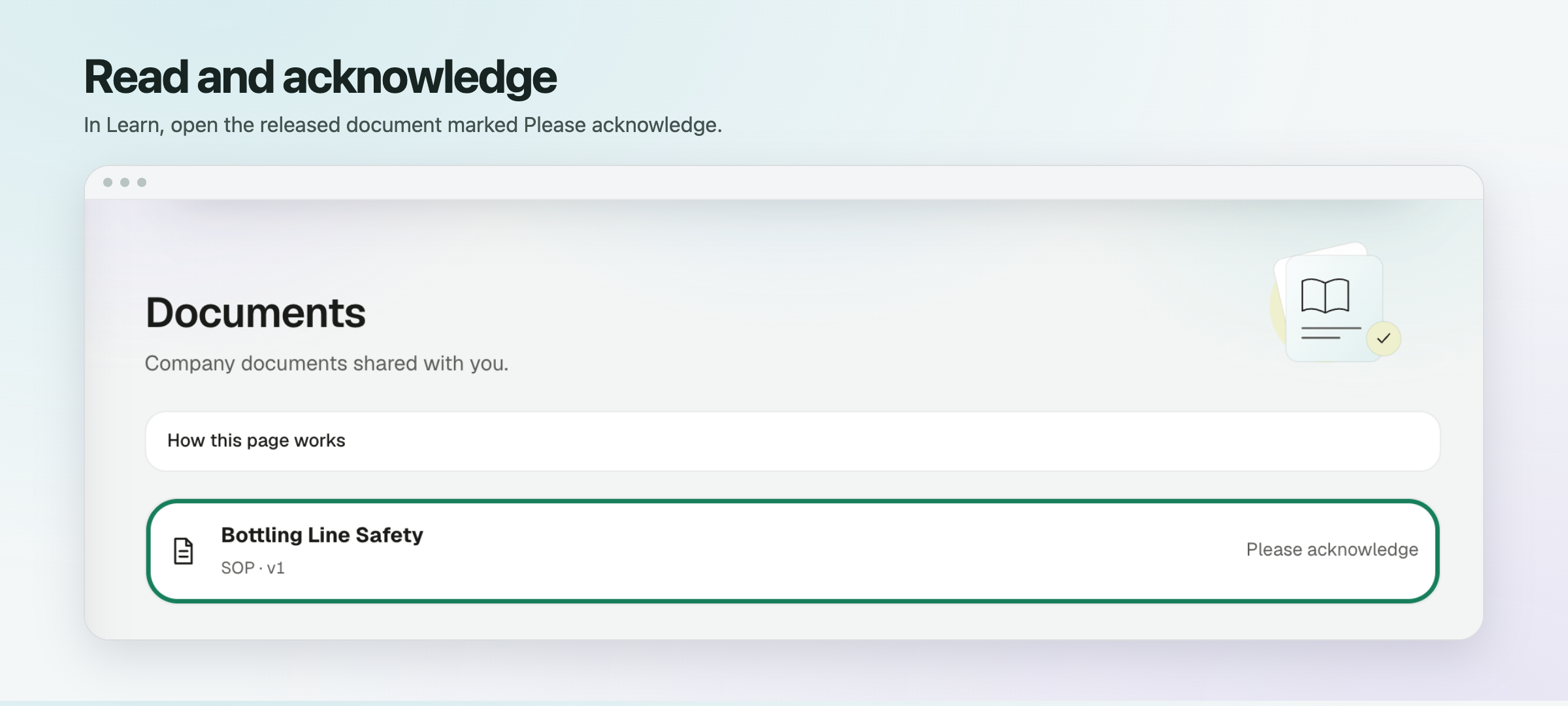
Learn · Learner
Take a quiz
Quizzes are listed as To do, Passed or All. A proctored quiz shows its rules before it starts and needs full screen.
Quizzes →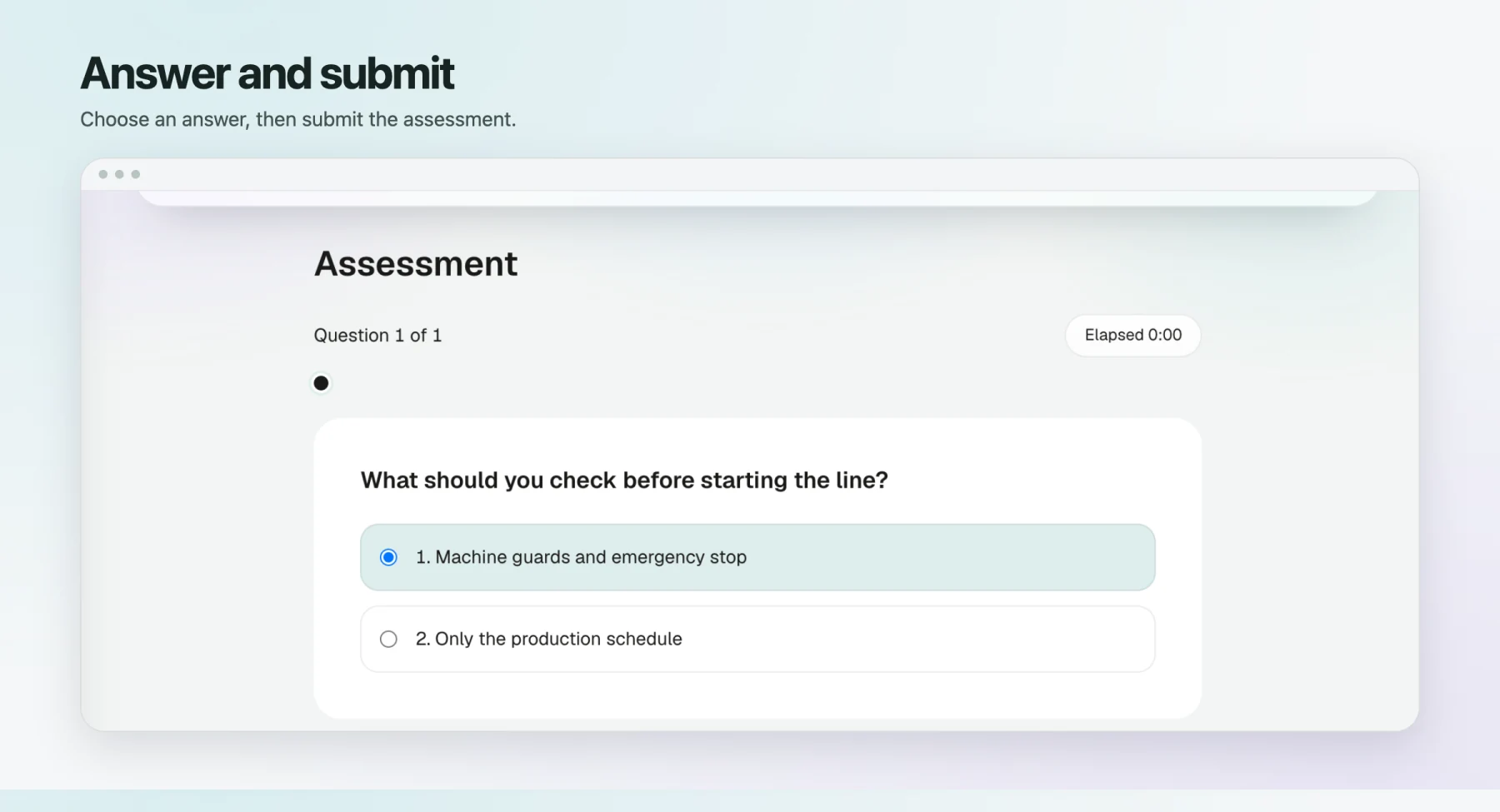
Corp · Admin and managers
Check progress and keep the evidence
Dashboards and reports show who has completed what. Audit Logs show every action with who and when, and each document shows who has acknowledged which version.
Reports and audit →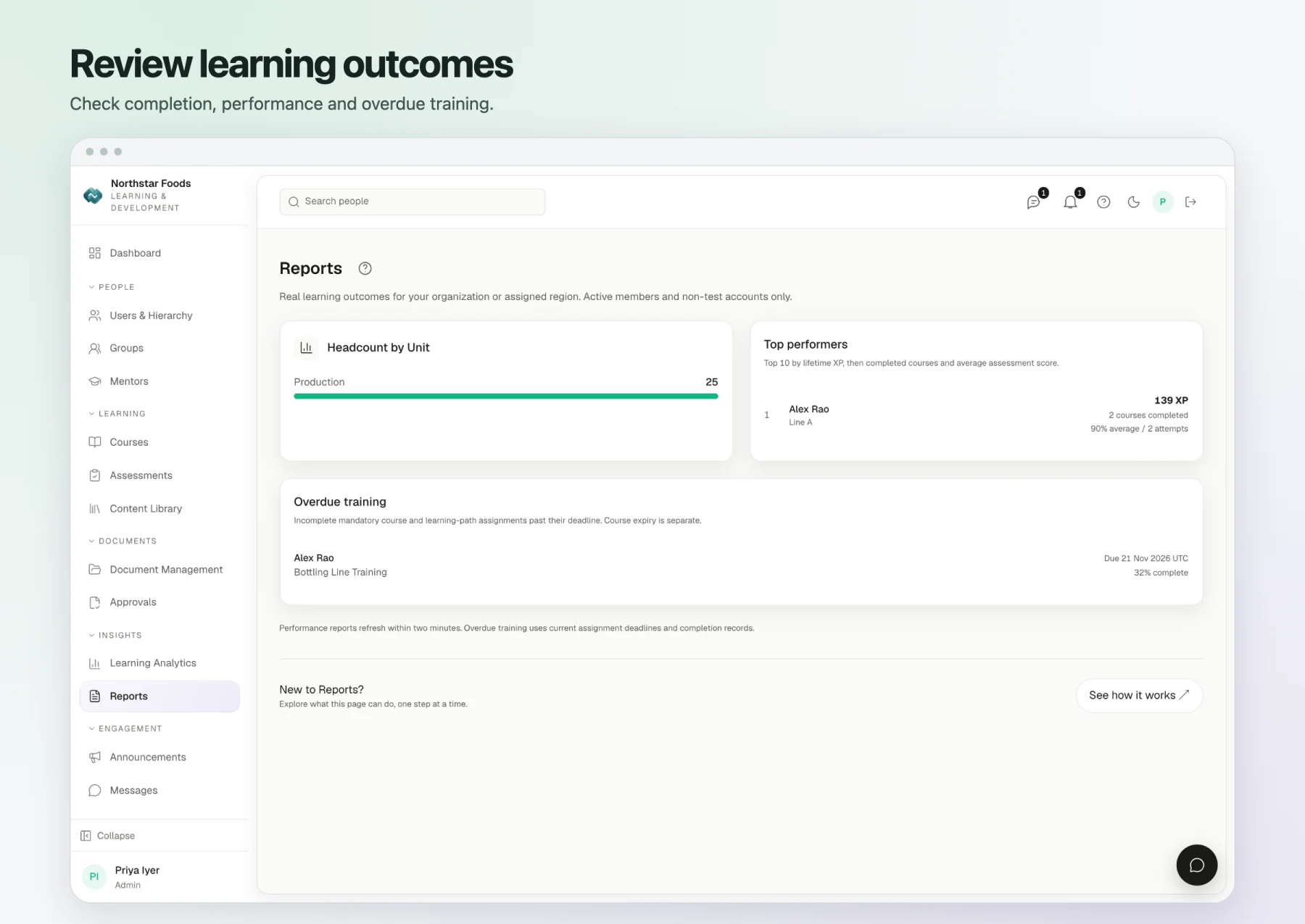
Corp · Admin and managers
Export learning progress
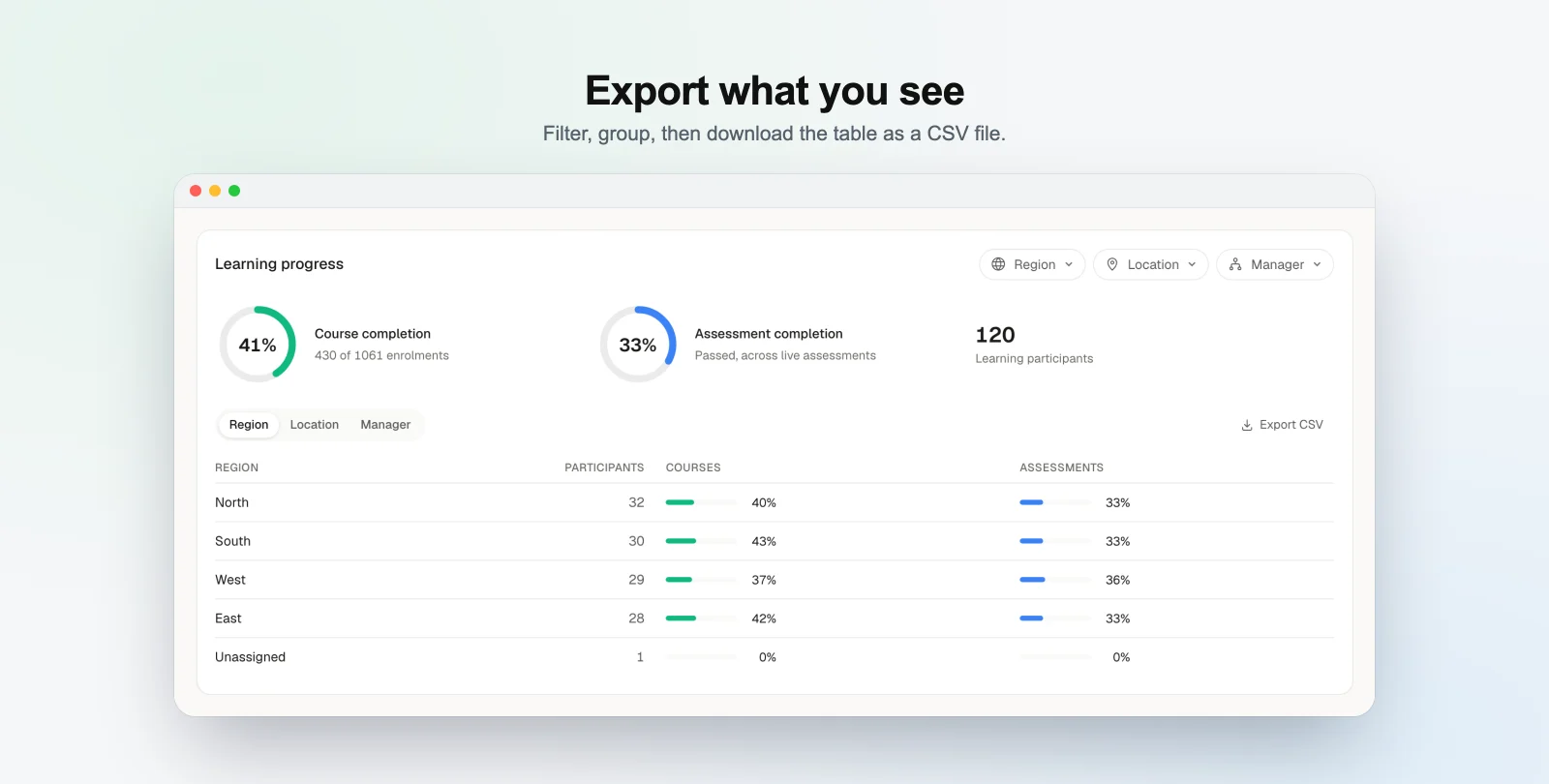
On the dashboard, filter by region, location or manager, group the table, and press Export CSV to download exactly what you see.
Export learning progress →