Content Studio journey
Upload files, control documents and turn approved files into training.
Explore Document Control →Browse all screens →Studio · Author
Upload your content
Add videos, PDFs, presentations and documents to the Content Library. Each file is processed so it opens in the browser, and can carry an end date and reminders.
Upload steps →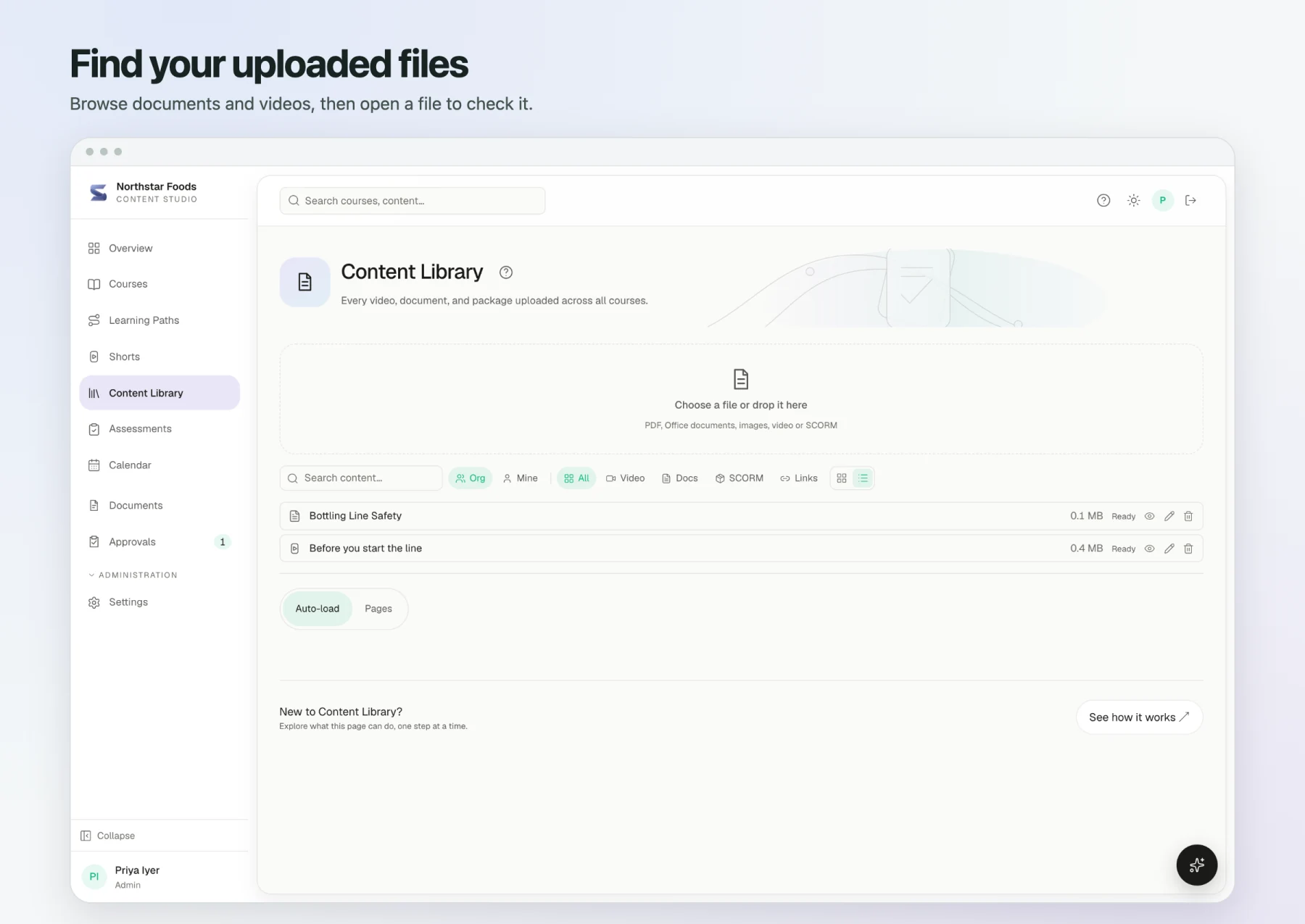
Studio · Admin or repository owner
Create a repository and add a document
A repository is a folder of related documents with its own team. A contributor adds a document, chooses its audience and submits it for review.
Create a repository →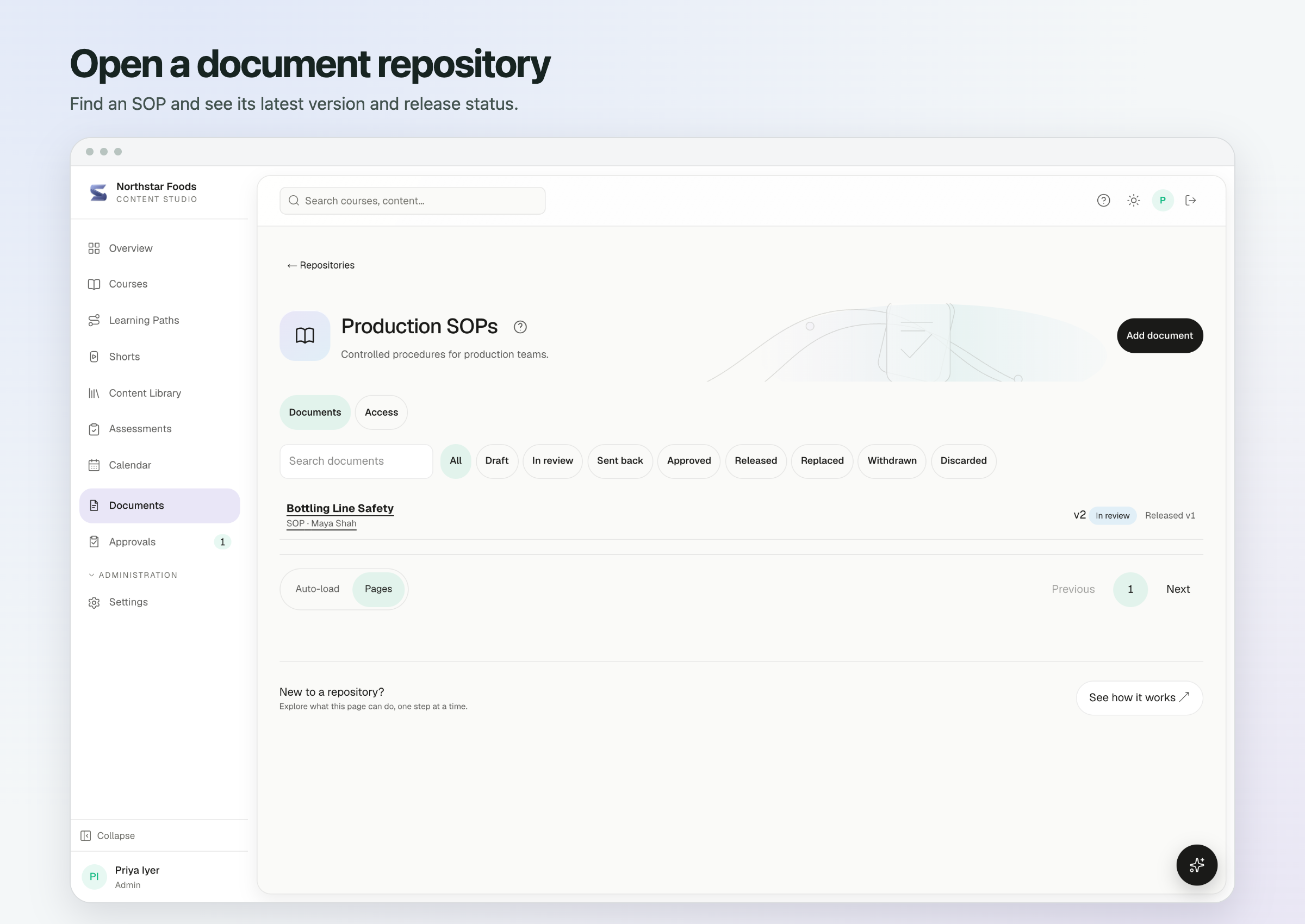
Studio · Reviewer and approver
Review and approve a version
A reviewer sends the version back or reviews it, and an approver approves it. The author can never approve their own version. After approval the version is not live yet.
How a version moves →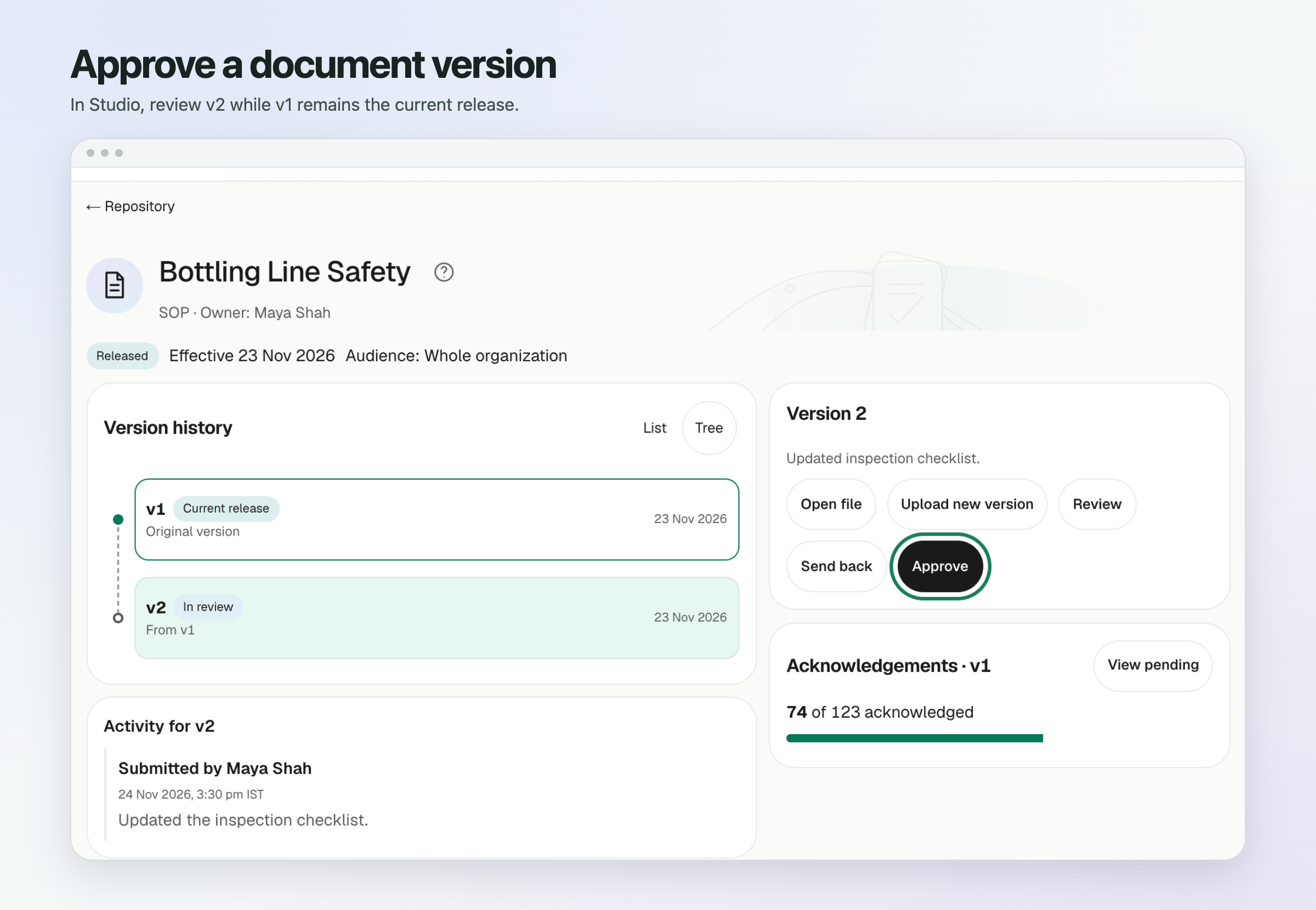
Studio · Approver
Release it to your people
Releasing makes the version live for its audience and replaces the previous one. You choose what should happen next: nothing, read and acknowledge, refresher training or reassessment.
Releasing a version →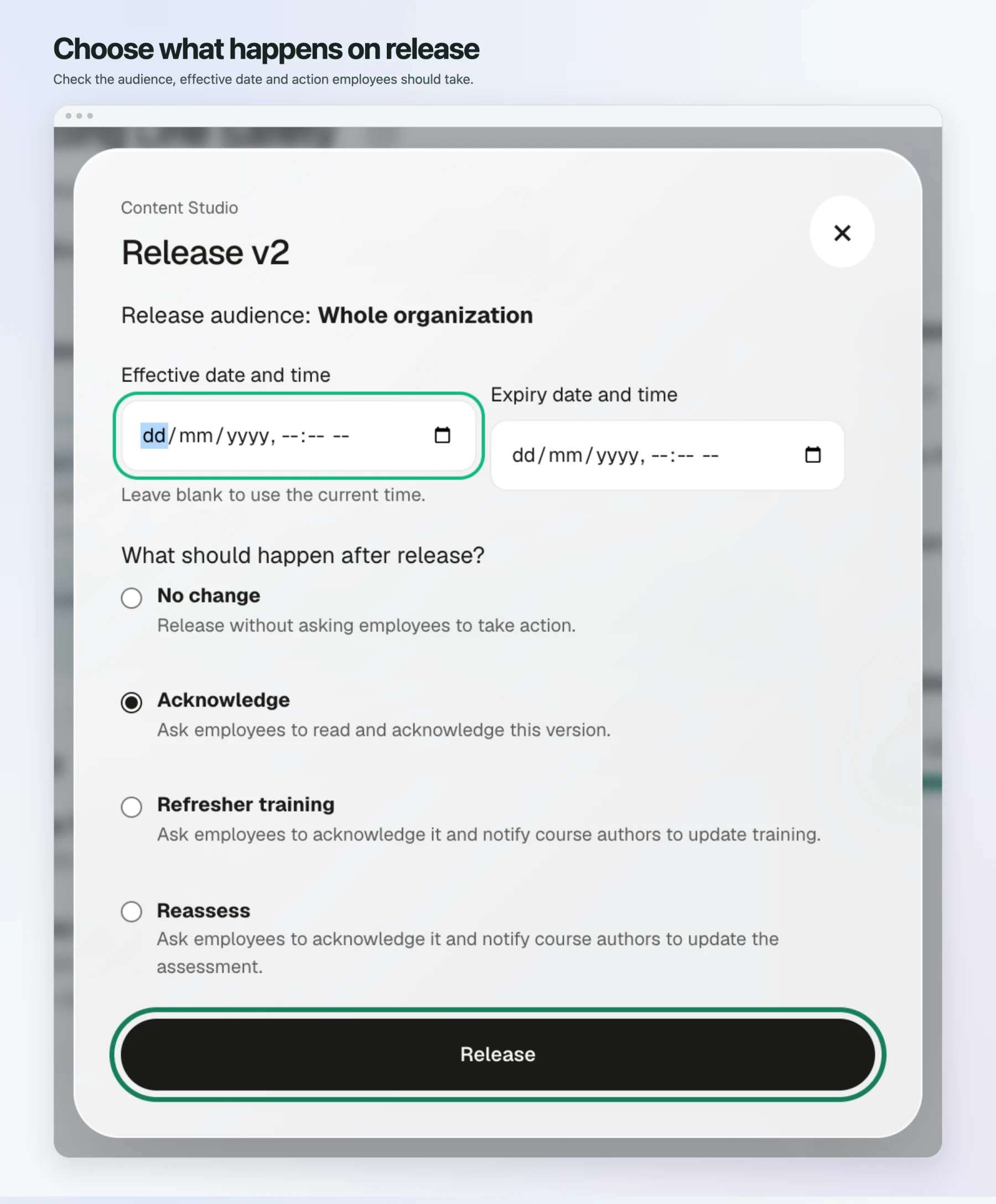
Studio · Mentor
Build a course from approved files
Create a course, add lessons from the library and publish. A lesson uses one exact file version, so a course keeps teaching the version it was built with until you add the new one.
Add lessons →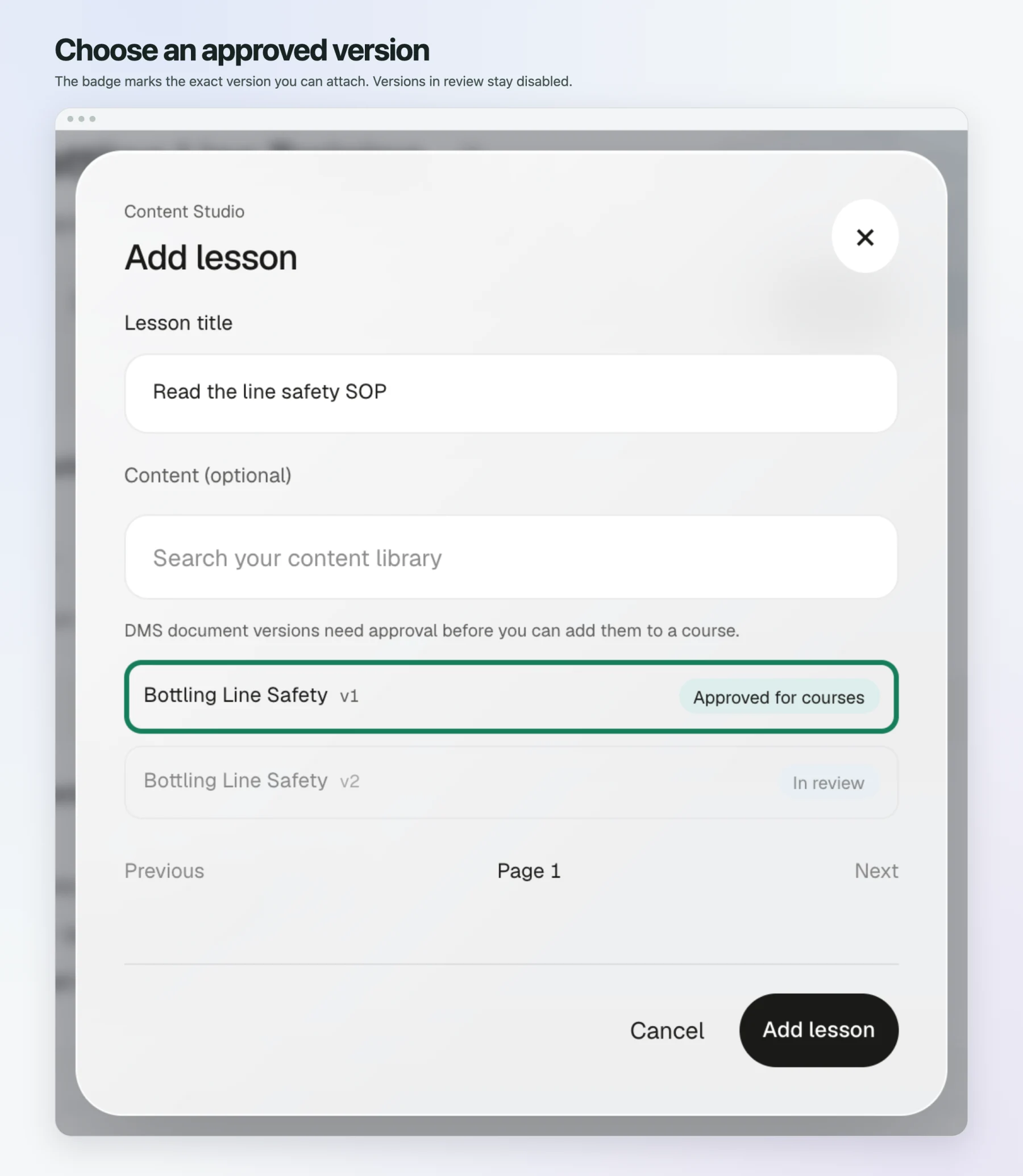
Studio · Mentor
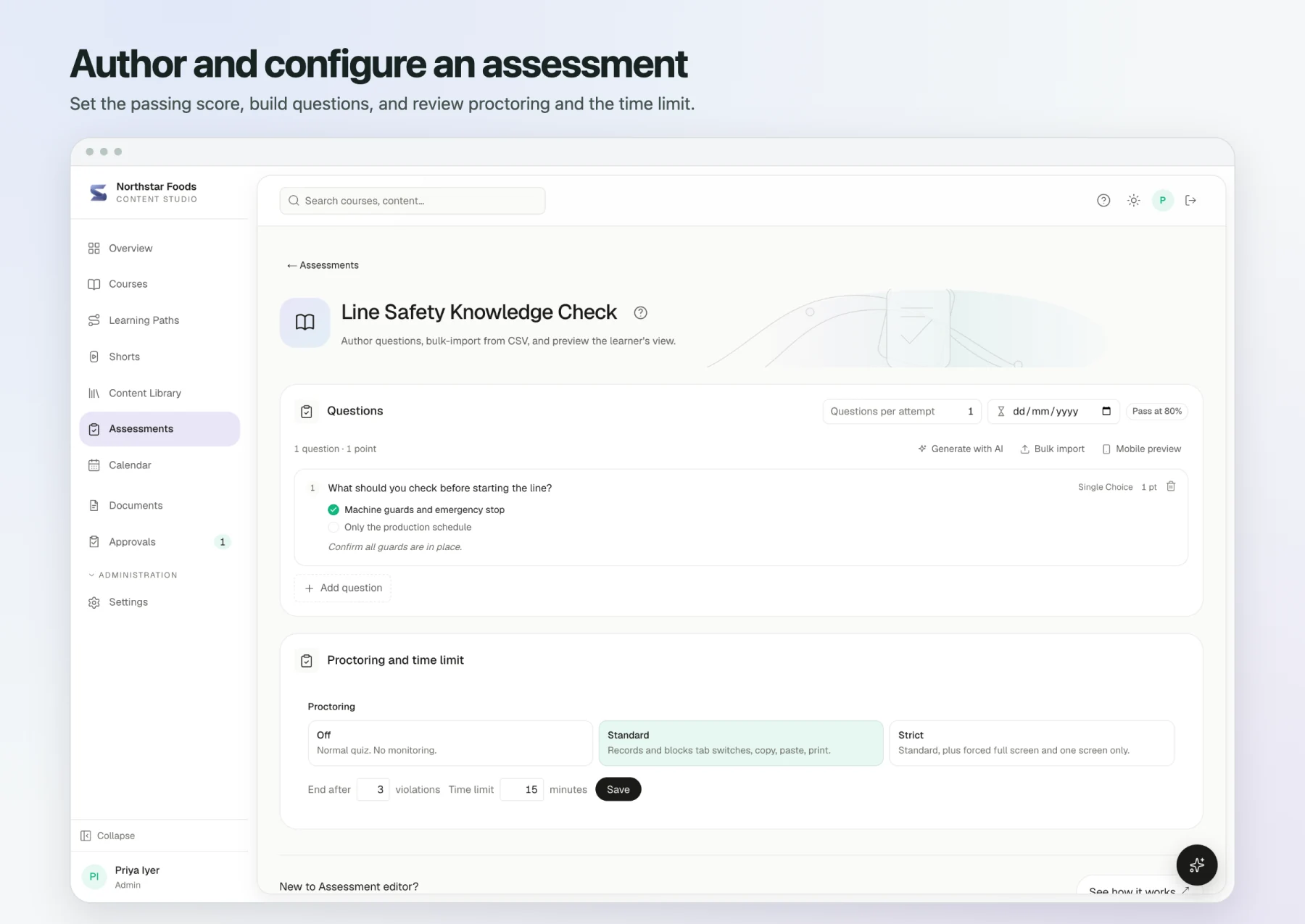
Add a quiz, with proctoring if you need it
Write questions, import them, or draft them with AI and read each one before saving. Set a passing score and a time limit, and choose proctoring: off, standard or strict.
Assessments and proctoring →