Org Portal screens
Find the screen you need, or follow the guided walkthrough. The screenshots use a demo workspace.
Dashboard and navigation · People and learning · Administration · Access and assignment
Dashboard and navigation
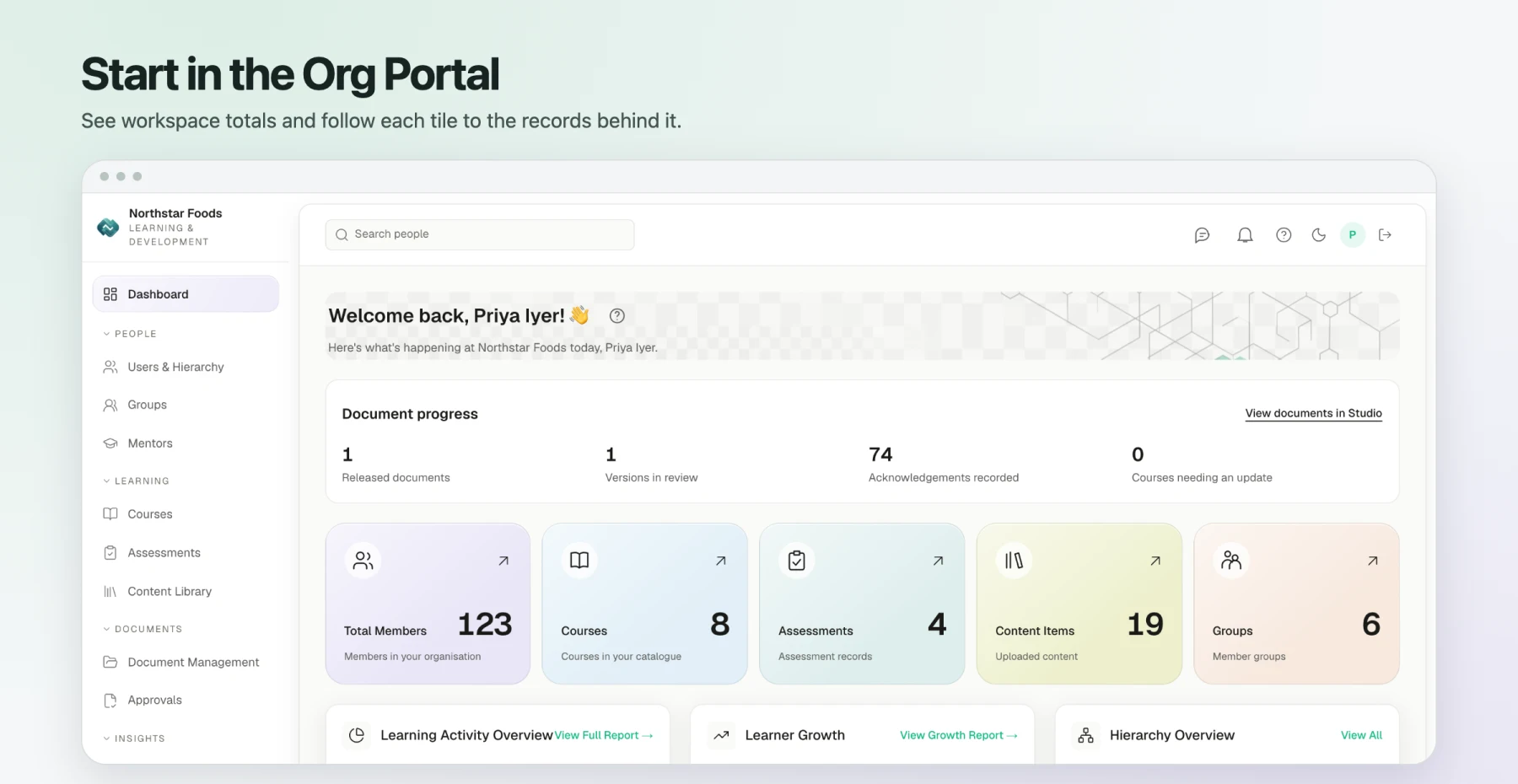
Dashboard
Check workspace totals, learning activity, and the shortcuts below the overview.
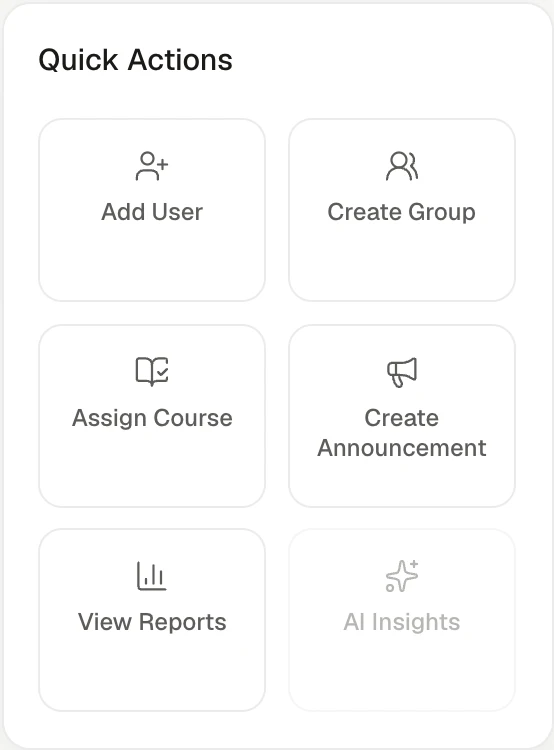
Quick Actions
Open Add User for bulk imports, Create Group for a learner group, or Assign Course to send training. Use View Reports to check the results.
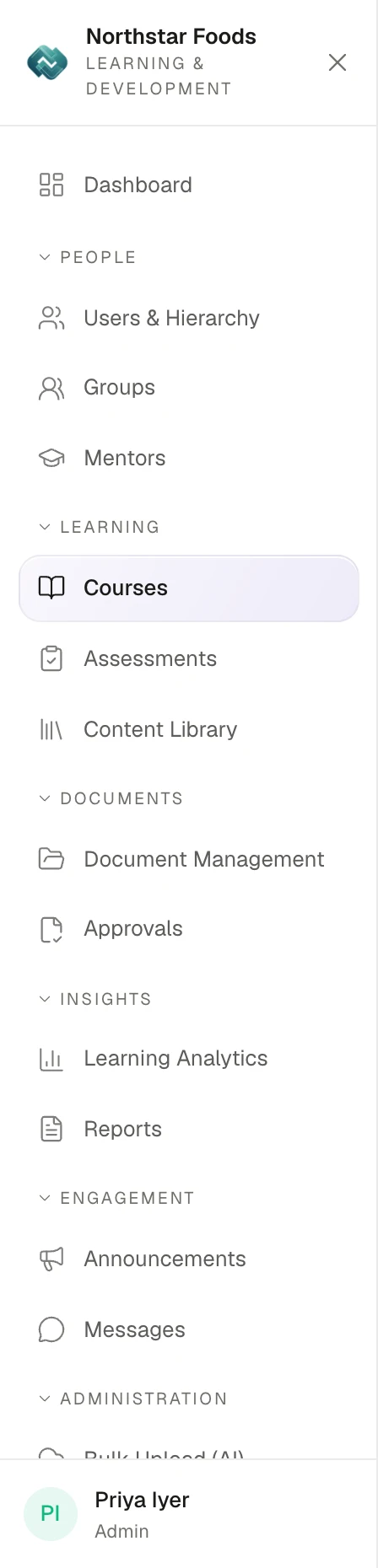
Expanded sidebar
Find people and learning pages, reports, and Administration.

Collapsed sidebar
Use the icons to switch pages in the compact sidebar.

Mobile navigation
Open the drawer to switch sections on a smaller screen.
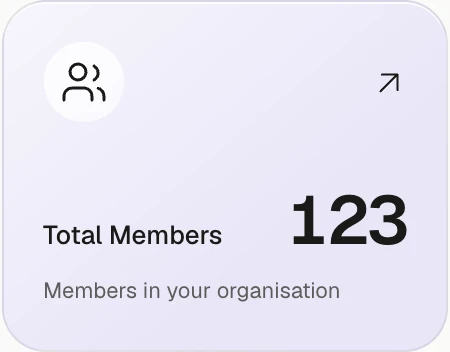
Total Members
Open the member directory to check people and roles.
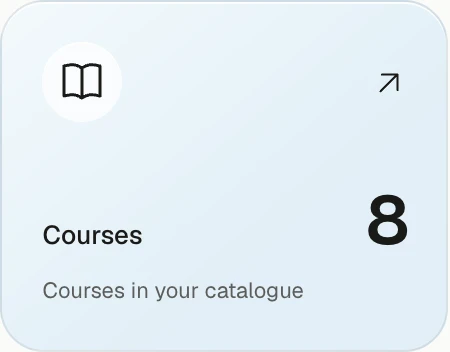
Courses tile
Open the course catalogue to find published training.
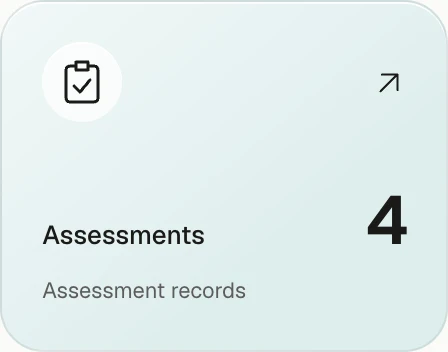
Assessments tile
Open assessment records to check available assessments.
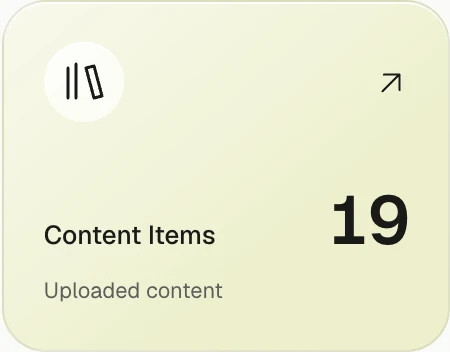
Content Items tile
Open the content library to review uploaded files.
Groups tile
Open Groups to find or create learner groups.
People and learning
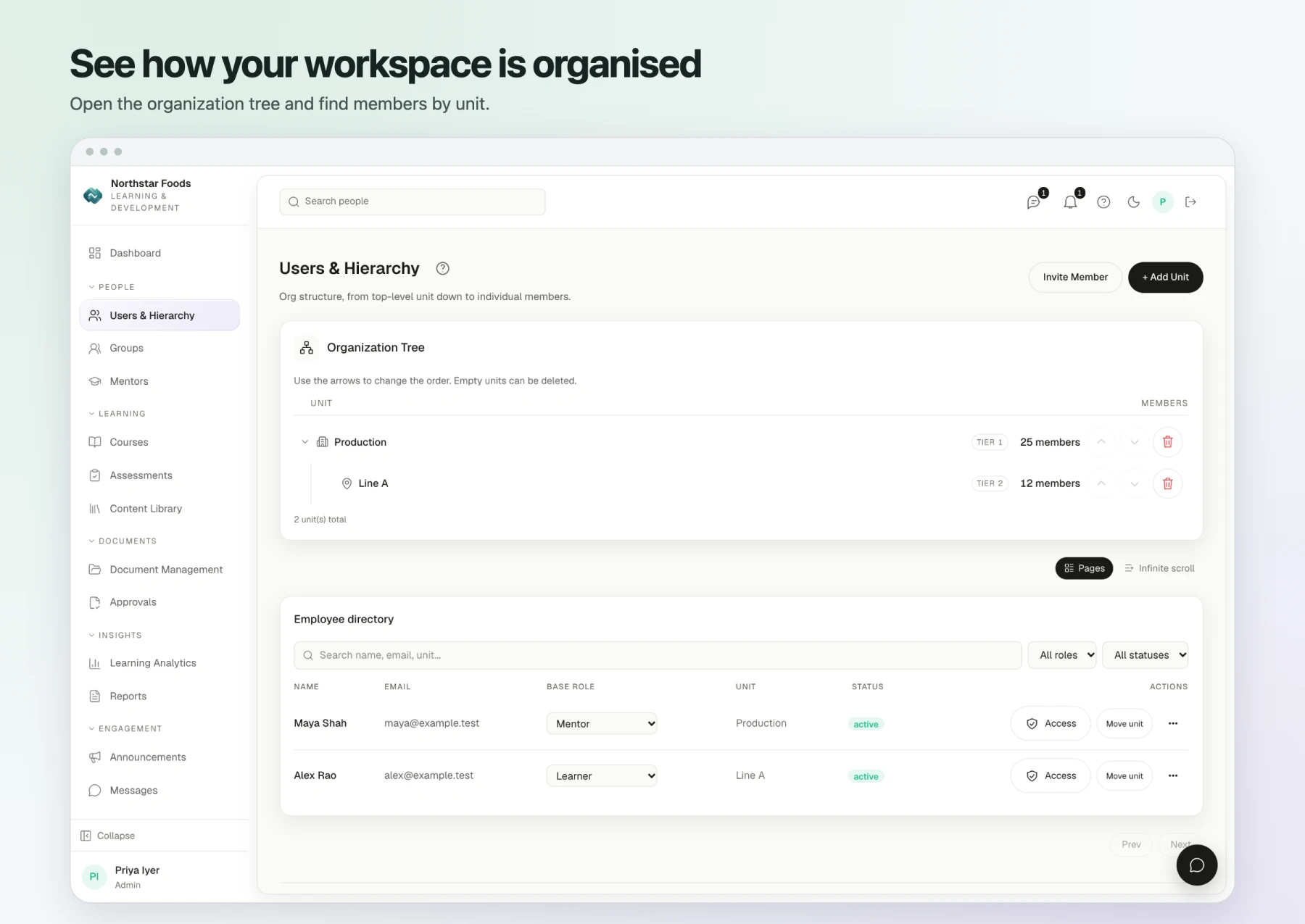
Users & Hierarchy
Build the organisation tree and use Invite Member to add one person.
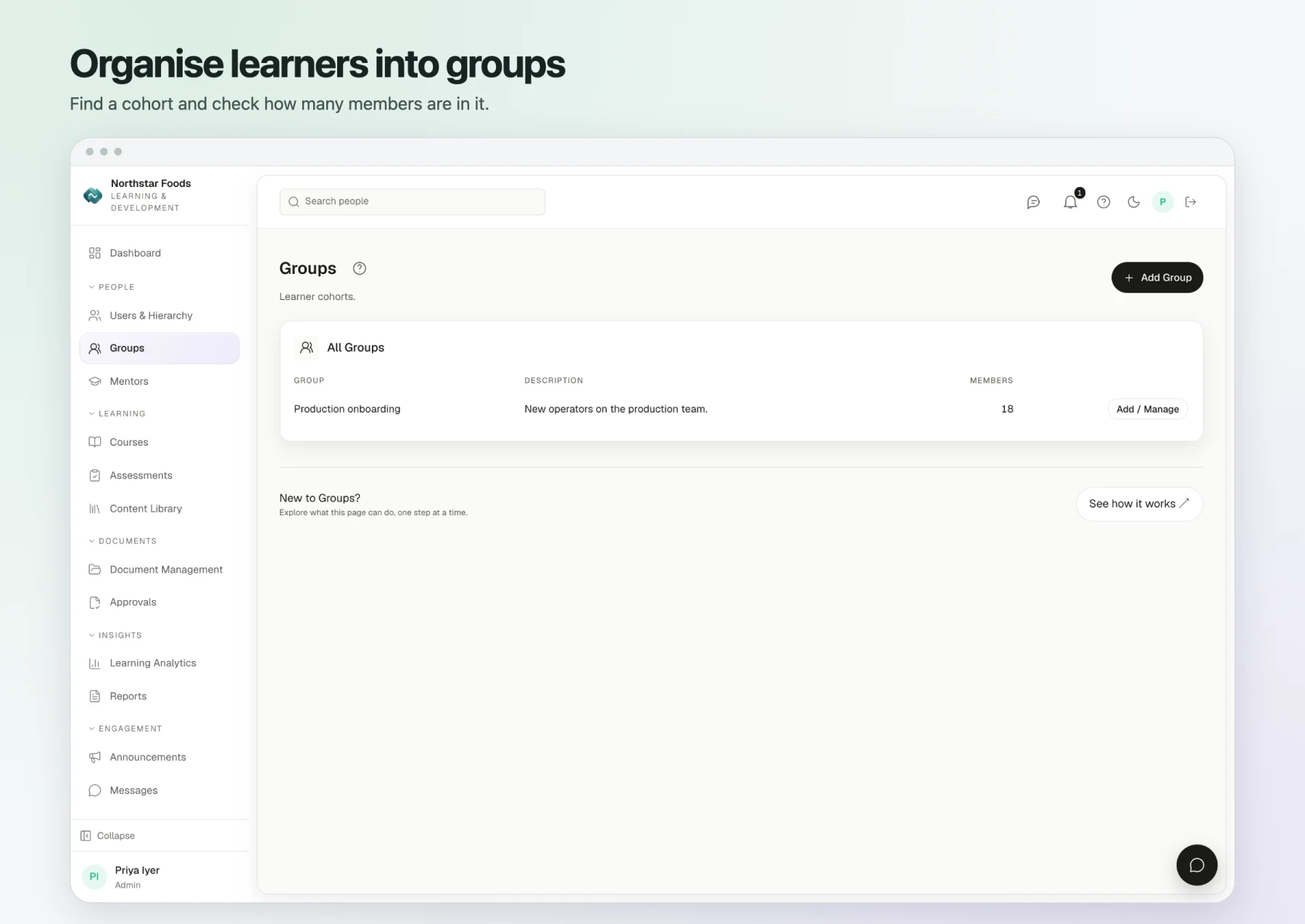
Groups
Use Create Group, then open it to add the people you want to train together.
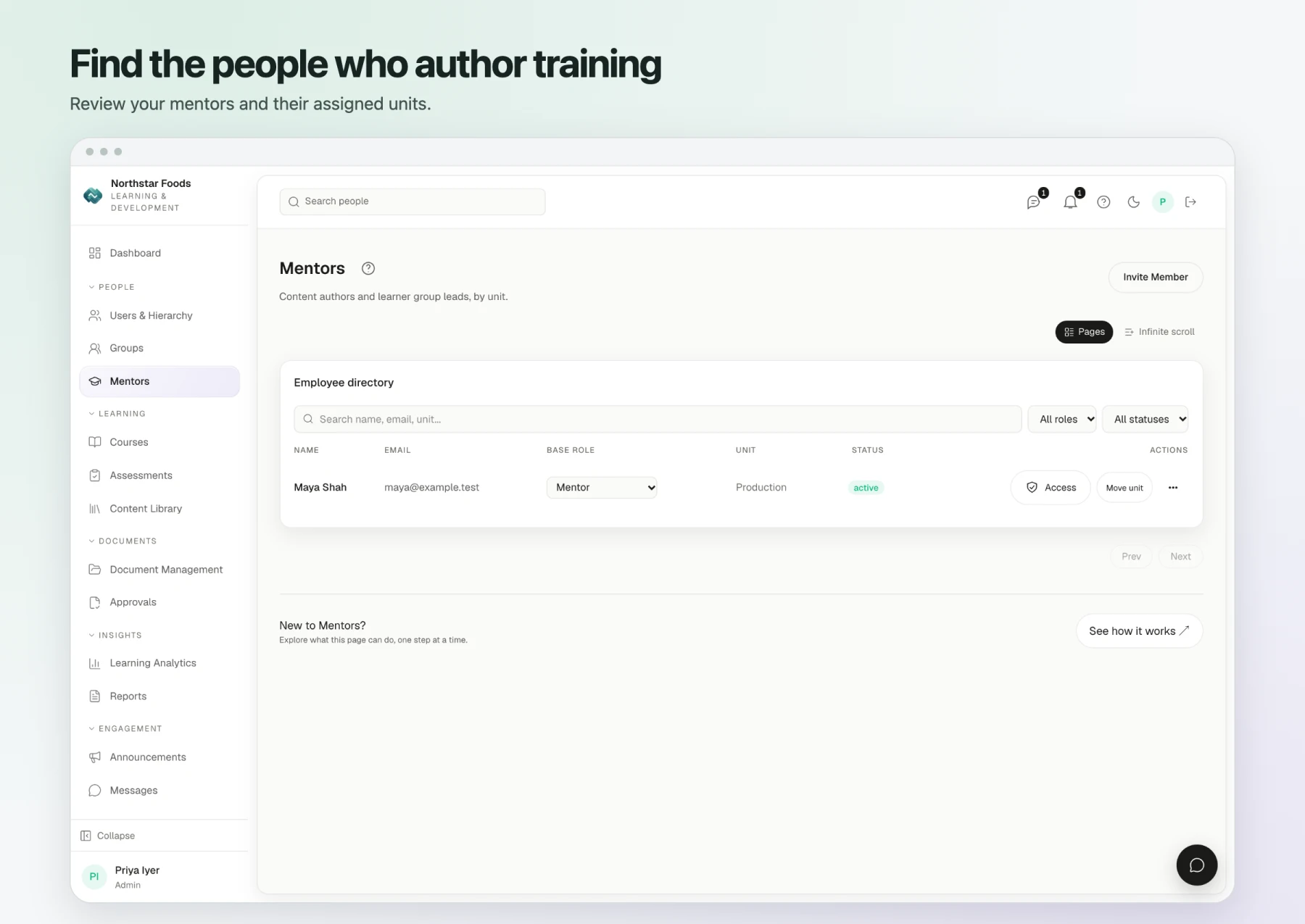
Mentors
Find authors and check their reporting units.
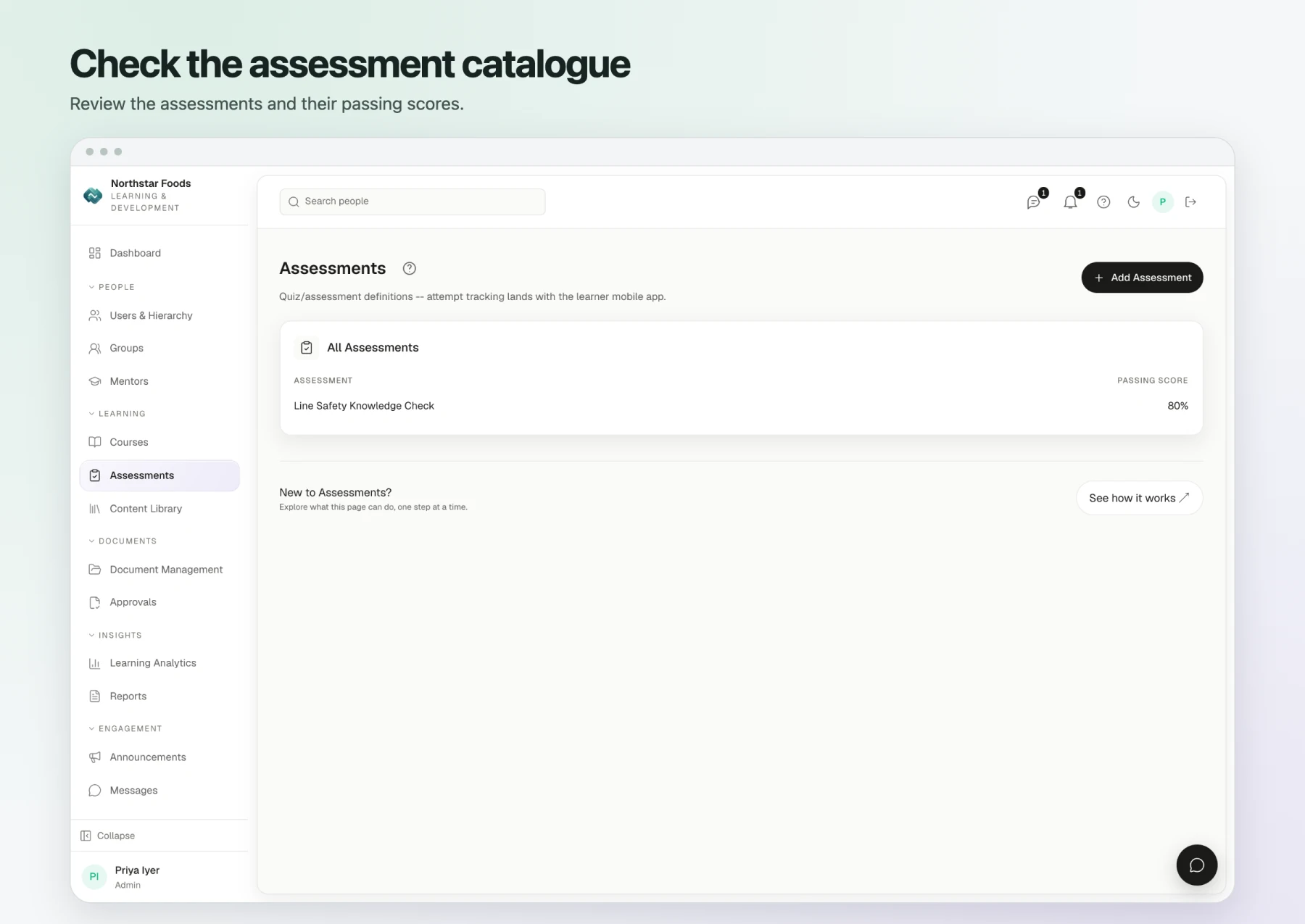
Assessments
Open an assessment to review its settings.
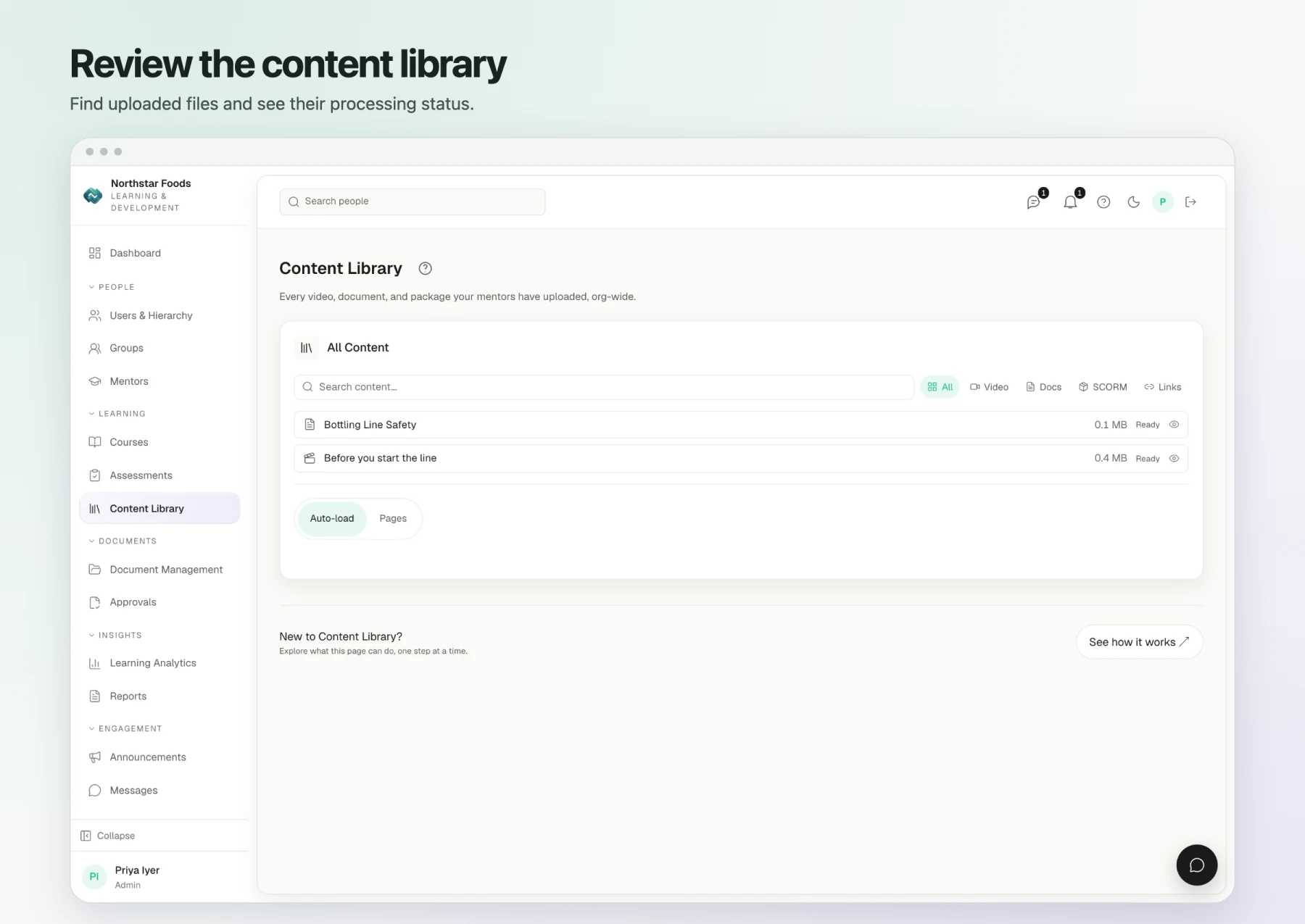
Content Library
Filter uploaded files and check which are ready.
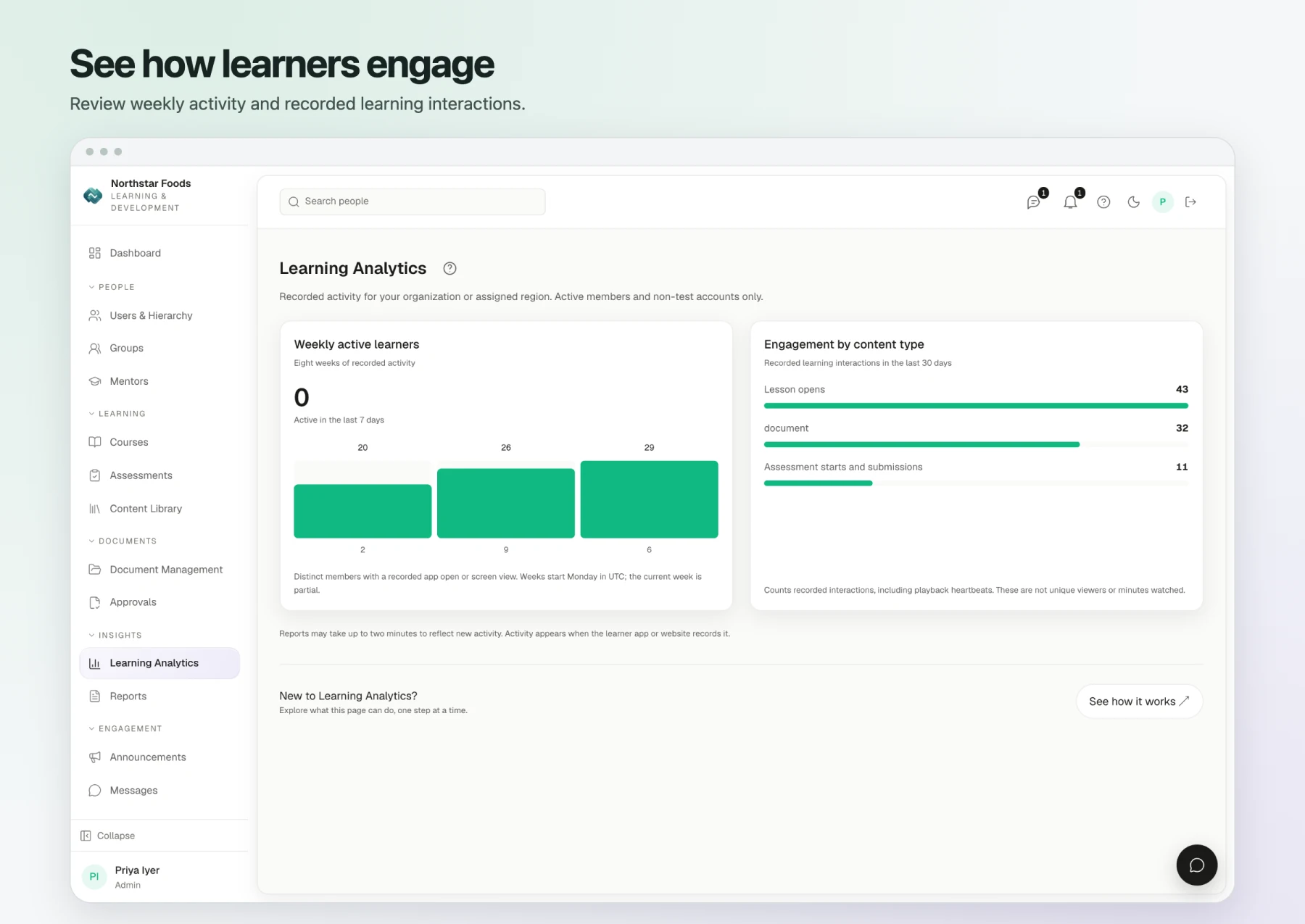
Learning Analytics
Compare activity and engagement over time.
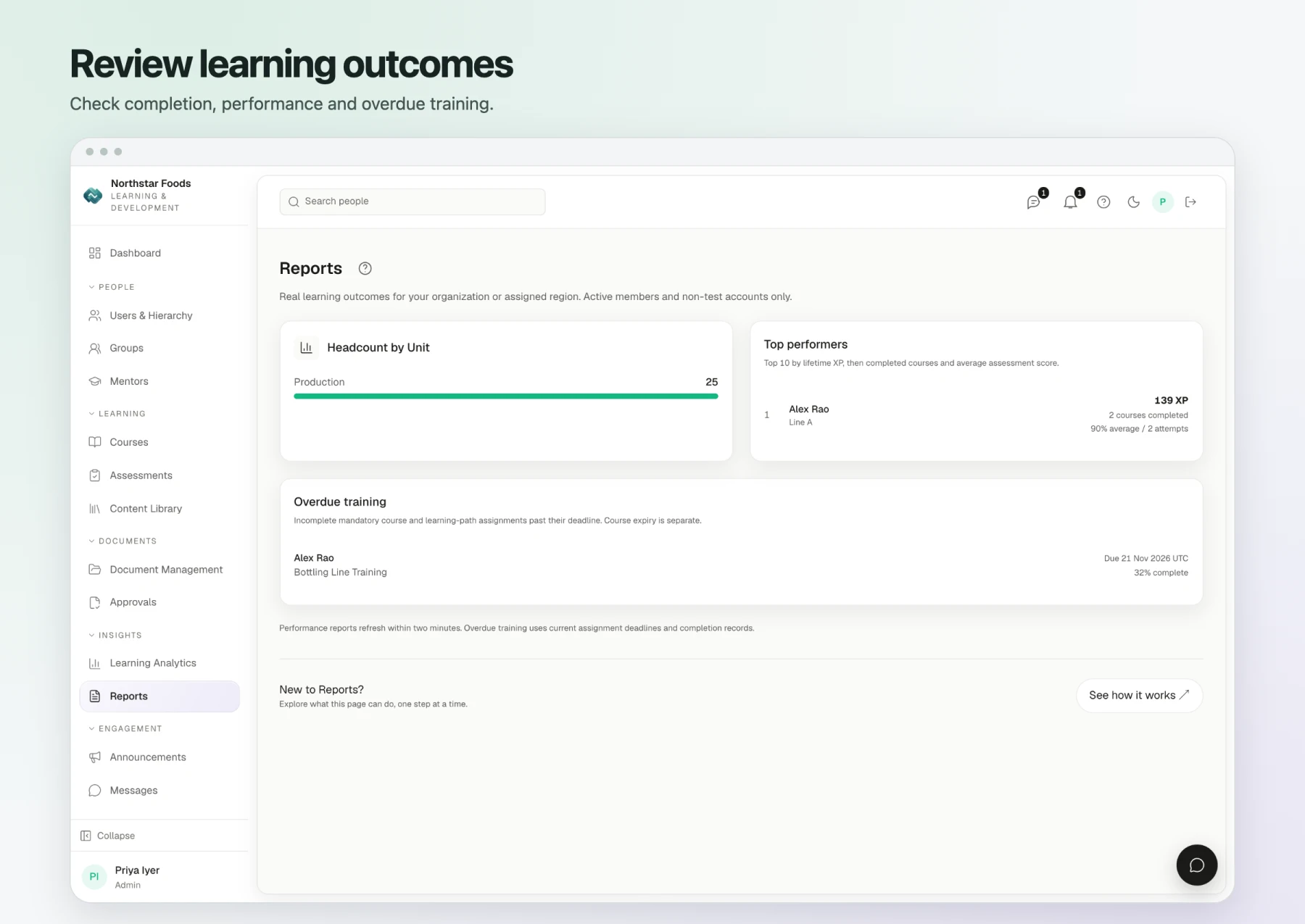
Reports
Check leading learners and overdue training.
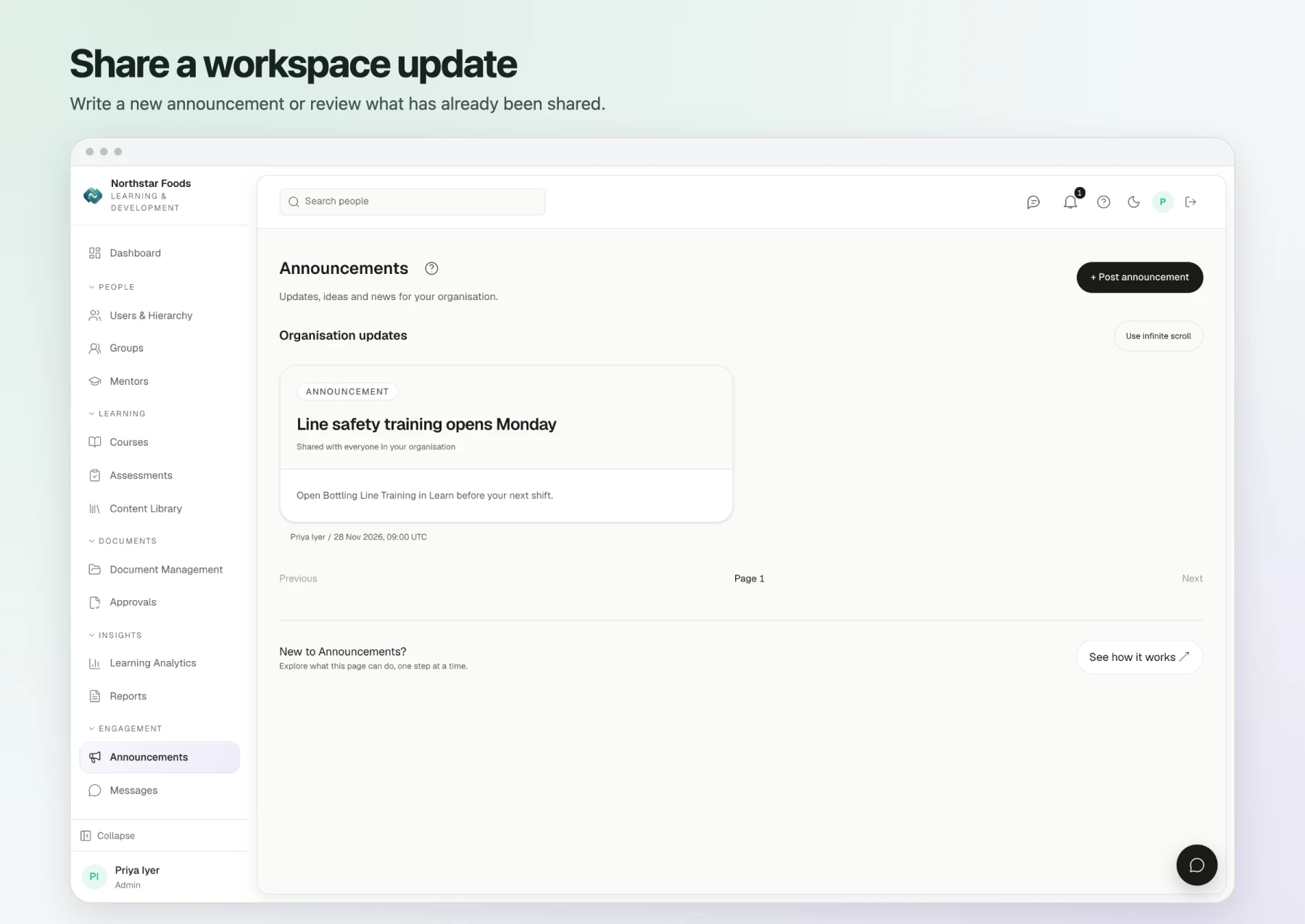
Announcements
Draft an announcement and choose its audience.
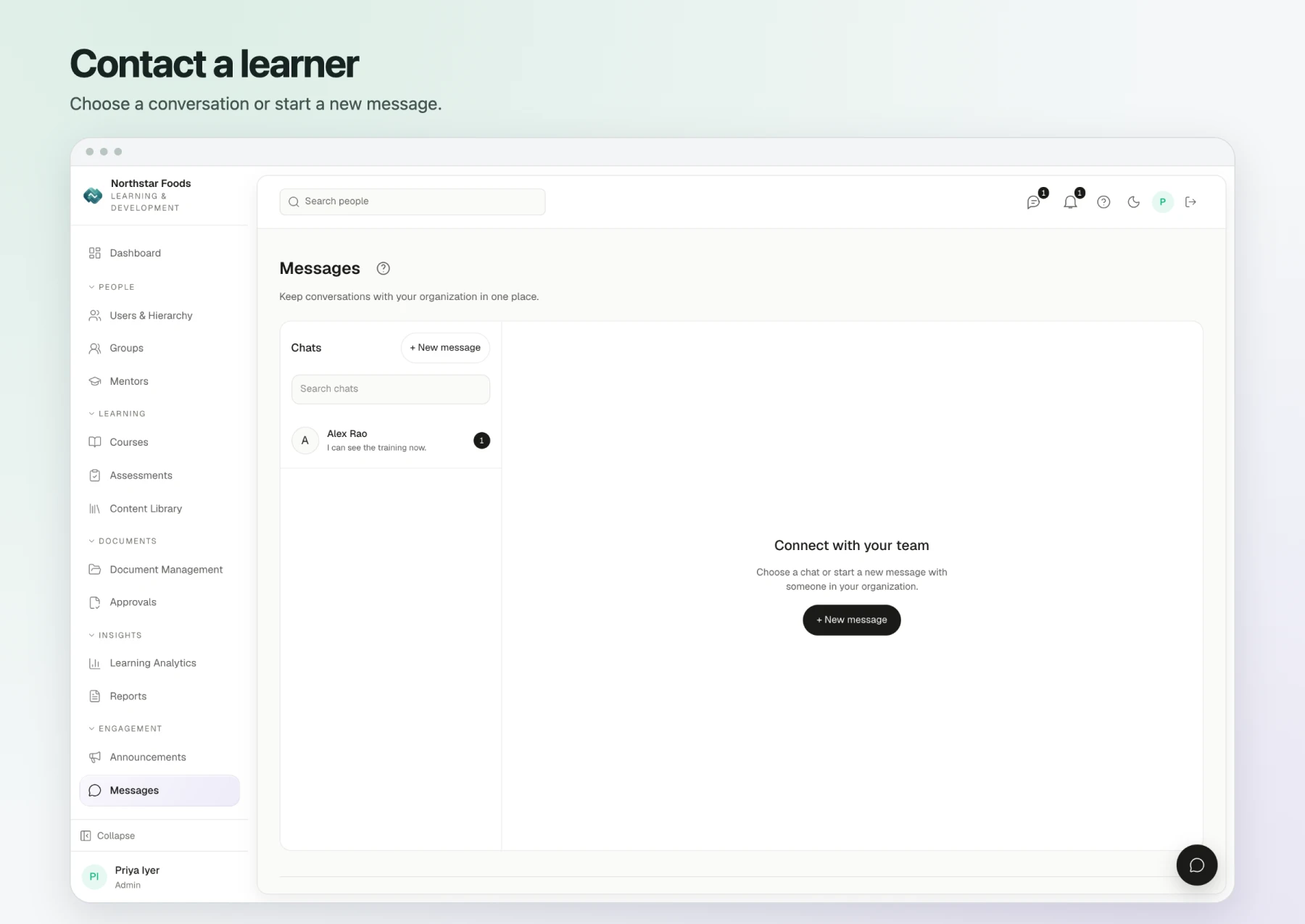
Messages
Select a conversation and write a message.
Administration
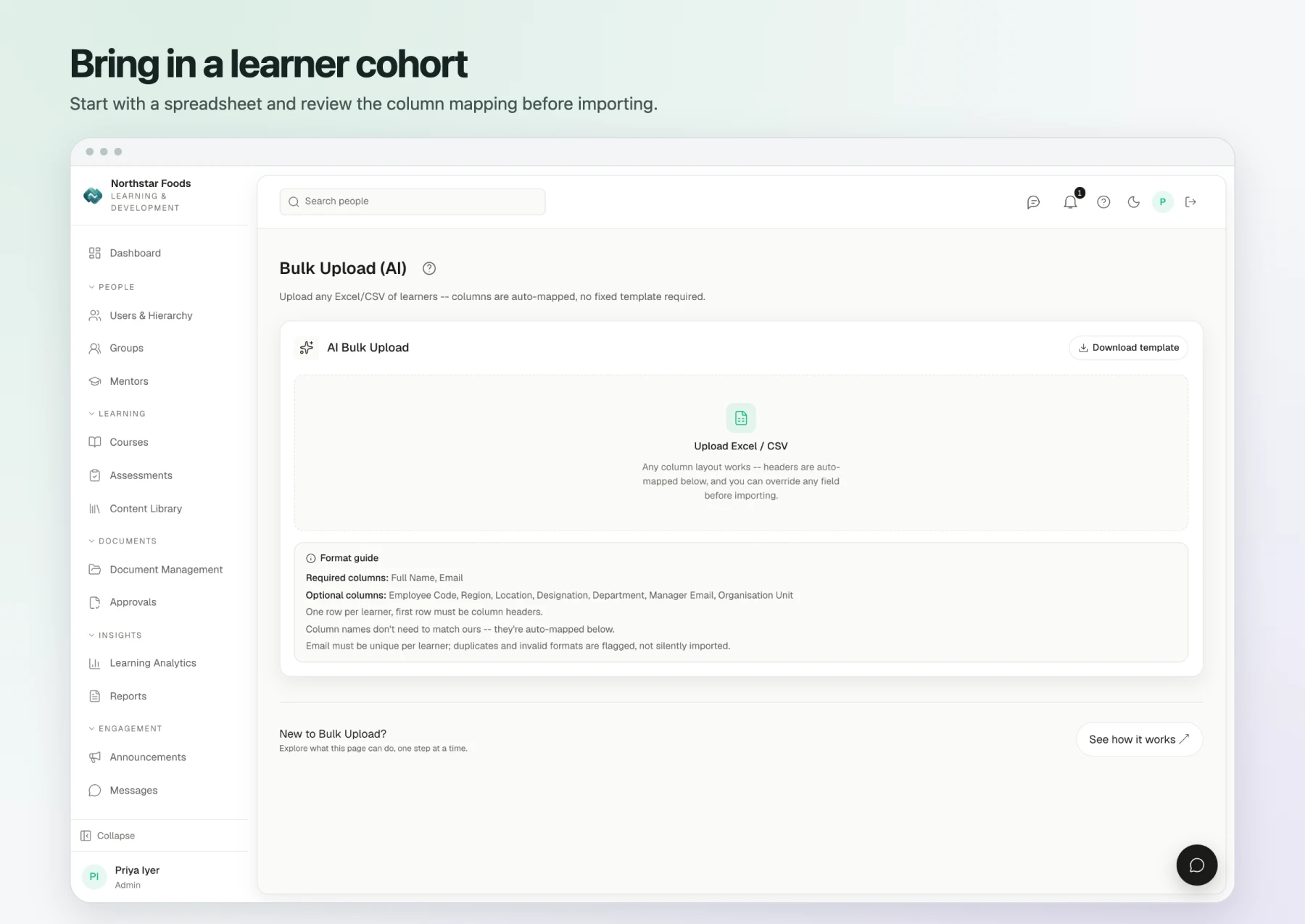
Bulk Upload (AI)
Download the spreadsheet template or upload an existing Excel or CSV file.
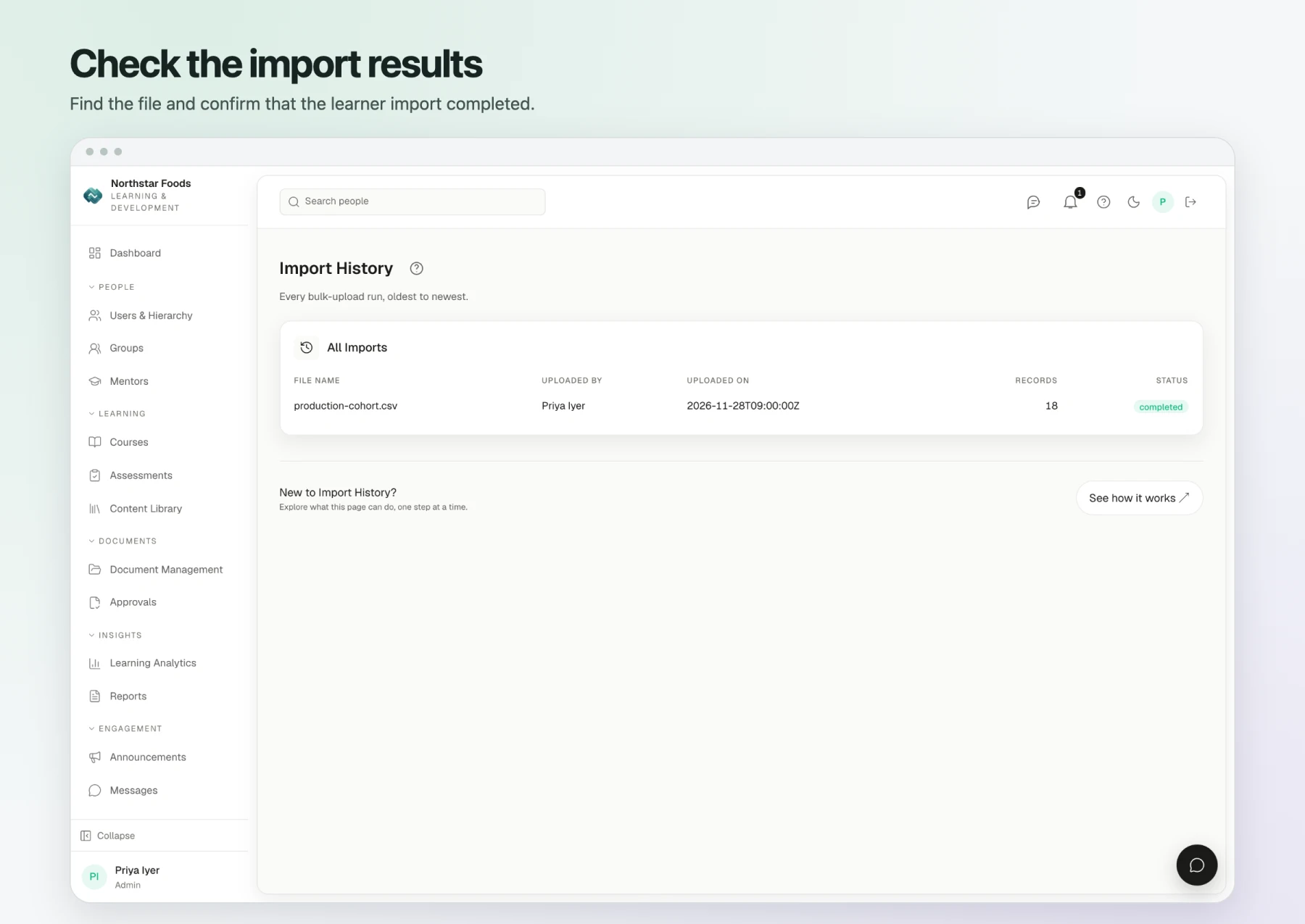
Import History
Find the file and check its processing status.
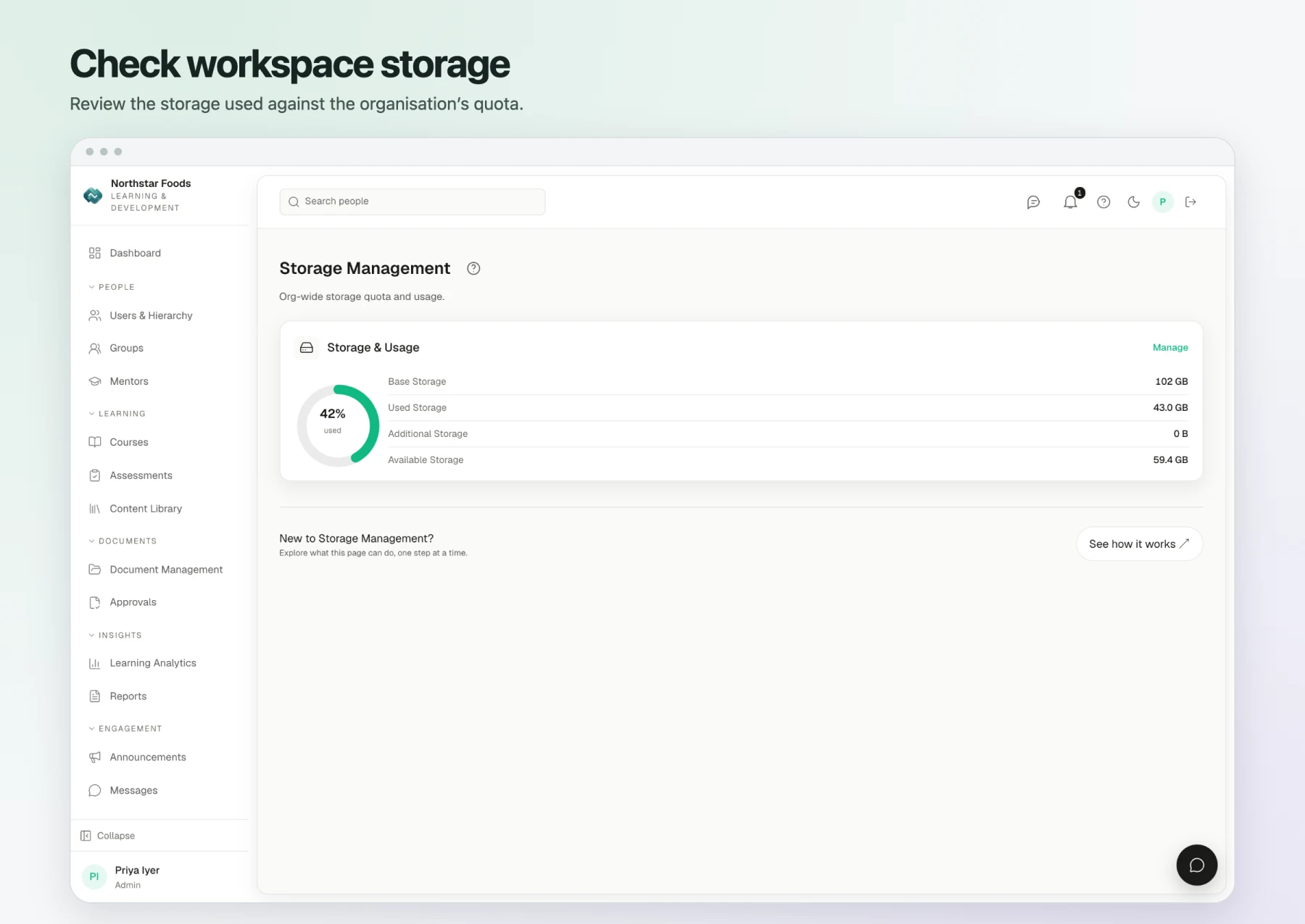
Storage Management
Monitor usage against your workspace quota.
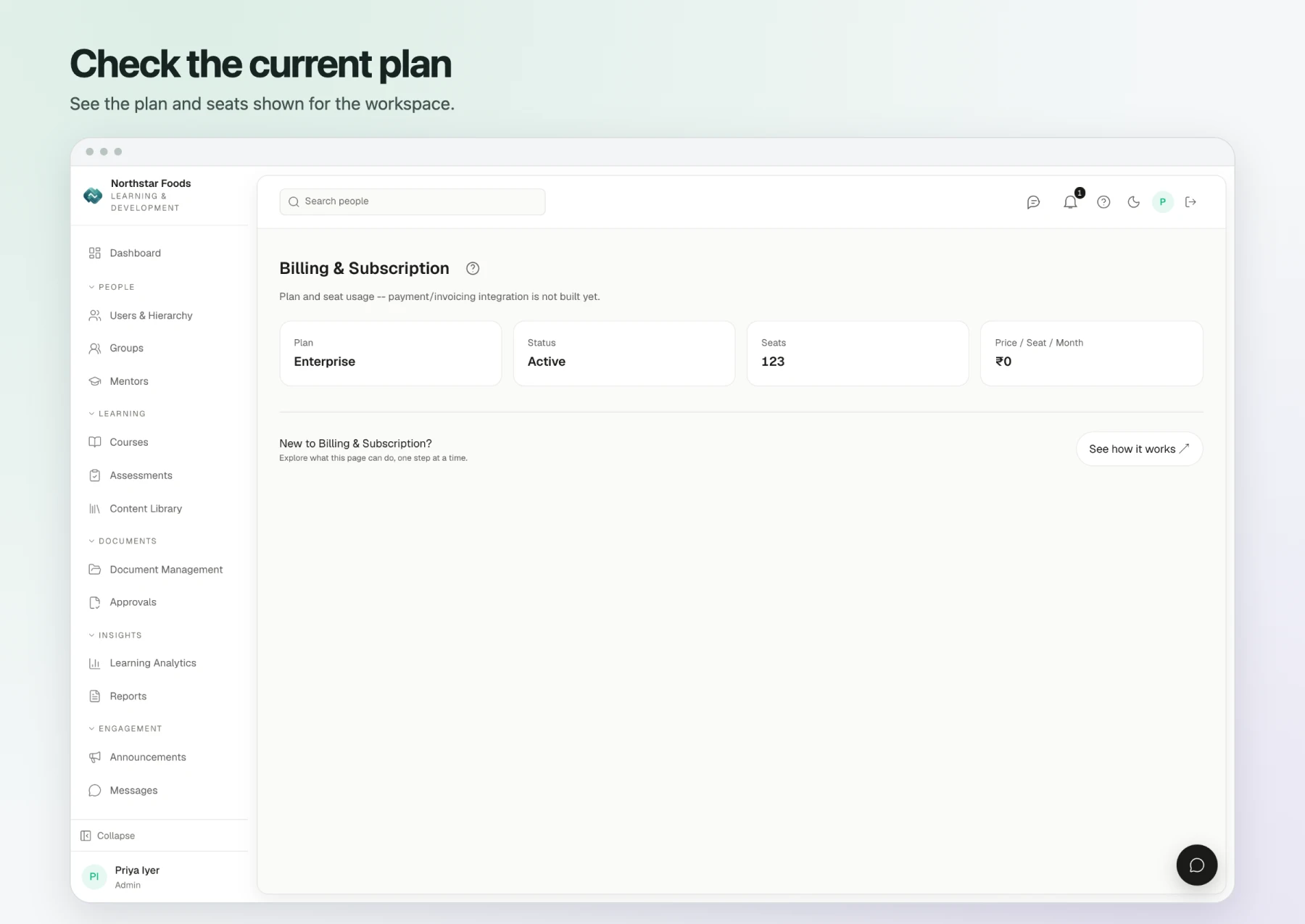
Billing & Subscription
Review your current plan and seat count.
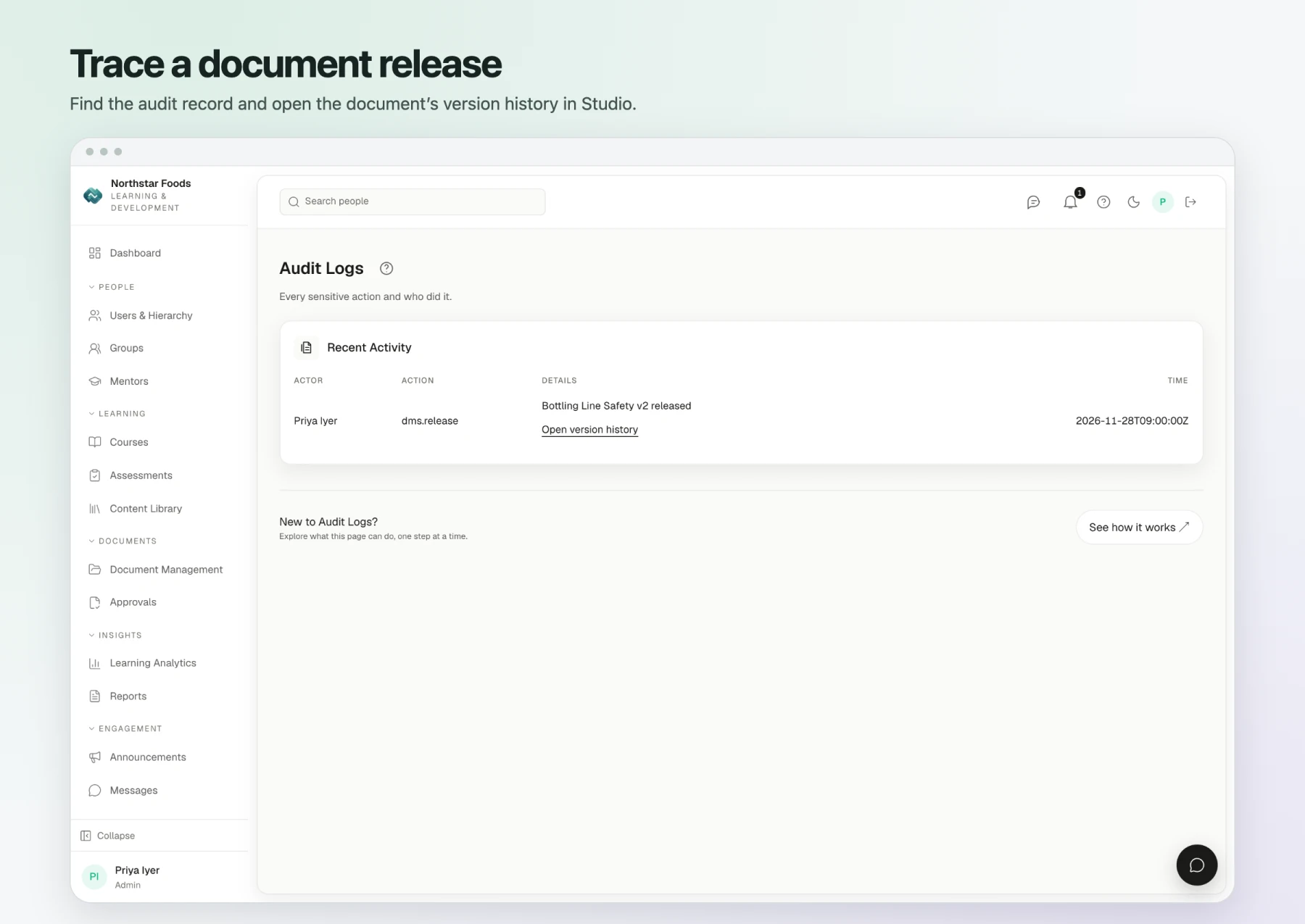
Audit Logs
Trace a workspace change to its actor and time.
Access and assignment
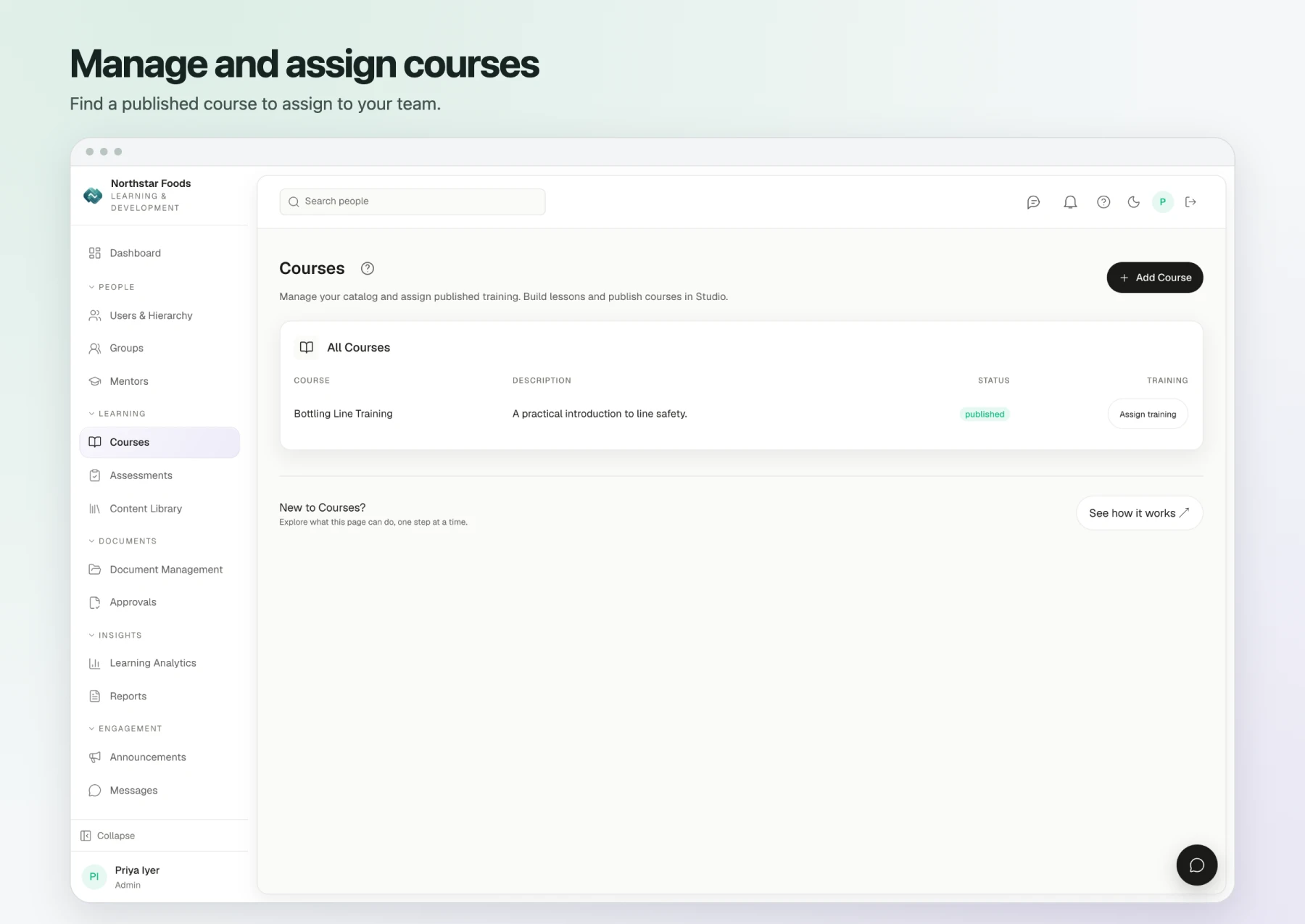
Courses
Find the right course and open the assignment action.
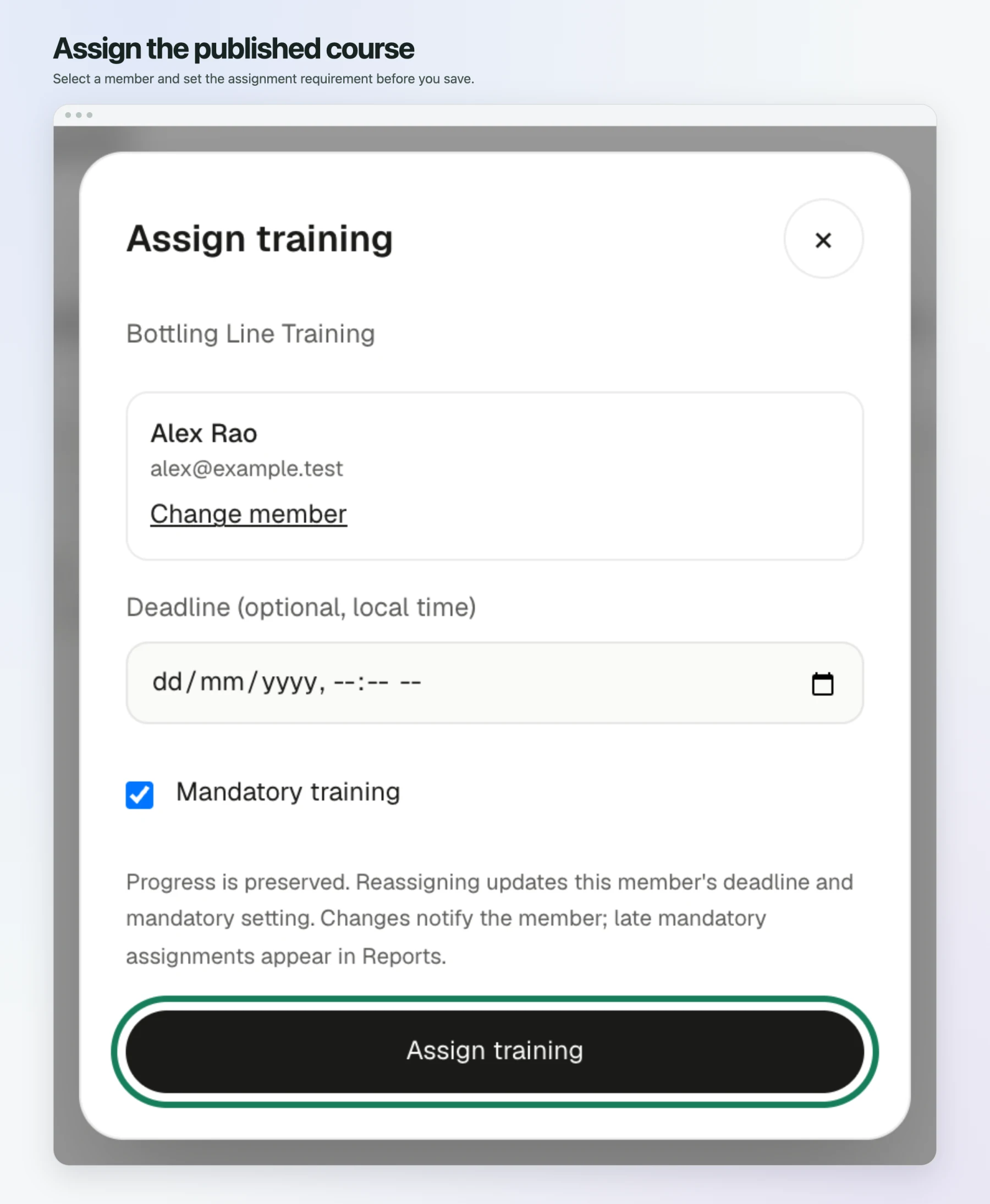
Assign training
Choose learners and decide whether a deadline or mandatory assignment is needed.
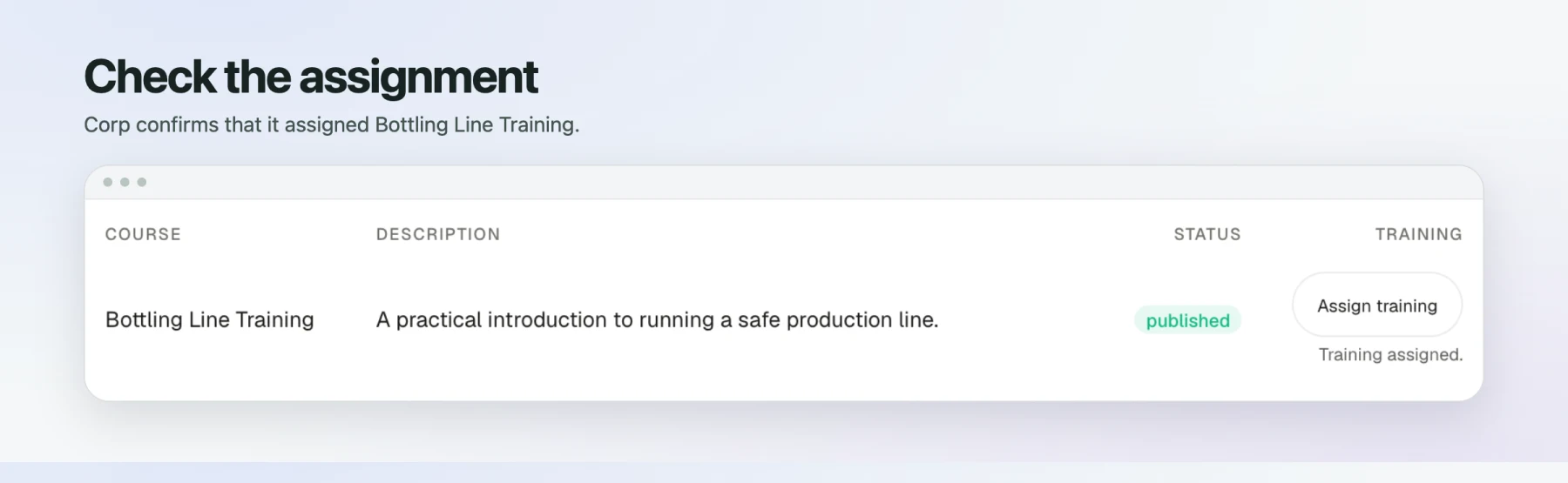
Check the assignment
Confirm the course appears in the training list.
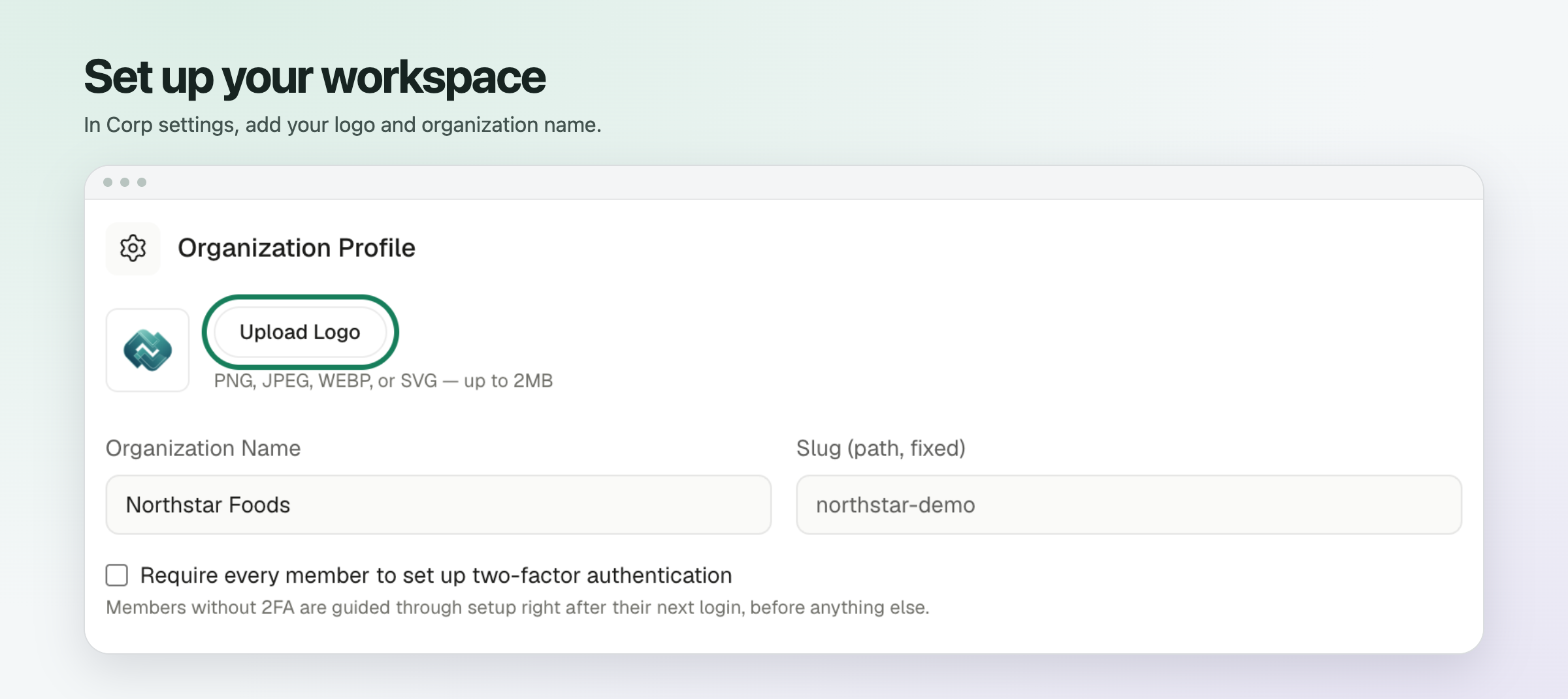
Organization Profile
Update the logo and organisation settings.
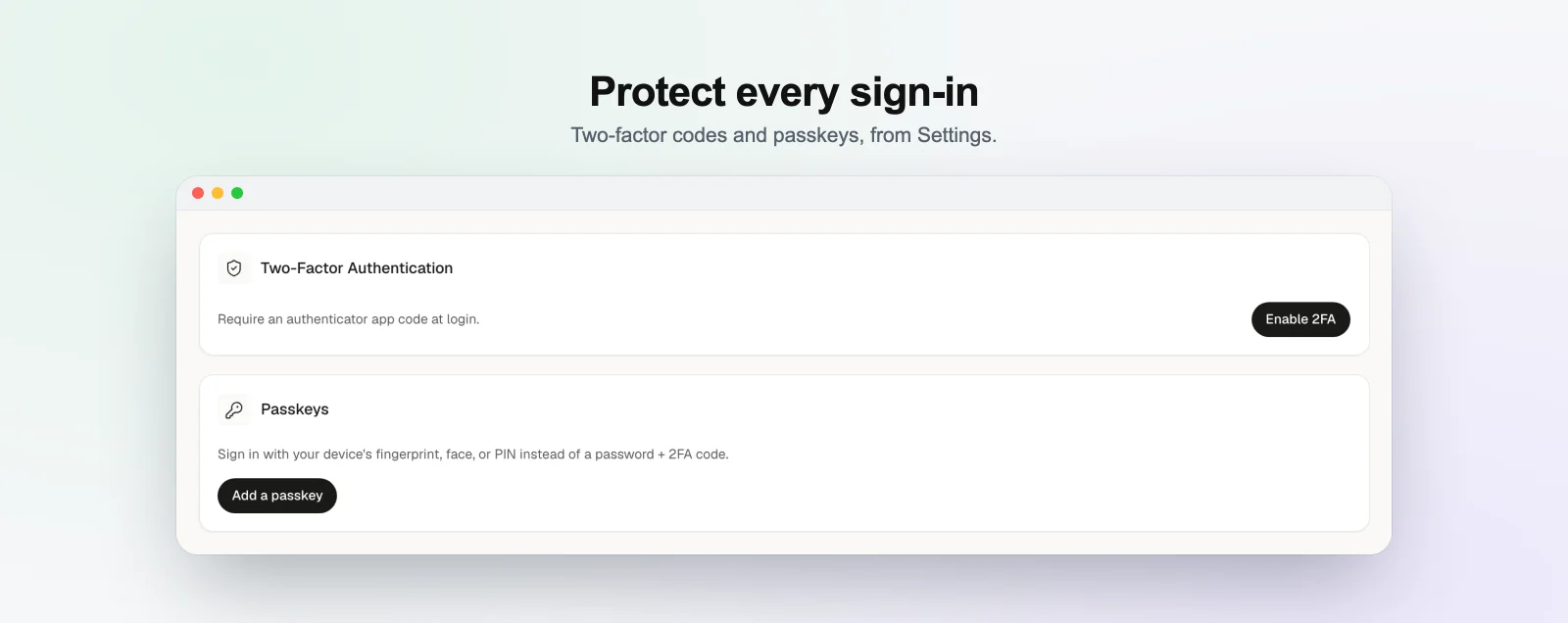
Two-factor authentication and passkeys
Manage your sign-in methods in Settings.
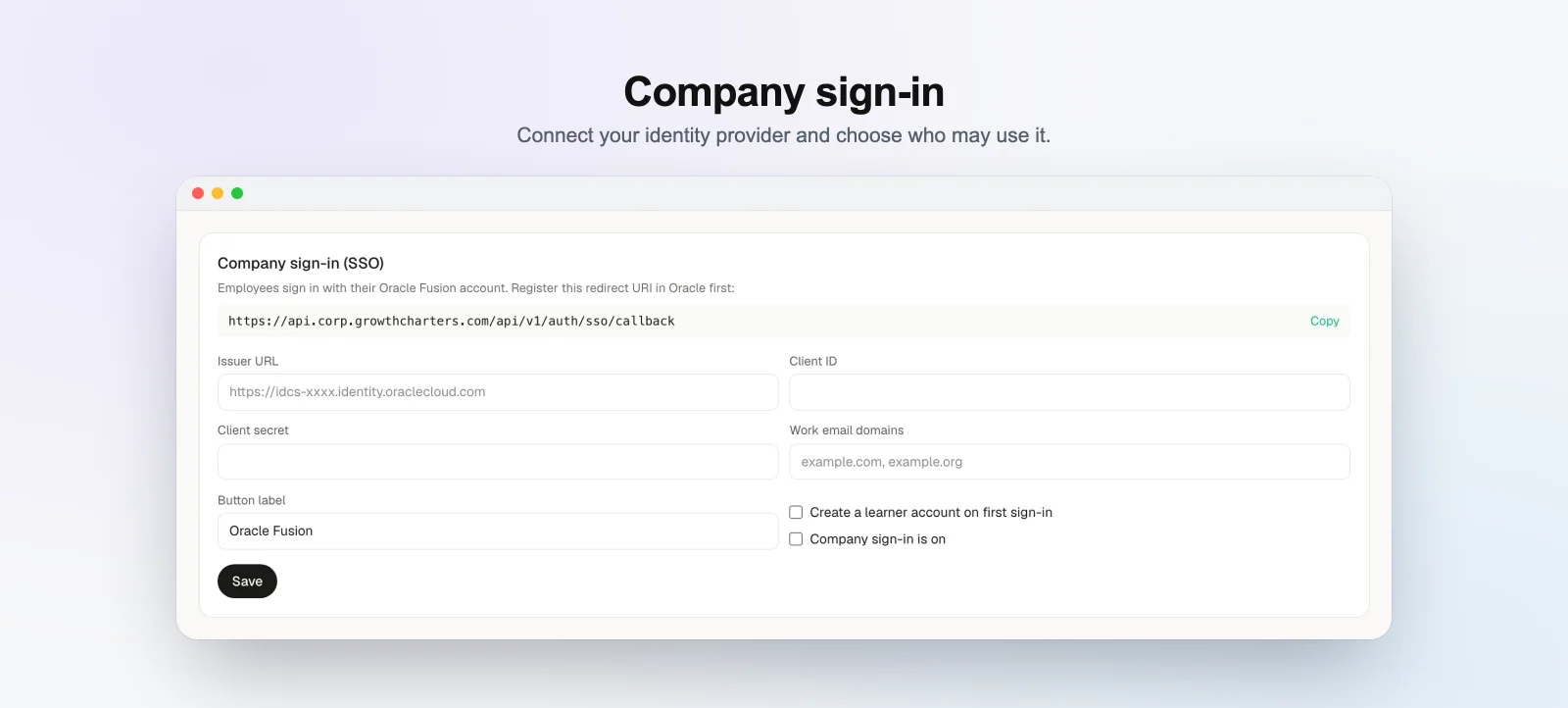
Company sign-in
Use the identity-provider settings to connect SSO.
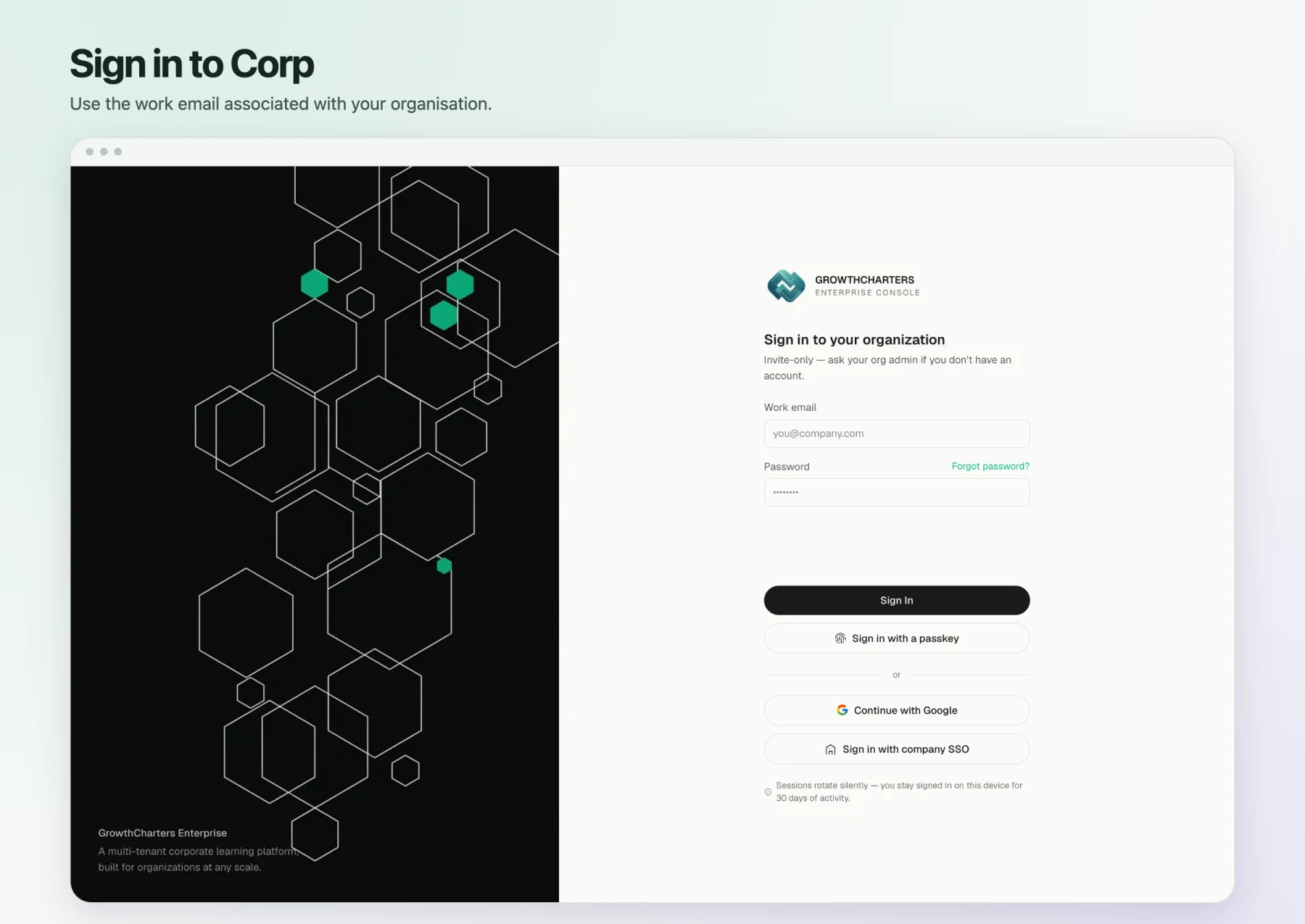
Org Portal sign-in
Sign in with your work email or your configured identity provider.
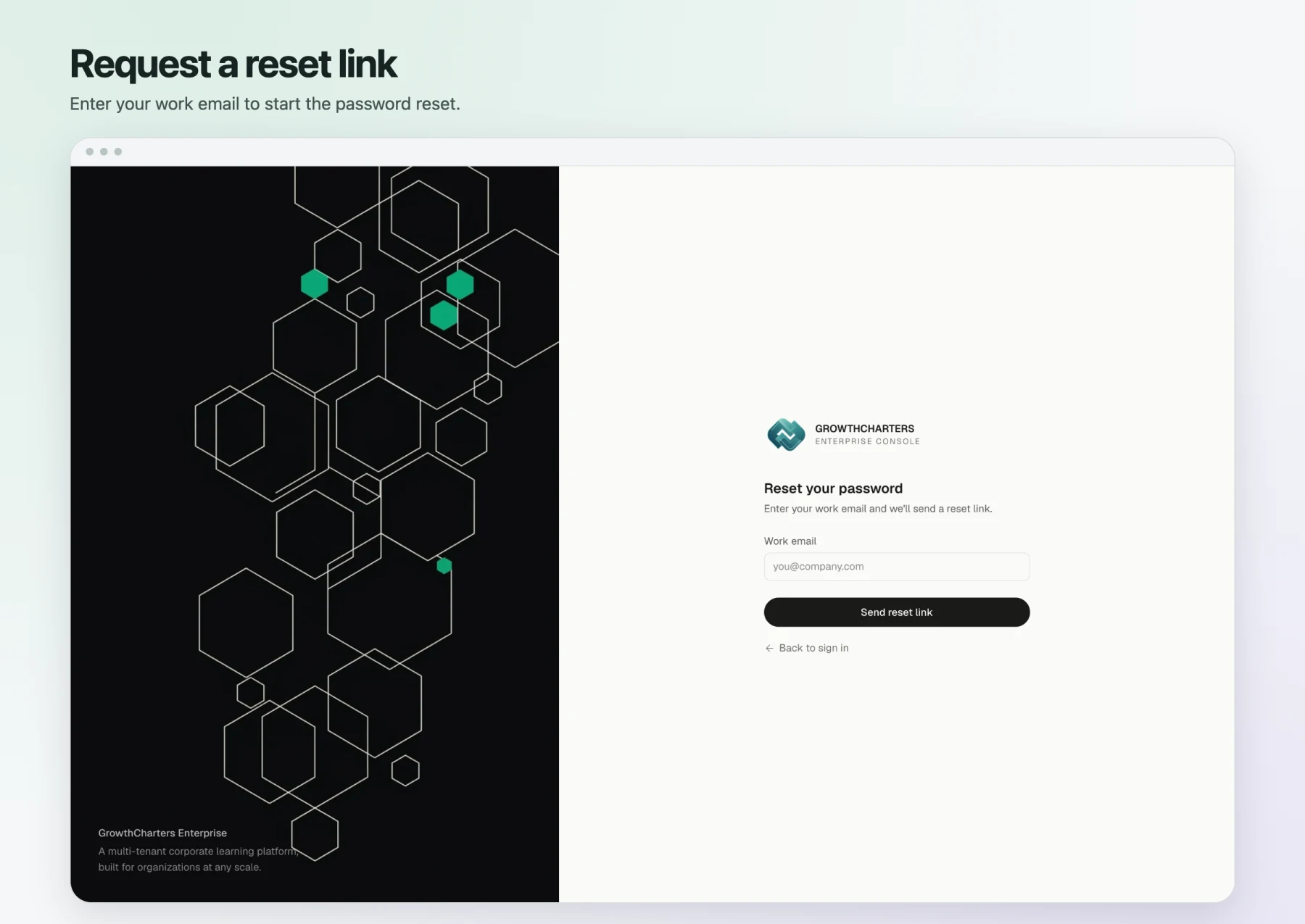
Request a reset link
Use the reset form when you cannot sign in.
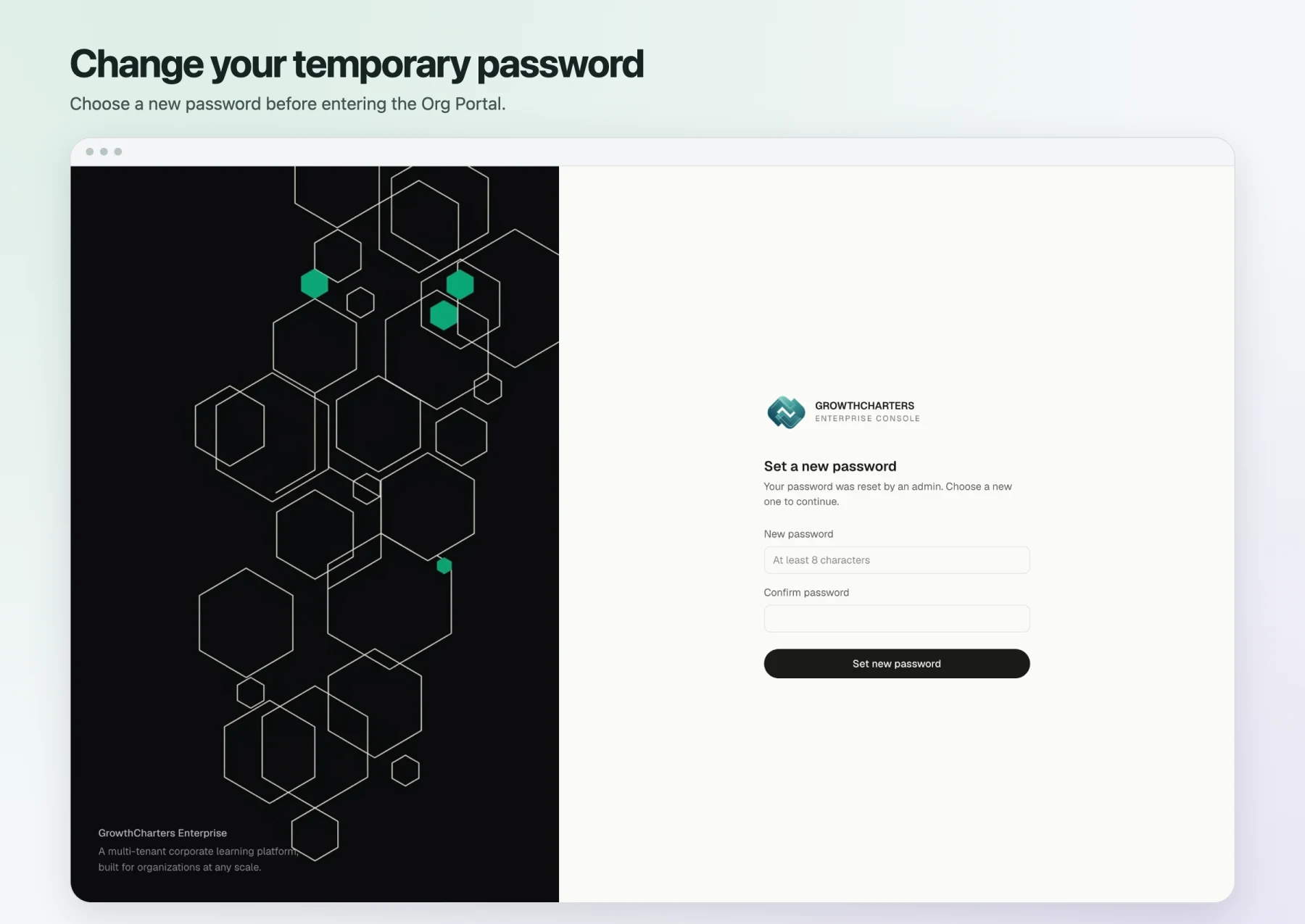
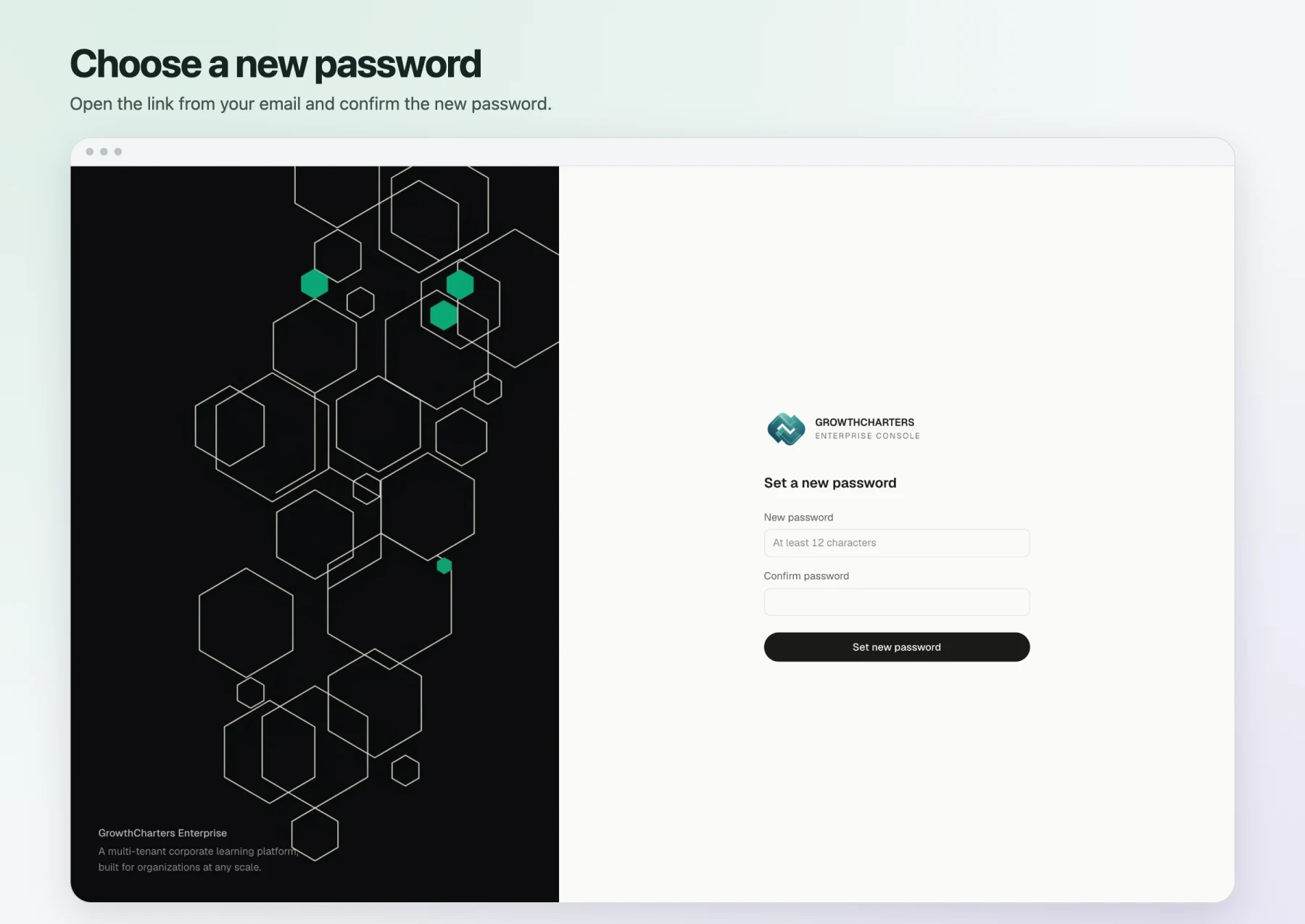
Set a new password
Enter and confirm the password from the reset link.
First-time password
Replace the temporary password when prompted.